
Ever install a language app that claims it’s a small download, then a week later your phone warns you you’re out of space? That gap is app storage bloat: the slow (or sudden) build-up of cached media, offline lessons, voice assets, and user data that doesn’t show up in the store listing.
This guide gives you a repeatable 2026 test you can run on iOS or Android to measure three things: the real installed size, how fast the cache grows, and what you can delete without breaking your course or losing progress.
Prep and baseline: what to measure on iOS vs Android
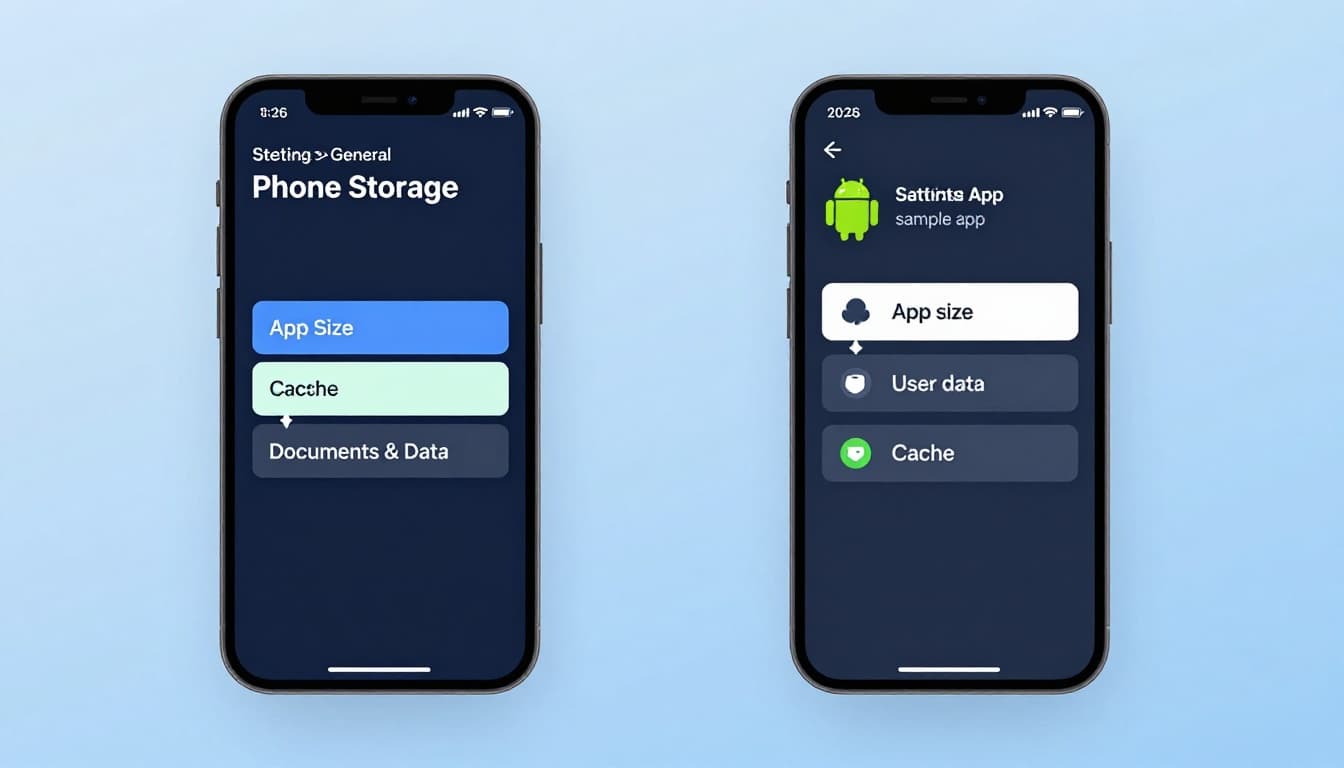 Where to find storage breakdowns on iOS and Android, created with AI.
Before you test, you need a clean “Day 0” snapshot. Think of it like weighing a suitcase before the trip, then again after you’ve added shoes, books, and souvenirs.
Prerequisites checklist (do this once):
- Stable Wi-Fi (and keep cellular data off during the test window).
- Baseline free space: aim for at least 5 GB free so iOS/Android don’t auto-purge or stall downloads.
- A logging method: screenshots plus a simple notes doc (date, time, action taken).
- Auto-updates paused for the app you’re testing, if possible, so version changes don’t skew results.
Now set your measuring points:
- iOS (most common path): Settings → General → iPhone Storage → select the app. You’ll usually see App Size and Documents & Data (iOS doesn’t always label “Cache” explicitly). Apple’s reporting can lag after big deletes or installs, so re-check after a restart if numbers look wrong.
- Android (most common path): Settings → Apps → (your app) → Storage (or Storage & cache). You often get separate values for App size, User data, and Cache. Wording varies by brand skin and Android version.
One more baseline tip: store listings often show download size, not the installed footprint after decompression and first-run setup. For a plain-English explanation of why iOS apps balloon after install, see why iOS apps take so much space.
The 14-day storage bloat test (download size, cache growth, and growth rate)
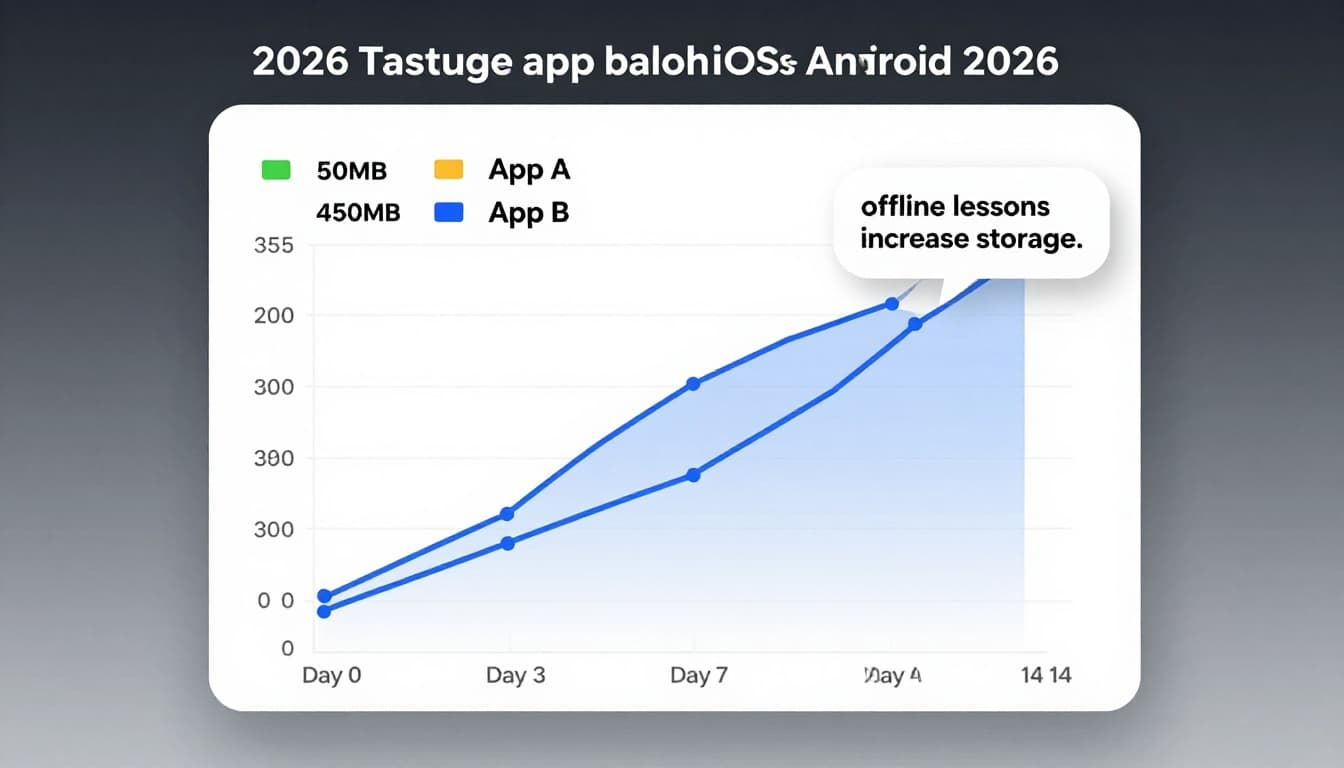 An example of how cache can grow over two weeks, created with AI.
This test is built to be fair across apps, even when their storage categories don’t match perfectly.
Step-by-step (numbered) test protocol
- Record Day 0 values from the OS storage screen (screenshot it).
- Install the app on Wi-Fi, open it once, then wait 5 minutes (first-run downloads often continue briefly).
- Record “post-first-run” values and label them Day 0B in your log.
- Use a fixed routine each day (example: 10 minutes of lessons, 5 minutes of review). Keep it similar across apps you compare.
- If the app offers offline mode, download one small, defined bundle (example: 3 lessons or 1 unit). Log exactly what you downloaded.
- Log storage on Day 3, Day 7, Day 14 at about the same time of day.
- Note major events: downloading audio, enabling speaking practice, switching courses, adding dictionaries, or saving videos.
- Optional stress check: stream 10 minutes of audio or video on Day 7, then re-check cache.
- Calculate growth rate (next section), and compare “routine days” vs “offline download days.”
Simple spreadsheet schema (columns and formulas)
| Column | Example value | What it means | Formula (if needed) |
|---|---|---|---|
| Date | 2026-02-11 | Measurement day | |
| Day # | 0, 3, 7, 14 | Days since install | |
| App version | 6.2.1 | Helps explain jumps | |
| OS reported total (MB) | 820 | Total storage used | |
| App binary (MB) | 210 | “App Size” / “App size” | |
| Data (MB) | 610 | Documents, user data, cache combined | |
| Notes | “Downloaded Unit 1 audio” | What changed | |
| Growth since Day 0 (MB) | 240 | Total increase | =D2-$D$2 |
| Growth per day (MB/day) | 17.1 | Average rate | =(D2-$D$2)/B2 |
If iOS doesn’t split cache cleanly, treat “Documents & Data” as your growth bucket and compare that over time.
Minimize measurement noise (so your numbers mean something)
Noise-control checklist:
- Close the app after each session (don’t leave it downloading in the background).
- Avoid OS updates during the 14 days.
- Don’t run other heavy downloads (podcasts, offline maps) at the same time.
- Expect reporting lag. If storage doesn’t change after deletion, wait 10 minutes, then reboot and re-check.
- Watch for “mystery jumps” after updates. App teams do work to reduce size sometimes, like Duolingo’s write-up on reducing app size by 20%, but updates can also add new assets.
What to delete safely in language apps (offline lessons, audio packs, speech models)
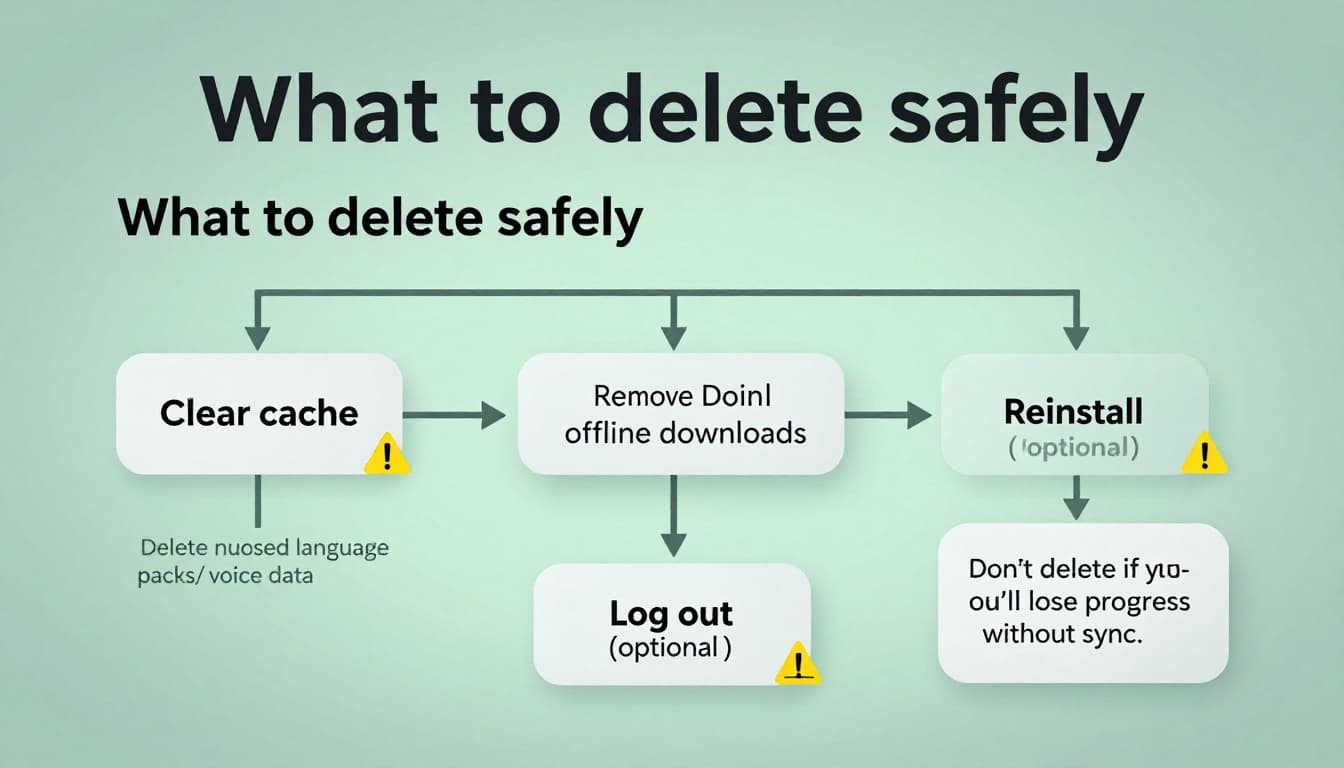 Safe cleanup order for common storage sources, created with AI.
When people panic-delete, they usually remove the wrong thing first. Use this order to shrink app storage bloat while keeping your learning intact.
Clear cache (lowest risk, biggest “quick win” on Android)
- Android often has a direct Clear cache button: Settings → Apps → (app) → Storage & cache → Clear cache (path may vary).
- iOS usually doesn’t offer “clear cache” per app. You may need to remove offline downloads inside the app, or use offload/reinstall methods.
Privacy note: clearing cache can remove local media and temporary files. It should not delete your account, but it can sign you out in some apps or remove locally saved session data. Make sure progress is synced before you wipe anything.
Remove offline lessons and audio packs (high impact, still safe)
Offline content is the most common cause of large growth: units, video lessons, pronunciation audio, and review decks stored for travel.
If you want a practical approach to downloading only what you’ll actually use (and not hoarding gigs), follow the same “packing list” logic in Offline Language App Survival Guide for Trips. For day-to-day home Wi-Fi routines, Using Language Apps Offline with Limited Wi-Fi helps you batch downloads and keep storage steady.
Delete unused speech assets, voice data, and language packs (safe if you understand the trade-off)
Some apps store:
- Speech models or voice packs for speaking checks.
- Extra languages (multiple courses installed).
- High-quality audio you may not need.
Deleting these is usually safe, but it can reduce speaking features offline, and the app may re-download them later.
Dictionaries and course databases (safe, but expect re-download)
Offline dictionaries and course databases can be big. Removing them is safe if you’re fine re-downloading on Wi-Fi. If your app offers “download over Wi-Fi only,” keep it on so it doesn’t rebuild the cache on cellular.
Log out or reinstall (last resort)
Only do this if storage is stuck or the app’s data is corrupted.
- Log out can wipe offline downloads and may clear local progress that hasn’t synced yet.
- Reinstall usually resets local data, but it also forces a clean rebuild. On iOS, offloading can remove the app binary while keeping some documents, but behavior varies by app.
If your storage screen looks impossible after an OS update, you’re not alone. Even Apple users report odd accounting at times, like this iOS storage bug discussion. Treat it as a clue to verify with a reboot and time, not as proof your language app “ate” space overnight.
Conclusion
A good storage test doesn’t need special tools, it needs consistency. Log Day 0, keep your routine steady, and measure again on Day 3, 7, and 14. When space gets tight, delete in the safe order: cache, offline downloads, unused packs, then only consider reinstalling. If you run this once, app storage bloat stops being a mystery and becomes a number you can control.

