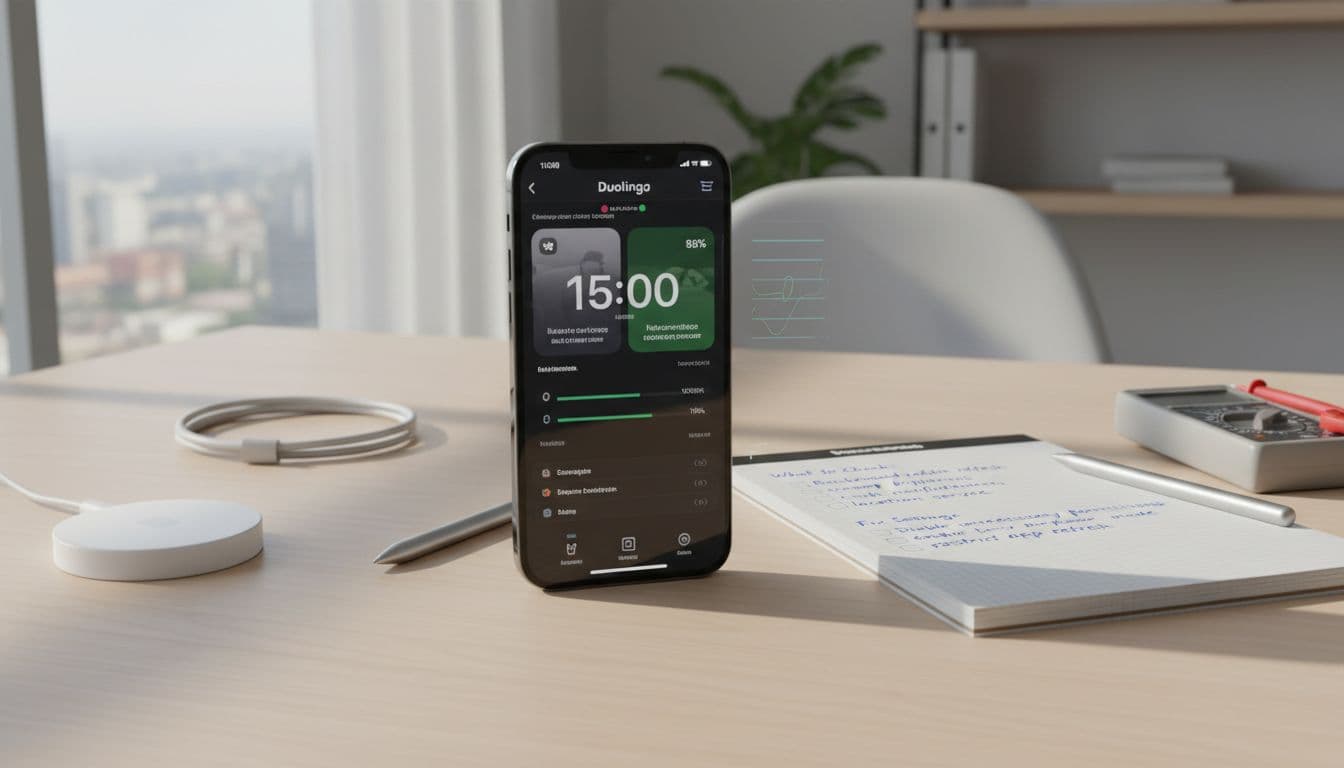
If a language app makes your battery drop like a stone, you don’t need guesswork or a full day of monitoring. You need a short, repeatable battery drain test that tells you two things fast: how much power the app uses in real study, and which phone settings stop the worst drain without ruining your learning.
This 15-minute method is built for common language app behaviors, lessons, SRS reviews, offline downloads, and speaking exercises. Run it once to get a baseline, then run it again after one change. Treat it like a kitchen timer, not a mystery novel.
Set up a fair 15-minute battery drain test (so results mean something)
Photo by Ron Lach
Battery drain is like a leaky faucet: one tiny drip is fine, five drips at once empties the sink. Before you test, turn off the extra drips so the app is the main variable. If you want a deeper testing mindset (and why consistent conditions matter), skim this battery drain testing QA guide.
Pre-test controls (2 minutes)
- Charge to a stable range: 60 to 90 percent is ideal (avoid 5 percent panic mode).
- Close other heavy apps: video, games, maps, social feeds.
- Disable battery saver for the test only (you’ll turn it on later if you want to compare).
- Pick one network: Wi-Fi or cellular, then stick with it.
- Set brightness: choose a fixed level (around 50 percent), turn off auto-brightness if you can.
- Turn off your charger and unplug accessories: no power banks, no wired headphones that keep the screen awake.
Quick settings map (iOS vs Android)
| What to lock down | iOS menu path | Android menu path |
|---|---|---|
| Battery stats | Settings > Battery | Settings > Battery |
| Background activity | Settings > General > Background App Refresh | Settings > Apps > (Your app) > Battery |
| Screen brightness | Settings > Display & Brightness | Settings > Display |
| Network type | Settings > Wi-Fi or Cellular | Settings > Network & internet |
| Microphone/camera access | Settings > Privacy & Security | Settings > Privacy or Security & privacy |
One more rule: keep the test realistic. If you only use the app with audio and speaking drills, test that mode. If you mostly do SRS reviews on the train, test on cellular.
Run the 15-minute test and record results (baseline first, then one change)
The goal is not to get a perfect number. The goal is to get a comparable number. You’re building a tiny “before and after” story.
The 15-minute protocol (timer on, notes ready)
- Open Battery stats and note your starting percent.
- Force-quit the language app, then reopen it fresh.
- Start a 15-minute timer.
- Use one study mode only (pick the one you suspect):
- Lesson with audio on
- SRS or review session
- Speaking exercise (mic on)
- Offline download or syncing session
- Keep the screen on the whole time (don’t lock it mid-test).
- At 15 minutes, note the end percent, then check Battery stats for the app’s share.
If you want context on common iOS drains (background work, constant wakeups, audio sessions), this overview of what drains battery in iOS apps is a useful reference for the patterns you’re looking for.
Copyable results table template
| Date/time | Start % | End % | Drop % | Screen-on (min) | Network (Wi-Fi/5G/LTE) | App mode (lesson/SRS/speaking/download) | Notes (audio on, mic on, video, etc.) |
|---|---|---|---|---|---|---|---|
| 15 | |||||||
| 15 |
How to read the number without overreacting
A 1 to 3 percent drop in 15 minutes can be normal, depending on screen brightness and audio. A 6 to 10 percent drop in 15 minutes is a red flag, unless you were downloading large files on cellular or running continuous speech recognition.
Now do the same test again, but change one thing. One toggle, one permission, one app setting. Otherwise you won’t know what fixed it.
Settings that usually fix language app battery drain (without breaking study flow)
Language apps tend to drain battery in predictable ways: constant audio playback, repeated syncing, downloads, “keep screen awake” behavior, and sensor use during speaking. Start with the biggest wins first.
High-impact fixes (do one, then re-test)
- Stop background refresh
- iOS: Settings > General > Background App Refresh > Off (or Wi-Fi only)
- Android: Settings > Apps > (Your app) > Battery > Restricted (wording varies)
- Limit notifications
- iOS: Settings > Notifications > (Your app) > turn off non-essential alerts
- Android: Settings > Notifications > App notifications
- Control downloads and syncing
- In-app: set downloads to Wi-Fi only, avoid “auto-download next lesson”
- If you study offline often, use a planned download session at home, then go offline (this language app offline setup guide helps you structure it so the app isn’t hunting for signal all day).
- Reduce audio cost
- Use wired headphones when possible, lower volume a bit, turn off “high-quality audio” if the app offers it.
- Avoid leaving a lesson paused with the audio screen open.
- Fix “always-on” screen behavior
- If the app has “keep screen awake,” turn it off.
- If you need it, lower brightness first and keep sessions short.
- Tame cellular drain
- Weak signal burns battery fast. If you’re on a train or basement, switch to offline practice or wait for stable Wi-Fi.
For broader phone-level ideas that also help language apps, see PCMag’s quick fixes to extend Android battery life and apply only the ones that fit your study routine.
Privacy and safety: confirm microphone and camera use (don’t assume)
Speaking practice can trigger continuous listening, and some apps also use camera features for AR or placement. You don’t need to panic, but you should verify what’s active.
Check permissions
- iOS: Settings > Privacy & Security > Microphone (and Camera), confirm the app’s toggle.
- Android: Settings > Privacy (or Security & privacy) > Permission manager > Microphone (and Camera).
Confirm when the mic is actually in use
- iOS: watch for the mic indicator in the status area when a speaking task starts.
- Android: watch for the mic indicator in the status area, then open Privacy controls to see “used in last 24 hours” (menu names vary).
If a language app is using the mic when you’re only doing silent SRS, remove mic permission and re-test. Many apps still work fine for reading and review. If you want an off-screen option that keeps progress moving with less battery, this offline vocabulary review system pairs well with app-based lessons.
Conclusion: best default settings for low drain (and still good learning)
A clean battery drain test is simple: lock conditions, run 15 minutes, log the drop, change one thing, repeat. You’ll find the culprit faster than scrolling through battery graphs for days.
Best defaults that usually reduce drain without hurting learning:
- Background refresh off for the language app
- Downloads on Wi-Fi only, batch them at home
- Brightness fixed at a moderate level
- Notifications limited to one daily reminder (not every streak prompt)
- Microphone permission only when needed for speaking sessions
- Offline SRS or review when signal is weak
Run your baseline today, then re-test after one change. Your battery should stop feeling like it has a hole in it.

