A download can look safe at breakfast and fail on the train by lunch. That’s why a quick download expiry check beats guesswork.
For most language app downloads, the real problem isn’t a big countdown clock. It’s a hidden subscription lapse, a sync issue, a device cleanup, or a lesson pack that changed after an update. Run this check before a trip, commute, or offline study block.
Run the 10-minute expiry check before you lose access
Start with the places that reveal most offline problems fast.
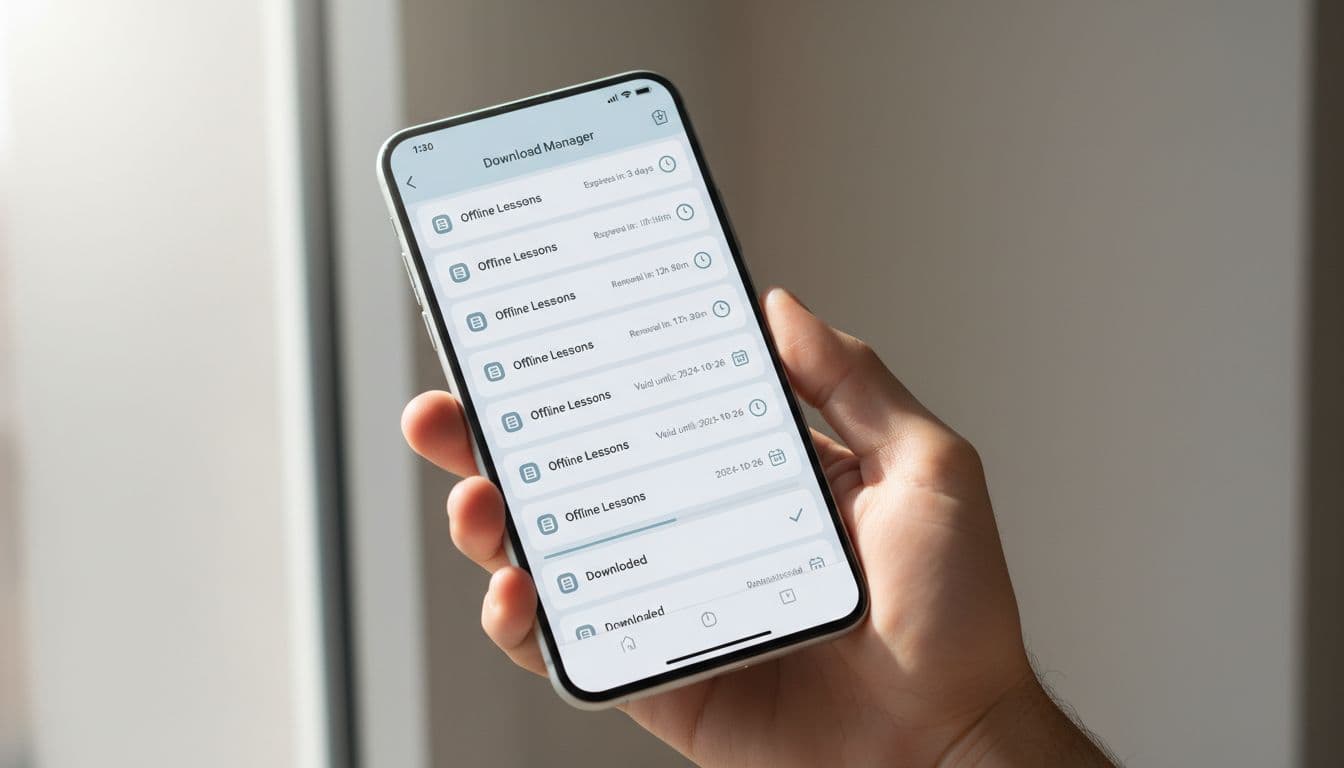
This table shows where to look first.
| Area to check | What to look for | Red flag |
|---|---|---|
| Download manager | Expiry date, timer, cloud icon, queued status | “Refresh,” “Expired,” or missing files |
| Lesson details | Offline badge, audio pack, last update | Lesson opens online only |
| Sync status | Recent progress, completed lesson count | Spinner never finishes |
| Subscription page | Active tier, renewal date, trial end | Plan ended or wrong account |
| Account page | Signed-in email, family seat, device access | Different account than expected |
Then move through the app in order:
- Minute 1 to 2, open Downloads or Offline. Tap one old lesson and one new one. If only recent lessons work, the app may be caching rather than storing full files.
- Minute 3 to 4, open lesson details. Look for labels like “available offline,” “last synced,” “audio downloaded,” or “update download.” Some apps split lesson text from audio, so one can work while the other expires or disappears.
- Minute 5 to 6, check sync status. Turn Wi-Fi on, open the course home, and wait a few seconds. If your streak, progress bar, or recent lesson list looks stale, the app may not be validating offline access.
- Minute 7 to 8, review subscription and account pages. Check the plan end date, free-trial end date, and signed-in email. Offline access often varies by app, device, subscription tier, and even content licensing. If you’re sorting out plan limits, this 2026 checklist for language app subscriptions helps you spot what paid access really changes.
- Minute 9 to 10, run the airplane mode test. Turn off Wi-Fi and mobile data, reopen the app, then play one audio clip and finish one short task. If it fails here, redownload the pack on stable Wi-Fi. This guide to preparing your language app for offline study is useful if downloads often fail at home.
If an app doesn’t show a clear expiry date, treat subscription status and sync state as the first suspects.
Where apps usually hide expiry clues in 2026
In March 2026, public help results don’t show a simple, app-wide timer for offline lessons in Duolingo, Babbel, Memrise, Drops, or Busuu. That means app-specific details are subject to change, and the best clues usually live inside the app itself.
Duolingo
Duolingo’s offline behavior often feels more like cached access than a classic download locker. Check your profile, then Settings and subscription status, or confirm the renewal date in Apple or Google billing. If a unit opens only after you viewed it online, you’re likely seeing cached lessons, not a permanent offline pack.
Also check whether the app recently signed you out. A quiet account reset can make offline content look expired when the real issue is authentication.
Babbel and Busuu
Babbel and Busuu tend to be more structured, so look for a dedicated download list, saved lessons area, or offline manager. Open a downloaded lesson, then inspect whether audio, review cards, and full exercises are all stored, not only the main lesson shell.

If the lesson is present but won’t launch, go straight to Account or Subscription. A plan change can block access even when files still sit on the device.
Memrise and Drops
Memrise and Drops have both changed features over time, so test the exact course you plan to use. Look for offline courses, download queue status, lesson pack size, and “last updated” hints. If only some packs fail, the issue may be a stale file or a course update.
Licensing can matter too. Voices, media files, or partner content sometimes rotate, which means a lesson pack may need a fresh download even if your plan is still active.
If you’re comparing apps before you commit, CNET’s best language learning apps for 2026 and Migaku’s language learning app comparison give helpful context on which tools still treat offline study as more than an afterthought.
Why downloads expire, vanish, or stop opening
Most offline failures come from four boring causes, not one dramatic one.
- Your subscription changed: A trial ended, a payment failed, or a family-plan seat moved. The download may stay visible, but the app stops opening it.
- Your device cleaned up storage: iOS or Android can remove old files, offload apps, or leave a partial download behind. This often hits audio-heavy lesson packs first.
- Sync never finished: If the app didn’t fully sync after a lesson, it may not confirm your rights for offline access later.
- The content changed: A lesson was updated, renamed, or swapped out because of app changes or licensing rules.
The fix is simple. Reconnect to stable Wi-Fi, open the app, confirm the right account, delete one broken pack, then download it again. Don’t grab the whole course at once. Download the next few lessons you’ll use, then test them offline.
Before a flight or long ride, it also helps to verify offline lessons in airplane mode. That one-minute test catches more problems than any menu screen.
A missing timer doesn’t mean a download is safe. It only means you need to check the signs that matter.
Run the 10-minute check once, then trust the airplane mode test. If your lessons open with the internet fully off, your offline study is ready.