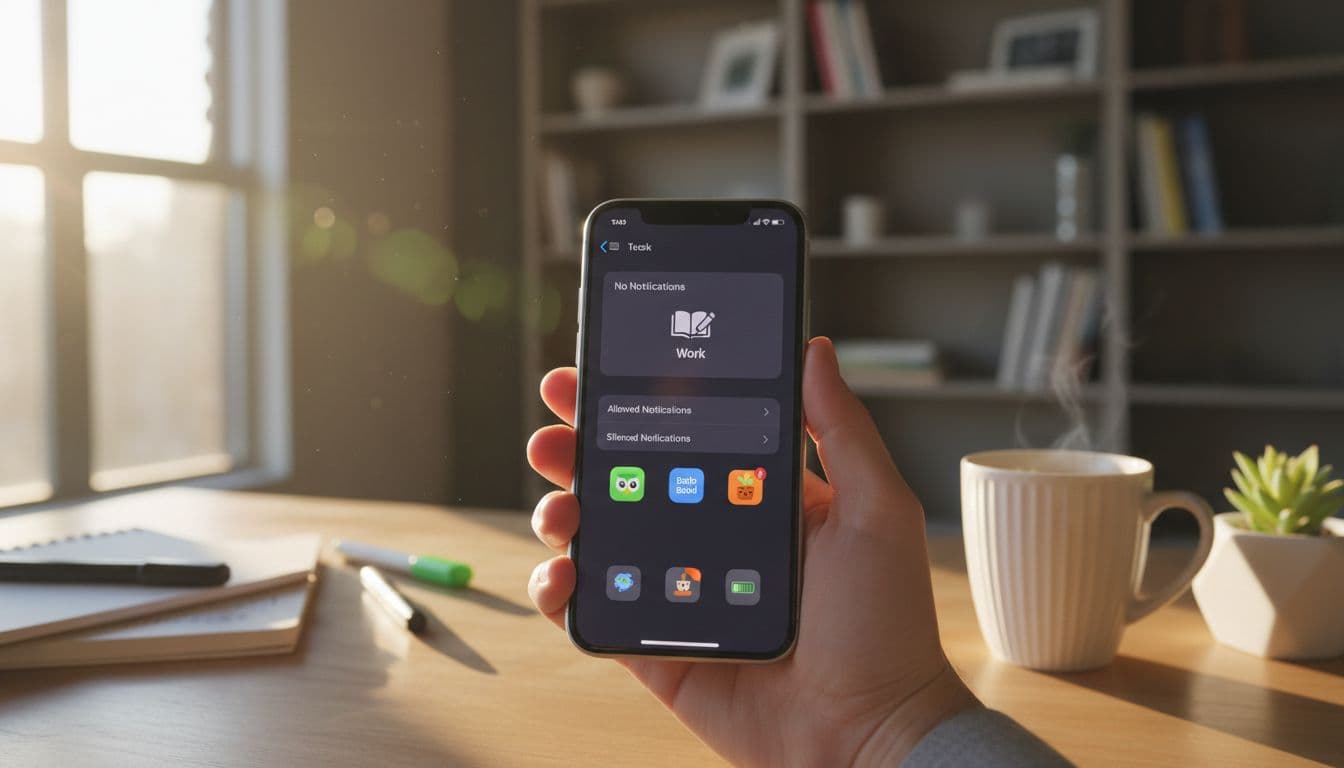
Language apps are great at teaching you, and even better at grabbing your attention. One tap to “do a quick lesson” can turn into ten minutes of streak screens, leaderboards, and random notifications from other apps.
This guide shows how to set up phone focus mode, notifications, and widgets so your language apps (Duolingo, Babbel, Memrise, Anki, and similar) stay helpful, not noisy. You’ll keep the habit, and lose the interruptions.
Start with a simple rule: make study the only “easy” thing
Think of your phone like a kitchen. If cookies are on the counter, you’ll snack. If the fruit is washed and within reach, you’ll eat better. Your goal is the same: make your language session easy to start, and make distractions slightly harder to reach.
A good setup has three parts:
- A focus mode that blocks most interruptions during study
- Notification settings that allow only what you truly need
- A home screen that doesn’t “advertise” your apps all day
If you’re also deciding which app style fits your attention best, this comparison can help (some apps are more gamified than others): Rosetta Stone vs Duolingo: which app suits you best
Set up phone focus mode for language study (iPhone and Android)
iPhone (iOS): Focus that only allows what matters
Use one Focus for studying languages. Keep it strict, then relax it later if needed.
- Settings > Focus > + (Add Focus) > Custom
- Name it “Language Study” (or “Study Block”)
- People: Allow none (or only family if needed)
- Apps: Allow only essentials (music, timer, calendar), and optionally your language app
- Options (wording varies by iOS version):
- Silence Notifications: On
- Time Sensitive Notifications: Off (turn on only if you truly need it)
- Share Focus Status: Optional
Apple’s official walkthrough on Focus notification control is useful if menus look different on your phone: Allow or silence notifications for a Focus on iPhone
Recommended extra (high impact):
- Settings > Focus > Language Study > Home Screen
- Turn on Hide Notification Badges
- Turn on Custom Pages and select a single “Study” page (more on that below)
Android: Focus Mode or Do Not Disturb (depending on your phone)
Android names vary by brand, but these paths cover most phones.
Option A (best for app blocking):
- Settings > Digital Wellbeing & parental controls > Focus mode
- Select distracting apps to pause (social, email, news)
- Leave your language app unpaused
- Turn on Focus mode during study
Option B (best for interruption control):
- Settings > Notifications > Do Not Disturb (sometimes Settings > Sound & vibration > Do Not Disturb)
- Allow only priority calls or alarms
- Schedule it for your study block if you want it automatic
Google’s official hub for Android notification and interruption controls: Notification & interruption settings
For a broader overview of tools like Focus Mode, Bedtime Mode, and dashboards: Digital Wellbeing
Fix language app notifications (so reminders help, not hijack)
Language apps often send three kinds of notifications:
- Reminders (useful)
- Engagement nudges (streak warnings, “you dropped in leagues”, promos)
- Social and news (rarely useful for learning)
Your job is to keep category 1 and remove categories 2 and 3.
iPhone: per-app notification tuning
- Settings > Notifications > (Your language app)
- Allow Notifications: On (if you want any reminders), otherwise Off
- Sounds: Off (keep reminders silent if sound pulls you away)
- Badges: Off (badges are low-grade stress)
- Banners: Deliver Quietly if that option appears, or set Banner Style to temporary
- Lock Screen: Off (optional, but it reduces drive-by checking)
If you like reminders but hate timing, try:
- Settings > Notifications > Scheduled Summary (then add the language app) This keeps non-urgent pings bundled.
Android: per-app notification categories (channels)
Android often lets you switch off specific categories inside the app’s notification settings.
- Long-press the app icon > App info > Notifications
- Turn off categories like “Promotions”, “Social”, “Tips”, “News”
- Keep “Reminders” (or similar) on
- Turn off Notification dot and Badge if available
Clean up widgets and home screens (they’re tiny billboards)
Widgets are convenient, but they also keep your brain “in app mode” all day. If you want less distraction, reduce how often you see language app prompts.
iPhone: remove widgets and control Smart Stacks
- Long-press Home Screen > Edit > tap – on a widget to remove it
- If you use Smart Stack, remove the language widget from the stack (it can surface at the worst time)
- Lock Screen widgets:
- Long-press Lock Screen > Customize > remove language widgets
A solid compromise: keep one language widget on a dedicated Study page, not on your main page.
Android: remove widgets and stop “suggested” surfaces
- Long-press the widget > Remove
- If your launcher shows suggested apps or a news feed, consider disabling it in launcher settings (names vary), or move it off your main screen
Recommended settings presets (pick one and stick to it for a week)
Use these as starting points. You can always loosen later.
| Scenario | Phone focus mode setup | Language app notifications | Widgets and home screen |
|---|---|---|---|
| Minimal distractions | Focus/Do Not Disturb on during work hours and evenings | Off completely, rely on a calendar habit instead | No widgets, app moved off main screen |
| Keep streak reminders only | Focus on during work, allow alarms and calendar | Reminders on, promos/social off, sounds off, badges off | One widget allowed on a “Study” screen only |
| Deep work + study block | Strict Focus for 25 to 60 minutes, allow nothing except timer | Off during block, allow after block if needed | Custom Home Screen page with only study tools |
Troubleshooting (common issues that make people give up)
“Focus is on, but notifications still show up”
- iPhone: Settings > Focus > (Your Focus) > Apps, remove “Allowed Apps” you don’t need. Also check Time Sensitive Notifications.
- Android: If using Do Not Disturb, confirm exceptions:
- Settings > Notifications > Do Not Disturb > People/Apps (names vary)
- Remove apps that are allowed through
“I missed my reminder and broke my streak”
Use a two-layer approach:
- Keep one reminder notification (silent is fine).
- Add a backup in your system tools:
- iPhone: Calendar/Reminders app at a consistent time
- Android: Calendar or a daily alarm labeled “Language”
“Widgets keep reappearing or my phone keeps suggesting the app”
- iPhone: Remove it from Smart Stack, and use a single custom Home Screen page for study.
- Android: Turn off app suggestions in your launcher settings if available, and remove the widget again.
The 5-minute setup checklist (fast, realistic, done)
- Create a “Language Study” focus mode (iPhone Focus or Android Focus Mode/DND).
- Disable badges for your language app.
- Turn off promo and social notification categories (keep reminders only, if desired).
- Remove language widgets from main screens (keep one only if it helps you start).
- Put the app on a Study screen, not your main screen.
- Schedule your focus mode for your usual study time.
Weekly review routine (7 minutes, once a week)
- Check your Screen Time or Digital Wellbeing report and note your top 3 time-wasters.
- Tighten one setting (remove one allowed app, mute one notification category).
- Loosen one thing only if it truly supports learning (like a single reminder).
- Update your schedule for the week ahead (work shifts, exams, travel).
Conclusion
A good phone focus mode setup doesn’t punish you, it protects your attention. When your reminders are quiet, your widgets are intentional, and your study block is guarded, language apps stop acting like slot machines and start acting like tools. Set one preset today, run it for a week, then adjust based on what actually pulled you off track. Your consistency will feel calmer, and it’ll last longer.
