One broken vowel mark can make a language app feel broken. If Arabic letters won’t join, Thai marks drift, or café loses its accent, users notice fast.
A quick script rendering check helps your team catch that damage without deep font knowledge. In 15 minutes, you can test the screens that matter most, then fix the problems before they hit lessons, reviews, and app store feedback.
What this fast audit should catch
Rendering is more than “can I see the character?” It also covers shaping, text direction, fallback fonts, clipping, spacing, and line height.
That’s why the check must span several scripts. Arabic and Hebrew need right-to-left handling. Devanagari needs proper conjuncts and vowel placement. Thai needs marks to sit cleanly above and below letters. Hangul should stay in full syllable blocks, not split into jamo. Chinese and Japanese need stable font fallback and clean punctuation spacing. Even Latin with diacritics, words like naïve, élève, or São Paulo, can break inside tight buttons.
You also need more than lesson text. A screen can look fine in static content but fail in user-generated text after paste. Captions can wrap well while form placeholders clip. Notifications often use a different surface, so they may fail even when the main app looks clean.
If you want the engineering background, this guide to rendering complex scripts gives a clear view of shaping and font behavior.
If a string fits in English but clips in Thai, the script isn’t the issue. The layout is too brittle.
For language apps, that matters because trust is part of the product. A learner who sees broken Arabic joins or messy Devanagari clusters may doubt the lesson itself. If you also want to check whether an app moves learners toward real writing systems soon enough, LanguaVibe’s 15-minute transliteration fade-out test pairs well with this audit.
Run the 15-minute script rendering check
Keep the sample small and slightly unfair. You want strings that stress the UI, not easy wins.
- Minutes 0 to 3, build a mixed sample
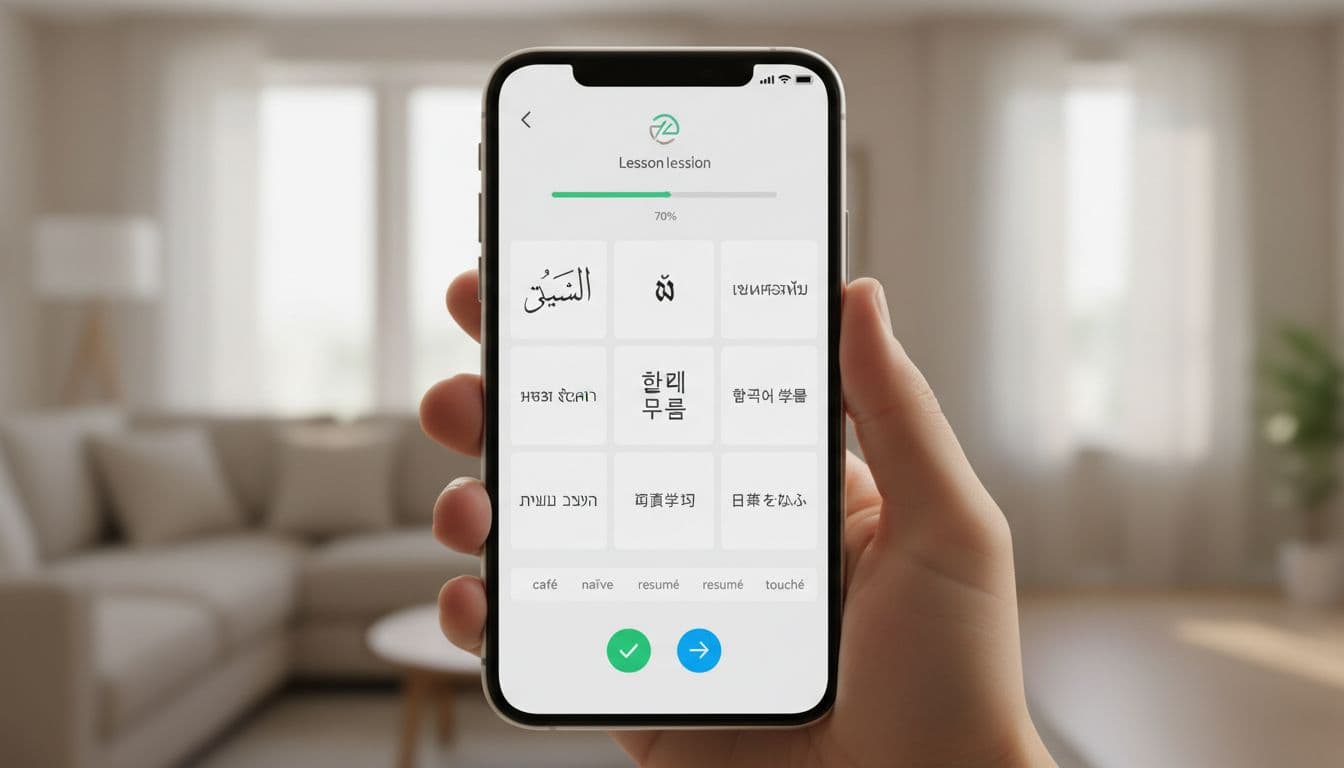
Pull 8 to 10 strings from real app surfaces: one button, one form label, one placeholder, one lesson sentence, one caption, one push notification preview, one error state, and one user-entered string. Include Arabic, Devanagari, Thai, Hangul, Hebrew, Chinese, Japanese, and Latin with accents if your product supports them. - Minutes 3 to 7, scan read-only screens
Check joins, mark placement, baseline alignment, truncation, line height, and punctuation. In Arabic and Hebrew, watch mixed text with numbers. In Thai, look for stacked marks colliding. In Japanese and Chinese, look for sudden font swaps inside the same line. - Minutes 7 to 11, test interaction
Type, paste, delete, select, and submit. Watch caret movement in Arabic and Hebrew. Test IME composition in Chinese and Japanese. In Hangul, confirm the app keeps full syllables during input. For accented Latin, make sure auto-correct or normalization doesn’t strip marks. - Minutes 11 to 15, change one condition
Try one more browser, one more device, larger text size, dark mode, or the notification tray. Rendering bugs often hide in fallback paths, not in your default setup.
This quick scorecard keeps the audit focused:
| Surface | Pass sign | Fail sign |
|---|---|---|
| Buttons | Clear marks, no clipping | Accents cut off, Thai marks collide |
| Forms | Caret behaves, IME stays stable | RTL cursor jumps, Hangul splits |
| Lessons and captions | Even line height, clean shaping | Arabic joins break, Devanagari fragments |
| Notifications | Same font and order as app | Fallback shift, mixed-order Hebrew numbers |
After the rendering pass, you can review lesson text itself with LanguaVibe’s 15-min sentence variety evaluation. Rendering and content quality are different checks, and both matter.
Red flags that mean “stop and fix”
Some issues are cosmetic. Others are release blockers. These four deserve fast action:
- Broken shaping: Arabic letters appear disconnected, or Devanagari conjuncts fail to form.
- Bad mark placement: Thai vowels or tones collide, or Latin diacritics clip in buttons and tabs.
- Direction errors: Hebrew or Arabic mixed with numbers flips order, or punctuation lands on the wrong side.
- Fallback drift: Chinese or Japanese switches to a mismatched font mid-line, or notifications use a different stack from the main app.
When you find one, log more than a screenshot. Note the string ID, screen name, device, OS version, browser, font loaded, and whether the text came from lesson content or user input. That turns a vague bug into a fixable one.
It also helps to separate rendering bugs from language bugs. If the script looks right but the phrasing feels off, run a separate 10-minute translation accuracy check. Meanwhile, teams that need deeper font behavior can use Microsoft’s OpenType glyph processing overview to trace shaping and fallback issues.
A fast audit works because it builds a habit. You’re not trying to certify every string. You’re looking for weak spots before users do.
A script rendering check is a trust check. Run the same 15-minute sample before each release, keep the screenshots, and compare builds over time.
That small routine can save a language app from looking careless in the one place it can’t afford to, the writing itself.