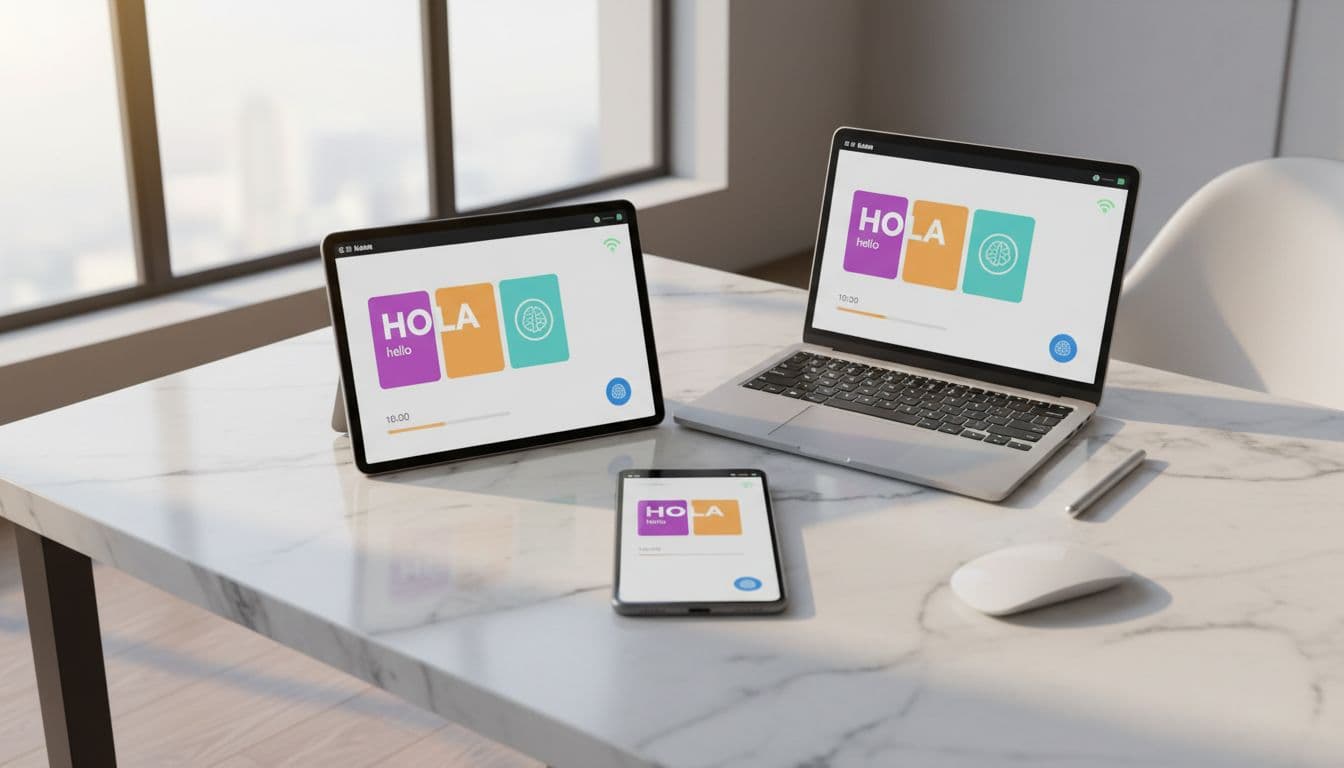
If you study on your phone in the morning, your tablet at lunch, and the web at night, your app’s sync should behave like a shared notebook. Write on one page, see it everywhere. When it doesn’t, the damage is sneaky: a “completed” lesson becomes “in progress,” a streak drops, or an offline download vanishes right before a flight.
This cross device sync test for language apps is a fast, repeatable way to spot missing progress and broken downloads across phone, tablet, and web in about 10 minutes. It’s written for learners, QA testers, and support teams who need clear proof, not vibes.
Understanding the Cross Device Sync Test for Language Apps
Prep in 60 seconds so your results mean something
Before you start the timer, lock down a few basics:
- Use the same account on all devices (email, Apple/Google sign-in, or SSO, but match it exactly).
- Turn off any VPN for the test, and keep devices on the same Wi-Fi if possible.
- On mobile, disable Low Power Mode or Battery Saver for 10 minutes (background sync often gets paused in 2026 OS builds).
- Make sure you have at least 1 GB free storage on the phone and tablet. Downloads fail in odd ways when storage is tight.
Have a notes app ready and record timestamps. Sync bugs often depend on timing.
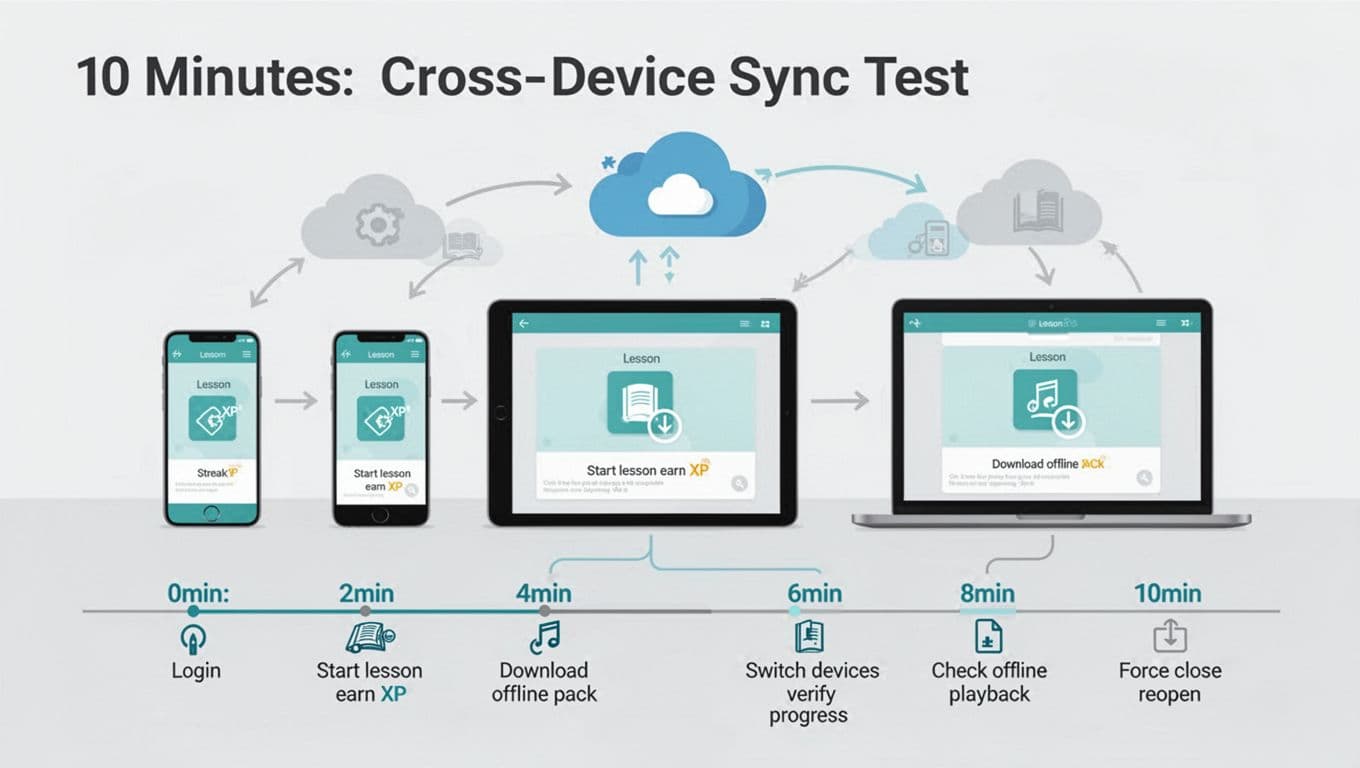
The 10-minute script (works for any language app)
- 00:00, Phone, Login check (30 seconds)
Open the app, confirm the account, and screenshot the profile page (username/email fragment and current streak/level if visible). - 00:30, Phone, Start a short lesson (90 seconds)
Complete one small activity that should change stats (finish a mini-lesson, pass a quiz, or review 10 cards).
Verification point: you should see some reward (XP, points, completion check, or progress bar change). - 02:00, Phone, Add one “marker” (30 seconds)
Create a bookmark/favorite, save a phrase, or add a word to a list. This becomes your sync canary. - 02:30, Tablet, Open and verify (60 seconds)
Open the app on the tablet. Don’t touch anything for 10 seconds.
Verification point: the tablet should reflect the phone’s new completion and your marker. - 03:30, Web, Open and verify (60 seconds)
Log in on web.
Verification point: your newest completion and marker should appear (web sync can lag, but you’re looking for movement). - 04:30, Tablet, Download one offline unit (90 seconds)
Download one lesson/unit/audio pack that clearly shows a download state. Note the item name and size if shown. - 06:00, Tablet, Airplane Mode playback test (60 seconds)
Turn on Airplane Mode, force the app offline, then open the downloaded item.
Verification point: it should play or open fully without spinning. - 07:00, Tablet, Force-close and relaunch (60 seconds)
Fully close the app (swipe away), reopen while still offline.
Verification point: the download should still be there and usable. - 08:00, Phone, Progress confirmation (60 seconds)
Back on phone, confirm the tablet’s download did not corrupt your account state (some apps treat downloads as separate “profiles”). - 09:00, Reconnect and final sync check (60 seconds)
Turn Wi-Fi back on, open each device once more (phone, tablet, web).
Verification point: all three agree on progress, streak, and the marker.
If your app supports offline study, pair this test with practical routines like batch syncing on home Wi-Fi, explained in language app offline syncing tips.
Verification points that catch missing progress and broken downloads
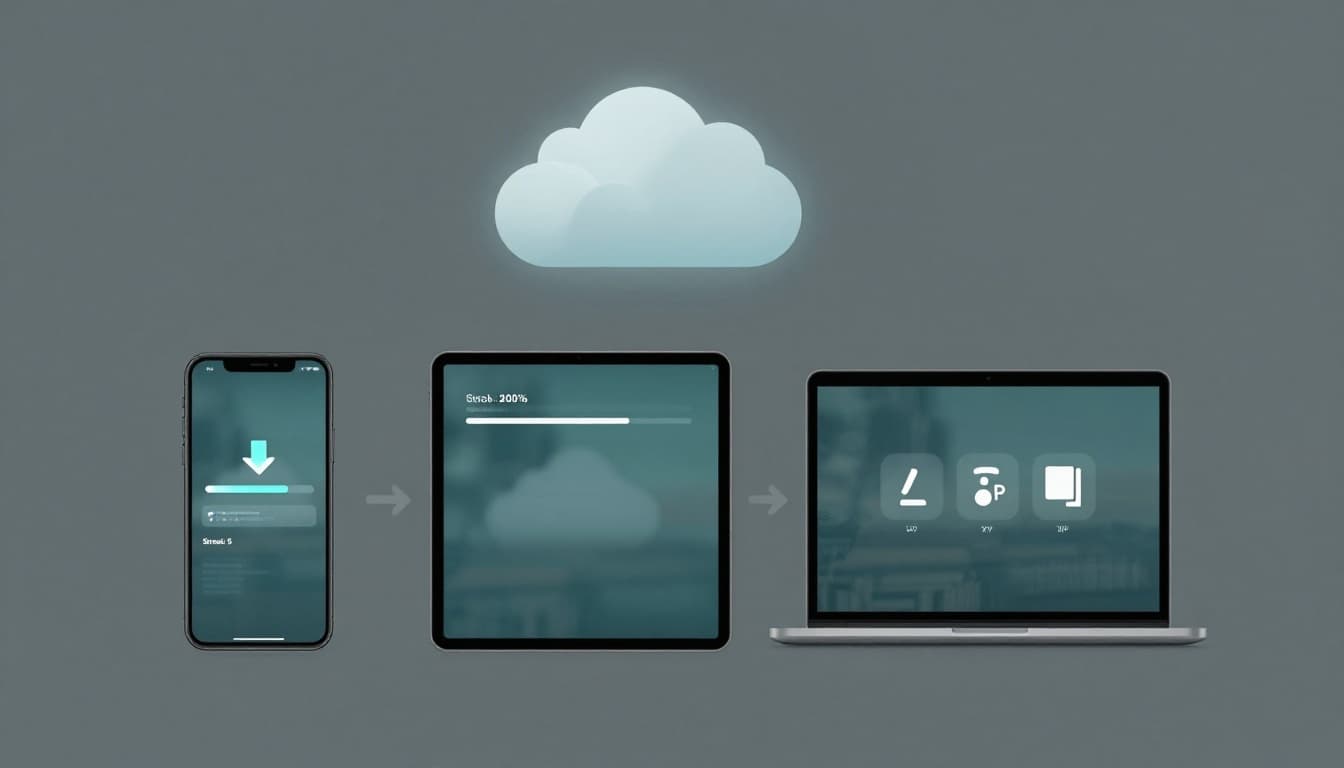
Treat each device like a witness. If two devices agree and one doesn’t, you’ve found where to dig.
Missing progress: what to check (and where it breaks)
Focus on five items because they cover most sync code paths:
| Progress item | Where to verify fast | Common failure pattern |
|---|---|---|
| Lesson completion | Course map, history, “recent” | Completion shows on one device only |
| Streak / daily goal | Home screen, profile stats | Streak updates late, then resets after relaunch |
| XP / points | Profile stats, leaderboard | Points appear, then roll back (server conflict) |
| Placement level | Level tab, CEFR/unit label | Web shows old level, mobile shows new one |
| Bookmarks / saved words | Saved list, favorites | Marker never appears cross-device |
If you need a concrete example of how a major app handles offline and progress syncing, this breakdown of how Babbel tracks and syncs your study progress highlights the exact places learners usually look first.
When progress is missing, the cause is often a sync conflict (two devices wrote different states). The clearest plain-language explanation of conflicts and merges is in the Anki syncing manual. The concepts map well, even if your app isn’t flashcards.
Broken downloads: three failure modes that matter
Downloads fail in patterns. Name the pattern in your notes, it speeds up fixes.
- Stuck at 0% (or “waiting”): usually network permission, background limits, or a blocked CDN domain on that Wi-Fi.
- Completes but won’t play offline: the shell downloads, but audio/media doesn’t (often separate files, separate permission).
- Disappears after relaunch: the OS cleared storage, the app stored files in a temporary location, or the app didn’t persist the download index.
For a “progress not synchronized” wording that support teams often recognize, compare your symptoms to a typical help-center entry like Mondly’s sync troubleshooting FAQ.
Troubleshooting decision tree, bug report template, and copy/paste checklist
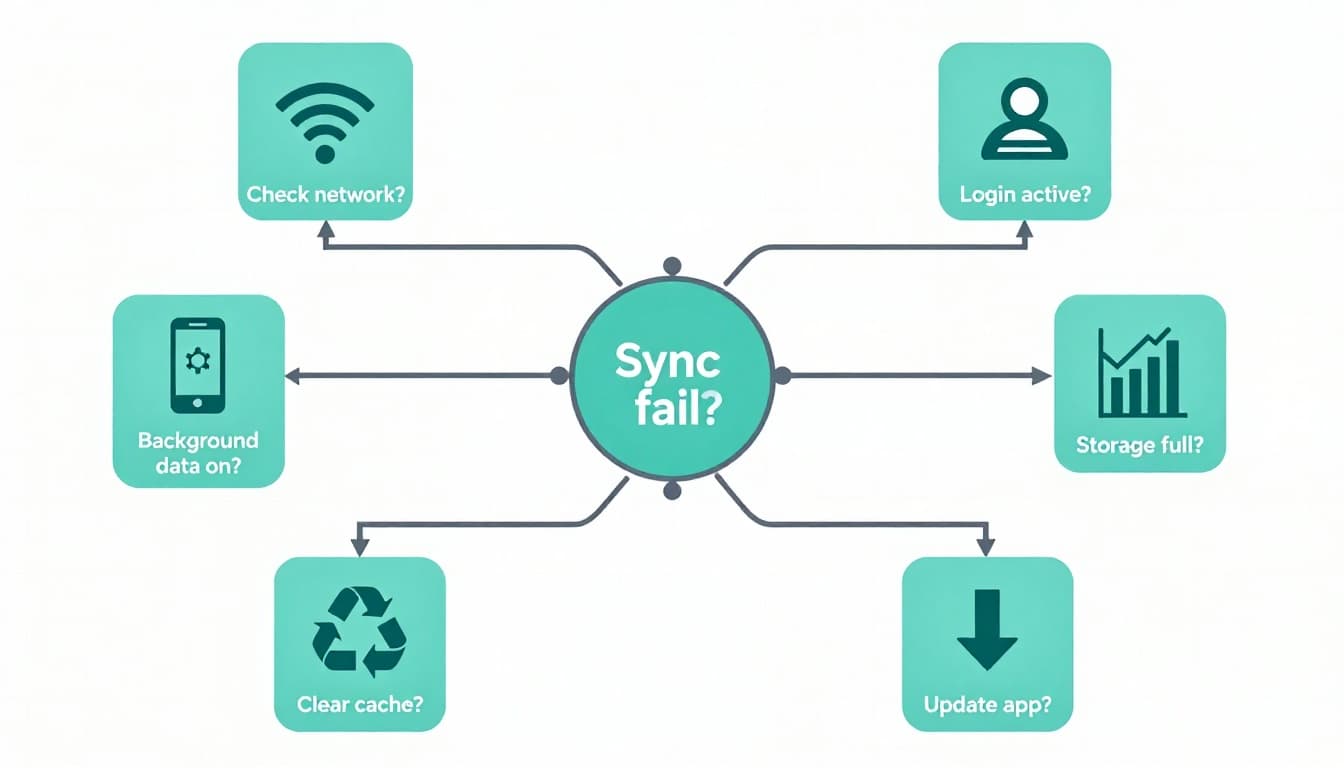
Decision tree (fast isolation, minimal guessing)
- Network first: Switch Wi-Fi to cellular (or another Wi-Fi), retry sync once. If it works, the issue is network path, DNS, captive portal, or firewall.
- Login/session: Confirm the same login method on all devices. If web shows different progress, log out everywhere, then log in again on one device at a time.
- Background data limits (2026 reality): On iOS, check Background App Refresh. On Android, check background restrictions and “data saver.” Retest downloads with the app kept open for 60 seconds.
- Storage and OS cleanup: Verify free space, and disable app offload or storage optimization temporarily. Redownload and relaunch.
- Cache and corrupted index: Clear cache (Android) or reinstall (iOS often lacks cache controls). Then repeat the 10-minute script.
- Update path: Update the app on all devices, and update the OS if you’re behind. Mixed versions cause “ghost progress.”
When writing up a defect for engineering, a good model is any well-scoped issue report like this cross-device sync bug example. The structure matters more than the product.
Concise bug report template (copy into your tracker)
- Title: Sync mismatch or offline download failure (device A vs B)
- App version:
- Account/login type:
- Course/language:
- Devices: phone model + OS, tablet model + OS, web browser + version
- Network: Wi-Fi name/type, cellular type, VPN on/off
- Battery/data settings: Low Power Mode/Battery Saver, Background App Refresh, Data Saver
- Storage free: phone/tablet free space
- Repro steps: numbered, with timestamps (use the 10-minute script)
- Expected:
- Actual:
- Frequency: 1/10, 5/10, always
- Attachments: screenshots, screen recording, download item name, time zone
Final checklist readers can copy/paste
- Confirm same account on phone, tablet, web
- Record starting streak/level/XP and take one screenshot per device
- Complete one short lesson on phone, confirm reward appears
- Add one marker (bookmark/favorite/saved word)
- Verify progress and marker on tablet, then on web
- Download one offline unit on tablet, note name and state
- Test offline playback in Airplane Mode
- Force-close app, relaunch offline, confirm download persists
- Reconnect network, open all devices, confirm final state matches
- If failure: run decision tree in order and file bug report with timestamps
Conclusion
A good sync system is boring in the best way. You should forget it exists. This cross device sync test makes problems loud and measurable, with proof you can share with support or engineering.
Run it whenever you switch devices, change networks, or update the app. If your results don’t match across phone, tablet, and web, don’t keep studying and hope it sorts itself out. Capture it once, report it well, and protect your progress.

