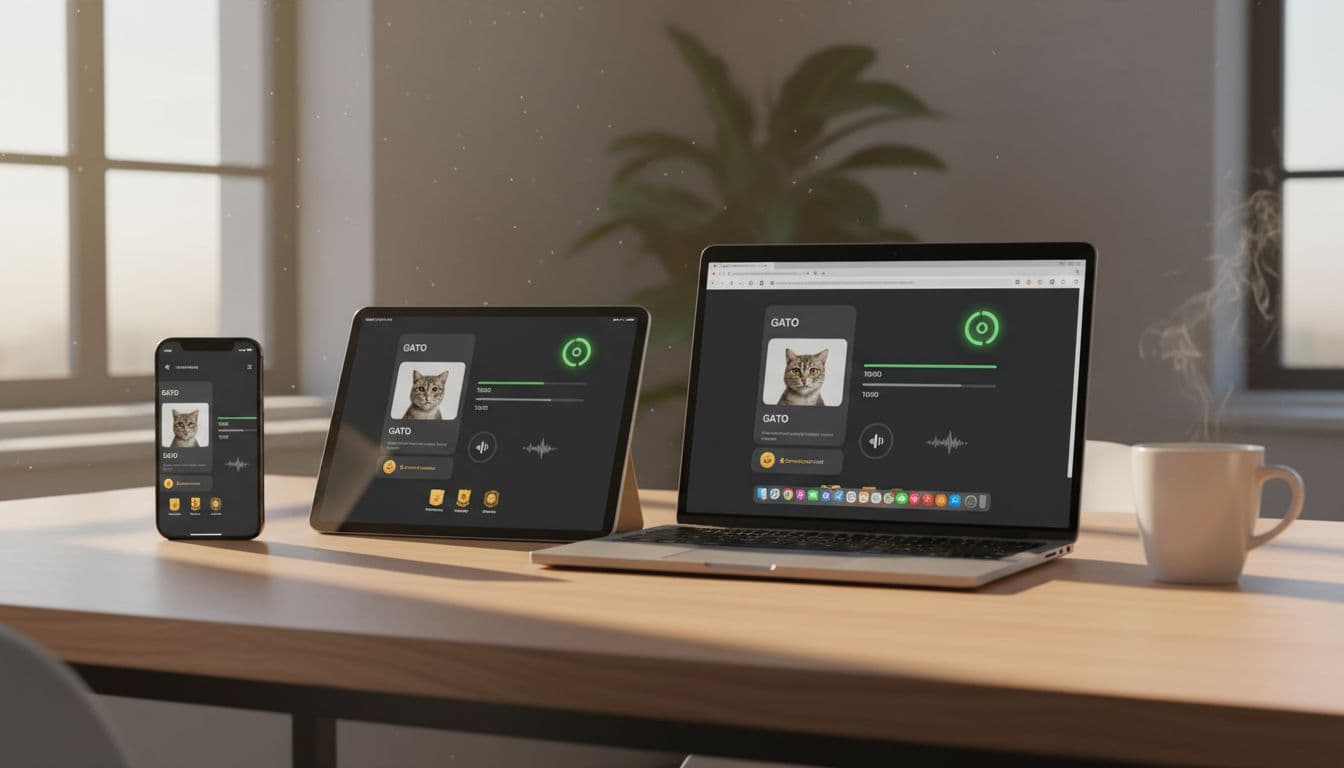
You finish a lesson on your phone, feel good about the streak, then open the web version and it looks like you did nothing. Was it a glitch, the wrong account, or did your progress never upload?
A language app sync problem is annoying because it’s sneaky. It often shows up days later, right when you switch devices, reinstall an app, or log in with a different method. The fix starts with one simple habit: run a quick, repeatable sync test that creates a “fingerprint” you can verify on every device.
Before you test: lock in proof, account details, and a clean baseline
Sync issues are easiest to solve when you can prove what happened. Before doing anything “destructive” (like clearing app data), take two minutes to capture evidence and confirm you’re testing the same account everywhere.
Here’s the short pre-test checklist:
- Screenshot your current progress: streak, XP/points, last completed lesson, and any “Words learned” counts.
- Find your account identifier: in most apps it’s under Profile, Account, or Settings (username, email, user ID, or linked provider).
- Confirm the login method: email/password vs Google/Apple/Facebook, and in 2026, passkeys can make this confusing (you may be “signed in” with a different identity than you think).
- Check for offline mode: if you studied on a commute, your app may have queued progress locally. Use Wi-Fi for the test.
- Open Sync/Backup settings: look for toggles like “Backup,” “Cloud sync,” or “Sync on Wi-Fi only.”
- Avoid clearing anything: don’t clear cache/data, reinstall, or reset progress yet.
If you often learn without mobile data, it helps to understand how offline work changes upload timing. This guide on offline mode for language apps is a good reminder of what usually syncs later versus what’s truly stored on-device.
Now pick a baseline: choose one “reference device” (usually your phone), and keep it open for the full 10-minute test.
The 10-minute language app sync test (deterministic and repeatable)
The goal is to create a unique event that’s hard for the system to “fake.” If you only do a normal lesson, some apps pre-load progress or show cached stats. You want a small change with a clear before and after.
Step 1: Create a unique test event (choose one)
Pick one option that your app supports:
- Complete one very short lesson (or one review drill) and make sure it shows “completed.”
- Add one new word to a saved list (favorites, saved words, or vocabulary list).
- Change one setting you can easily reverse (daily goal, reminder time, sound setting, learning direction).
Write down the exact change (example: “Added ‘airport’ to Saved Words” or “Daily goal 10 minutes to 15 minutes”).
Step 2: Trigger an upload on the device you used (phone)
Do this in order:
- Stay in the app 30 seconds after the change, on a main screen (Home, Profile, or Progress).
- If there’s a manual refresh, use it (pull-to-refresh, refresh icon, or “Sync now”).
- Force a fresh session: fully close the app, reopen it, then wait 30 seconds again.
Step 3: Check the other devices with a timed rule
Use a simple timing ladder so you don’t declare failure too early:
| When to check | What to do | What counts as “good” |
|---|---|---|
| After 30 seconds | Open tablet app or web page | The test event appears |
| After 2 minutes | Refresh once (app relaunch, browser reload) | The test event appears |
| After 5 minutes | Log out and back in on the second device | The test event appears |
On web, look in the same places you’d expect: Profile, Progress, Words, Lesson history, or Settings. On mobile, also check “Download/offline” screens because some apps keep progress in a local queue.
If the test event shows up on tablet and web within 5 minutes, your language app sync is working, at least for basic writes. If it doesn’t, you now have a clean, timestamped case to troubleshoot.
How to spot lost progress and fix the most common sync breaks (2026-ready)
When progress “vanishes,” it usually falls into one of four buckets: account mismatch, blocked web storage, offline queue conflicts, or server-side state that didn’t update. The trick is to diagnose without making things worse.
1) Account mismatch (the most common culprit)
In 2026, passkeys and SSO make it easy to create accidental “shadow accounts.” You might sign in with Apple on iPhone, then use email on web, and both look valid.
Do this check on every platform:
- Compare email/username/provider (Apple, Google, email) in Account settings.
- Look for clues like a different join date, empty streak, or different subscription status.
- If there’s a “Manage devices” or “Sessions” screen, review it and sign out old sessions. Multi-device session limits can block updates quietly.
2) Web version looks stuck (cookies and local storage)
Modern browser privacy features can block cookies, local storage, or third-party sign-in flows. That can stop the web app from keeping a stable session, so it shows old progress.
Fix steps (in this order):
- Hard reload the page, then sign out and sign back in.
- Try a private window once (just for testing).
- Disable strict tracking protection for that site, or allow cookies for it, then re-test.
3) Offline progress never uploaded (or uploaded late)
If you did the work offline, the app may show “complete” locally but never sent it. Many apps recommend re-auth steps to force a refresh. For a concrete example of common recovery steps, see Drops’ guidance on progress not being saved, which includes logging out and back in and confirming the correct login method.
If you rely on offline learning often, consider keeping a tiny parallel record for peace of mind (like saved words or a manual review habit). A simple backstop is this 10-minute offline vocabulary system that still works even when sync acts up.
4) Subscription and feature mismatches across platforms
Some apps segment features by platform. You might have premium on iOS but not on web, or one platform hides lesson history. Check Subscription or Restore Purchases, then confirm you’re on the same course, language pair, and profile.
Safety notes before “nuclear options”
Don’t clear app data or reinstall until you’ve captured:
- screenshots of the missing progress on each device
- account ID and login method used on each device
- timestamps of the test event and checks
Reinstalls can wipe the only local copy of offline progress.
Escalation template (copy, paste, send)
- Device(s): (Phone model, tablet model, computer)
- OS versions: (iOS/Android/iPadOS + version, browser name + version)
- App version: (from Settings or app store listing)
- Account + sign-in method: (email, username, Apple/Google/passkey)
- Course details: (language pair, course name, profile name)
- What didn’t sync: (lesson completion, streak, XP, saved words, settings)
- Exact timestamps: (time zone included)
- Steps already tried: (relaunch, refresh, log out/in)
- Attachments: (before/after screenshots from each device)
Conclusion
Progress should follow you, not disappear when you switch screens. A 10-minute test gives you a clear signal: either your language app sync is healthy, or you’ve caught a repeatable failure with evidence. Run the test after big events like a new phone, a reinstall, or switching to passkeys, and you’ll stop losing streaks to mystery gaps.
Ready to Take Your Language Learning Further?
Your favorite language-learning app is a great place to start. Rocket Languages can help you go further with interactive audio lessons, pronunciation practice, real-world conversations, and structured learning.
Explore Rocket Languages →Affiliate disclosure: We may earn a commission if you purchase through this link, at no additional cost to you.