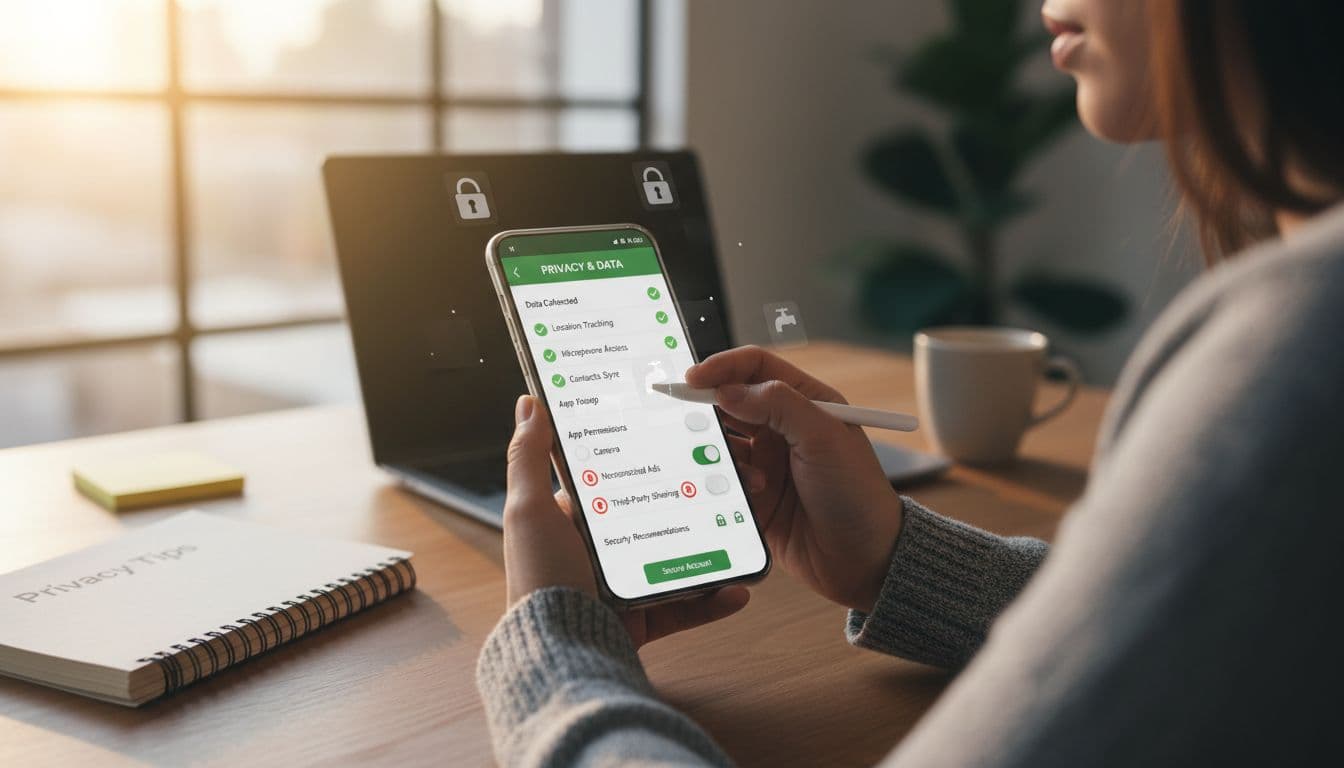
Ever opened a language app to practice Spanish, then noticed it wants your microphone, location, contacts, and permission to track you across apps? That’s the moment to slow down.
Checking language app privacy settings isn’t about being paranoid. It’s about staying in control, so you can study without handing over extra personal data you never meant to share.
This guide shows what language apps commonly collect, what you can safely disable on iOS and Android, and the few settings that matter most for speaking and listening features.
Start in the app store: privacy labels and the real “cost” of free
Before you even install, take two minutes to look at what the app claims it collects.
- On iPhone, open the App Store listing and scroll to the privacy section. Apple explains how these summaries work in App Privacy Details.
- On Android, open the Play Store listing and check the Data safety section.
Then scan the app’s privacy policy for three lines:
- What data they collect
- What they share
- How to opt out
You can compare how different companies describe data practices by reading their policies directly, like Duolingo’s privacy policy and Babbel’s privacy policy. You’re not looking for legal perfection, just clear answers about tracking, ads, and sharing partners.
If you’re choosing between apps, privacy may be part of the decision, along with learning style and features. This comparison can help frame the trade-offs: Rosetta Stone vs Duolingo: Which language app suits you?
What language apps typically collect (and what you can control)
Language apps collect a mix of “needed for lessons” data and “nice for marketing” data. Here’s a practical map you can use while checking settings.
| Data type | Why it’s collected | Can you turn it off? | Trade-off if you turn it off |
|---|---|---|---|
| Account info (email, username) | Logins, syncing progress | Partly (use alias, limit profile) | Harder to recover account without a stable email |
| Usage data (lesson taps, streaks, time) | Improve lessons, analytics | Sometimes (analytics toggle) | Fewer personalized suggestions |
| Device identifiers (Advertising ID, IDFA) | Ad measurement, tracking | Yes (tracking/ads settings) | Ads may be less relevant, some attribution may still occur |
| Purchases and subscription status | Billing, fraud checks | No (if you subscribe) | None, required for payments |
| Approximate location | Local content, fraud, region rules | Usually yes | Some region features may not work |
| Precise location | Rarely needed for language learning | Yes | Almost never affects core learning |
| Microphone audio | Speaking checks, pronunciation | Yes (permission) | Speaking exercises and voice input may stop |
| Camera | AR features, profile photo, scanning | Yes | Some extra features may stop |
| Contacts | “Find friends” and invites | Yes | Social features may be limited |
| Photos/media | Upload avatar, save images | Yes | You may need to upload manually via other routes |
| Notifications | Streak reminders, lesson prompts | Yes | You’ll miss reminders, learning still works |
| Background activity | Sync, downloads, timers | Yes | Slower sync, fewer instant updates |
A simple rule helps: if a permission doesn’t support a core learning feature you use (like speaking practice), keep it off.
iOS: how to check and tighten permissions (iPhone and iPad)
Most privacy control on iOS lives in Settings, not inside the app.
1) Review permissions one by one
Go to: Settings > Privacy & Security
Check these items and set the minimum you need:
Microphone
What the app gains: access to record audio when you speak.
Risk: audio access is sensitive, even if the app only records during exercises.
When it’s needed: pronunciation checks, speaking drills, voice input.
Camera
What the app gains: can capture images/video.
Risk: low for most language apps, but unnecessary if you never use camera features.
When it’s needed: profile photo, scanning text (if the app offers it).
Location Services
Go to: Settings > Privacy & Security > Location Services. Apple’s overview is here: https://support.apple.com/en-us/102515
What the app gains: where you are (precise or approximate).
Risk: location can reveal routines and sensitive places.
When it’s needed: usually not needed for learning. If you must allow it, choose While Using the App and prefer Approximate Location.
Contacts
What the app gains: your address book.
Risk: exposes other people’s info, not just yours.
When it’s needed: friend-finding and invites, not lessons.
2) Turn off cross-app tracking (IDFA)
Go to: Settings > Privacy & Security > Tracking
Switch off Allow Apps to Request to Track, or deny tracking per app.
This is one of the biggest wins for privacy with almost no learning downside.
3) Reduce background data and interruptions
- Background App Refresh: Settings > General > Background App Refresh (turn off for the app if you don’t need instant syncing).
- Notifications: Settings > Notifications > [App] (disable marketing style reminders, keep only what helps you study).
Android: privacy settings to check (works across most phones)
Android menus vary by brand, but the controls are in the same places.
1) Permission Manager and Privacy Dashboard
Go to: Settings > Privacy > Permission manager
Google’s guide: https://support.google.com/android/answer/9431959?hl=en
Also check: Settings > Privacy > Privacy dashboard (shows recent access to mic, camera, location).
For each permission, choose the tightest option:
- Allow only while using the app
- Ask every time
- Don’t allow
Microphone
Needed for speaking exercises. If you rarely do speaking, set it to “Ask every time.”
Camera and Location
Most learners can deny these without losing core lessons.
2) Limit ad tracking and reset your Advertising ID
On many devices: Settings > Privacy > Ads or Settings > Google > Ads. Look for options like deleting or resetting the Advertising ID, and turning off ad personalization.
Android also explains broader controls here: https://www.android.com/intl/en_us/safety/privacy/
3) Stop background activity if you don’t need it
Go to: Settings > Apps > [App] > Battery
Set battery use to Restricted (names vary). This helps limit background network calls, at the cost of slower syncing and fewer real-time reminders.
Permission “red flags” to avoid in language apps
Some requests aren’t always wrong, but they deserve extra caution.
Contacts access for friend-finding: skip it unless you truly want social features.
Precise location: rarely needed for language learning.
Always-on microphone access: avoid apps that need constant access outside speaking exercises.
Sign in with social accounts: convenient, but it can increase data sharing. Email sign-in is often cleaner.
Third-party integrations: if the app links to other services (social, classroom tools, payment add-ons), review what each connection shares and remove what you don’t use.
Parents and teen learners: safer defaults for minors
If a child or teen uses a language app, privacy settings matter more because social and messaging features can expose them to strangers.
- Use a child or teen profile when available, and avoid public leaderboards if you can.
- Turn off profile discovery (public profiles, follower features, friend suggestions).
- Disable contacts access so the app can’t match phone numbers and emails.
- Keep messaging off if the app offers it.
- Check independent summaries when helpful, like the Common Sense privacy report for Duolingo, then confirm settings in the device and the app.
Practical safety habits that don’t break your learning flow
Small choices can cut what you share without affecting lessons.
Use an email alias: many email services let you create throwaway aliases that still forward to you.
Keep your profile plain: skip full name, birthday, school, and a real photo if it’s optional.
Don’t connect contacts or Facebook unless it’s essential for your use.
Review third-party connections inside the app’s settings, then remove old ones.
Verify deletion works: after requesting account deletion, look for a confirmation email or in-app status. If the account still logs in days later, follow up through the app’s support channel.
10-minute privacy audit checklist (printable)
- Check App Store or Play Store privacy section before installing
- Open the app’s privacy policy and find “What we collect” and “Sharing”
- iOS: Settings > Privacy & Security > Tracking, turn off tracking requests
- Android: Settings > Privacy > Permission manager, set “Allow only while using”
- Deny Contacts access unless you need friend-finding
- Deny Precise Location (use approximate or off)
- Allow Microphone only if you use speaking practice
- Turn off background refresh (iOS) or restrict battery background use (Android)
- Turn off ad personalization / reset or delete Advertising ID (Android), review ad settings (iOS)
- Find in-app account settings and confirm you can export or delete your account
Your streak should be built on study habits, not on sharing more than you meant to. A quick check of language app privacy settings now can save you surprises later.

