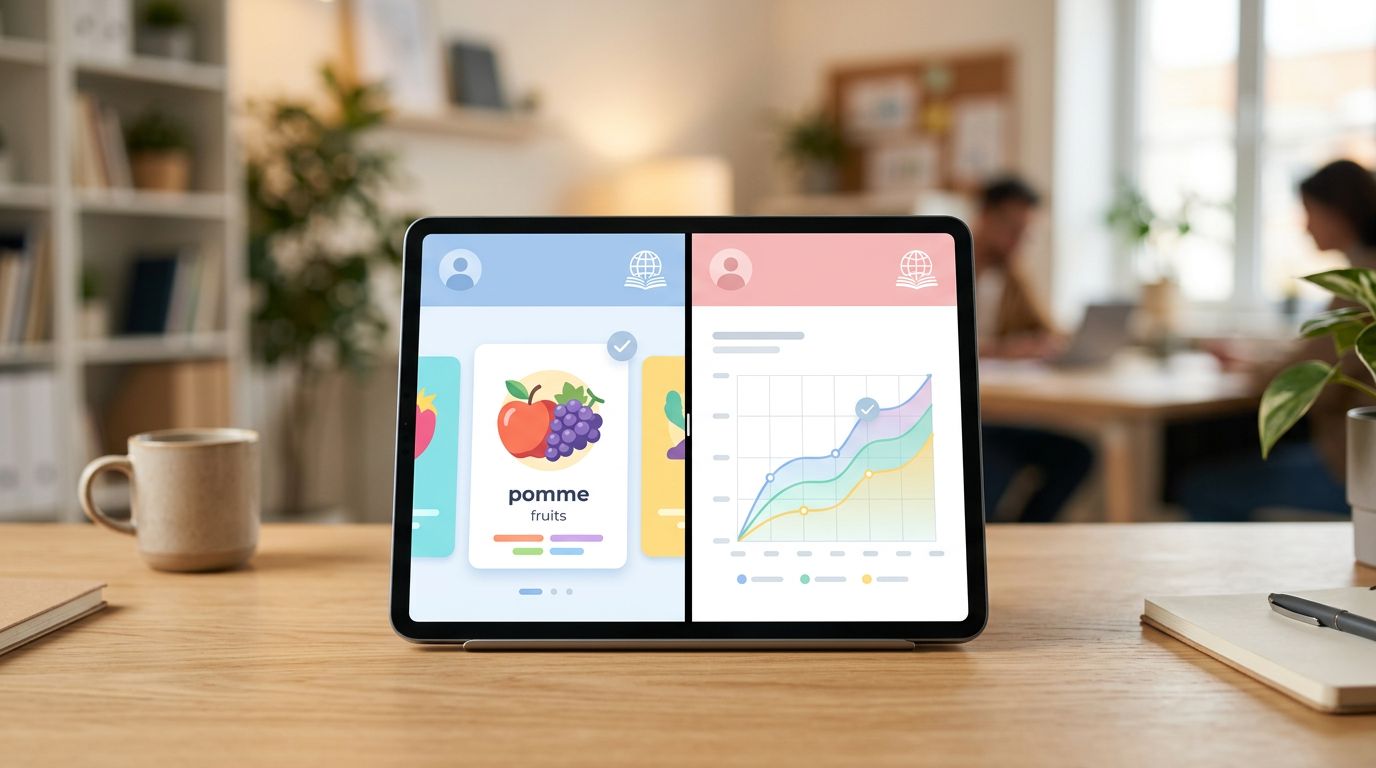
A shared device can turn a language app into a shared notebook, messy, confusing, and full of someone else’s notes. If your users are families, classrooms, or shared tablets at work, multi-user profiles aren’t a nice extra. They’re the difference between “this app works” and “why did my kid lose my streak?”
This field guide gives you a fast, repeatable check you can run in about 10 minutes on any language app build. You’ll test separation (progress, streaks, placements, saved words), practical realities (offline and sync), and the quieter risks (billing entitlements and privacy leakage).
What “multi-user profiles” should do (and what it shouldn’t pretend to do)
Real multi-user profiles mean two learners can use the same app on the same device without their learning data blending. Each person should see their own level, history, streak, review queue, saved items, and reminders. When one learner signs out or switches, the other learner’s data should stay intact and private.
That sounds simple, yet apps often ship “almost multi-user” patterns that break in real life. For example, an app may let you switch accounts, but it keeps the same offline downloads, notification settings, or “last used learner” cache. Another common trap is billing: “family plan” seats and “profiles” aren’t the same thing, so it’s easy to buy access for multiple people and still end up sharing one account. If you’re evaluating pricing and seat rules alongside profiles, this checklist on family seats and kids profiles checklist helps you catch the fine print fast.
Also, be careful with feature claims when comparing well-known apps. Roundups can help you build a shortlist, but you still need to verify multi-user behavior inside the app. For context on how popular options are positioned in 2026, see Babbel’s roundup of language learning apps for travelers and digital nomads, then treat multi-user support as a separate, hands-on test.
The 10-minute multi-user profile support check (exact steps + expected outcomes)
Before you start, set up two test identities you can reuse across apps:
- Adult A: adult email, normal name, purchases allowed.
- Kid B: different email, different age, notifications allowed.
Now start a timer and follow the steps in order.
-
Find the profile or account switcher (30 seconds)
Action: Open the app, then tap the Profile/Account icon (often top-right or bottom tab). Look for “Profile,” “Switch account,” “Add learner,” or “Family.”
Expected outcome: A clear path to add or switch users without hunting through help pages. -
Create a second learner without overwriting the first (1 minute)
Action: Use “Add profile” or “Add account,” then sign in as Kid B (or create a second learner if the app supports multiple learners under one login).
Expected outcome: Adult A’s progress and settings remain visible and unchanged after creation. -
Switch users twice and confirm state sticks (1 minute)
Action: Switch to Kid B, then back to Adult A, then to Kid B again.
Expected outcome: The app consistently lands on the selected learner. No surprise auto-switching back to the “last active” person after a relaunch. -
Progress tracking separation test (2 minutes)
Action: On Adult A, complete one small activity (one lesson, one quiz, or one vocab drill). Then switch to Kid B and check the same skill area.
Expected outcome: Adult A’s completion shows only for Adult A. Kid B doesn’t inherit completed nodes, XP, lesson history, or “continue where you left off” pointers. -
Streaks and daily goals don’t bleed across (1 minute)
Action: Note Adult A’s streak or daily goal indicator, then switch to Kid B and compare. Trigger one quick activity on Kid B, then return to Adult A.
Expected outcome: Streak counters, daily goals, and reminders reflect each learner separately. Adult A doesn’t get credit for Kid B’s session (and vice versa). -
Placement and level checks are per learner (1 minute)
Action: Find the placement test or level assessment entry point (often in Course settings, Start, or Onboarding). Start it on Kid B, then switch away and back.
Expected outcome: Placement status is separate. Kid B’s in-progress placement doesn’t replace Adult A’s level, course map, or “recommended start” position. -
Saved words, phrasebooks, and review queues are isolated (1 minute)
Action: On Adult A, save 2 items (a word, phrase, or flashcard). Switch to Kid B and open Saved, Vocabulary, or Review.
Expected outcome: Kid B does not see Adult A’s saved items, and the review queue reflects Kid B’s own history only. -
Notifications: device-level vs profile-level reality check (1 minute)
Action: Turn on reminders for Adult A inside the app if available. Then switch to Kid B and either turn reminders off or set a different time.
Also verify on-device:
- iOS: Settings > Notifications > (App)
- Android: Settings > Notifications > App notifications > (App)
Expected outcome: The app either supports per-profile reminders, or it clearly communicates that reminders are device-wide. If reminders are device-wide, the app should avoid personal content in notification text.
- Billing entitlements follow the right identity (1 minute)
Action: On Adult A, open Subscription/Manage Plan. Then switch to Kid B and open the same screen.
Expected outcome: Paid access is assigned as designed (per account, per learner, or per seat), and the UI makes that obvious. Kid B should never see Adult A’s billing email, invoices, or payment instruments.
Gotcha: if “Restore purchases” or “Premium active” shows up under the wrong learner, treat it as a data boundary bug, not a pricing quirk.
- Offline downloads, sync, and switching friction (1.5 minutes)
Action: Download one offline unit on Adult A (if supported), then switch to Kid B and check downloads. Next, force-close and reopen the app, then time how long it takes to switch users again.
Expected outcome: Offline content respects the profile boundary (or the app clearly states it’s device-shared). Progress sync should update correctly after relaunch. Switching should take under 15 seconds and should not require repeated password entry on a shared tablet.
Scenario quick-runs: family, classroom tablets, and shared Android phones
Multi-user profiles can “pass” the basics and still fail in the places that create support tickets. These quick-runs help you catch that gap.
Family sharing (adult + kid) on one tablet
First, test a “kid grabs the tablet” moment. Put the app on Kid B, close it, wait 10 seconds, then reopen. If it jumps back to Adult A, you’ve got a real-world problem, because kids won’t switch back carefully every time.
Next, look for privacy leakage through convenience features. Check profile photo, full name, email, friend lists, leaderboards, and notification previews. If any of that is visible across profiles, flag it. For a deeper device-and-app permission sweep that’s practical for families, use this guide on privacy settings for family language apps.
Finally, verify how the app behaves with parental controls. If the app uses iOS or Android system dialogs for sign-in, confirm the child cannot trigger account changes without an adult credential (PIN, biometrics, or a password re-check).
Classroom or shared iPad/tablet carts
In classrooms, speed matters as much as separation. Run the same 10 steps, but add one more constraint: can a student switch profiles quickly without seeing the previous student’s data on the way?
Do a “bell schedule” simulation. Student 1 finishes an activity, you switch to Student 2, and Student 2 starts within 20 seconds. If the app flashes Student 1’s name, streak, saved words, or last lesson on the home screen, even briefly, it will get screenshotted and shared.
Also test offline and sync under weak Wi-Fi. Download content for one learner, put the device in airplane mode, complete a short activity, then reconnect. A good classroom-ready setup reconciles progress without mixing learners or losing work.
Shared Android phone (one handset, multiple people)
Shared phones are the hardest case because many Android phones don’t expose a true multi-user mode. Start by checking the OS anyway: Settings > System (or Users & accounts) > Multiple users. If it exists, test the app under separate device users, because that’s the cleanest boundary.
If the phone has no device users, your app must do the heavy lifting. Focus on switching friction and leakage: does the app require a full sign-out (high risk), or can it switch profiles quickly (lower risk)? Also confirm notifications don’t reveal one user’s learning prompts to the other user on the lock screen.
Conclusion
A 10-minute check won’t prove everything, but it will catch the failures that create angry reviews: mixed progress, broken streaks, shared saved words, and messy billing. Run this field guide on every major release, log the results, and treat boundary issues as multi-user profiles bugs, not “edge cases.” When shared devices are common, privacy and trust are part of the learning experience.