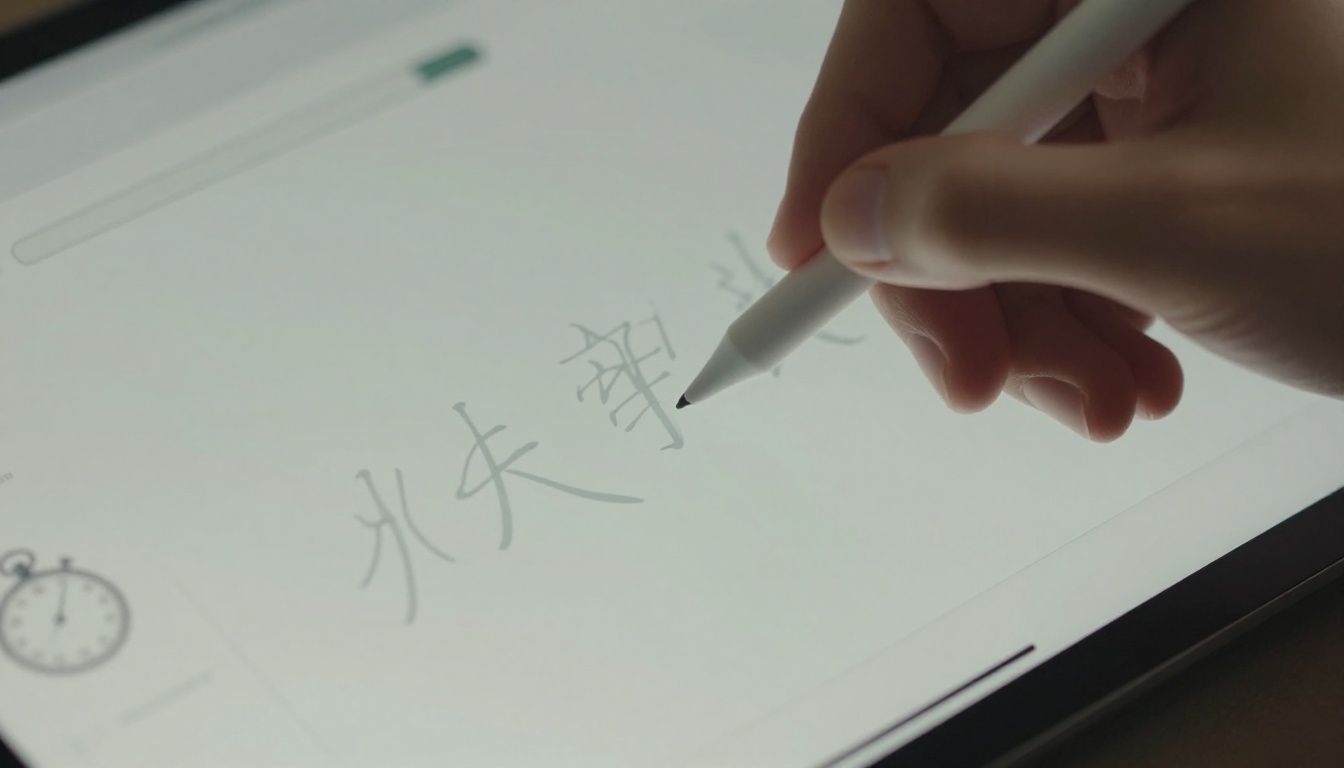
A handwriting box can look fine in a demo, then fail the first messy study session. If strokes lag, misread common shapes, or hide the fix, learners stop writing and start tapping.
This quick test helps you compare handwriting input language apps on real use, not store-page promises. Public, comparable accuracy numbers are still hard to find in March 2026. So, a repeatable 15-minute check gives better evidence.
Set a timer, use the same device and sample words, and score what happens.
What to verify before the timer starts
Use one phone or tablet, one stylus if you have one, and one finger-only pass. Keep the same script and difficulty across apps. That way, you test the tool, not the word list.
Don’t lean too hard on vague AI claims. Recent public coverage still rarely gives comparable handwriting percentages for apps like HelloChinese, Skritter, Pleco, or Write It! Kanji. Broad 2026 language app comparisons can help you build a shortlist, while handwriting-to-text software reviews show what smooth recognition can look like outside education. Still, neither replaces a live writing test.
Focus on eight areas: recognition accuracy, tolerance for imperfect strokes or characters, correction flow, latency, stylus versus finger performance, feedback quality, onboarding, and accessibility. If you like short scorecards, LanguaVibe’s language app note-taking test uses the same practical logic for another easy-to-miss feature.
Also decide what counts as success. A kanji trainer may punish wrong stroke order on purpose. A general language app should usually accept normal variation, then guide you back if needed.
Run the 15-minute handwriting input check
Step-by-step checklist
Keep notes in a plain document or spreadsheet. Write one short proof line for every score.
- Minute 0 to 2: Open handwriting mode from a cold start. Count taps, check whether the script is obvious, and see if the tutorial helps or slows you down.
- Minute 2 to 5: Write six samples, one easy word, one word with marks or accents, one short phrase, one messy fast version, one neat slow version, and one item you later edit. Stay inside one script for fairness.
- Minute 5 to 7: Repeat the same samples with stylus, then finger. Some drop with finger input is normal. A full collapse is not.
- Minute 7 to 10: Test tolerance. Change stroke order once, crowd two letters, or shorten one stroke. Good handwriting input language apps accept normal human variation, or at least surface the right candidates.
- Minute 10 to 12: Test correction flow. Erase part of a character, undo, pick an alternate recognition, and overwrite one section. Weak tools force you to clear the whole field.
- Minute 12 to 15: Check feedback and access. Time the delay after pen-up, look for candidate lists or stroke hints, raise system font size, and turn on TalkBack or VoiceOver if available. The field should stay readable, labeled, and easy to tap.
If a field only works with slow, perfect strokes, it doesn’t work for study.
For tablet-heavy use, compare the feel with dedicated writing apps. The Nebo iPad review is a useful reference point for low-friction inking, even though note apps and language apps solve different problems.
A simple scoring rubric
Score each area from 0 to 2.
| Area | 0 | 1 | 2 |
|---|---|---|---|
| Recognition | wrong often | basic items only | clear on normal input |
| Stroke or character tolerance | rejects small variation | mixed results | accepts realistic variation |
| Correction flow | restart required | works, clumsy | partial edits are easy |
| Latency | erratic or slow | slight lag | near instant |
| Stylus and finger | one unusable | both work, uneven | both reliable |
| Feedback quality | no hints | limited cues | useful candidates or stroke help |
| Onboarding | hidden or confusing | usable with hunting | easy to find and set |
| Accessibility | broken labels or scaling | partial support | clear labels and usable targets |
A total of 13 to 16 is strong, 9 to 12 is workable, and 0 to 8 needs caution. If the app teaches writing form, you may weigh tolerance and feedback more heavily. If it supports free-form note entry, speed and correction matter more.
Script-specific examples and common failure points
Many apps pass Latin input and stumble elsewhere. So, run one script-specific sample set every time.
- For Latin scripts, try naïve café l’été. Watch accents, apostrophes, and cursor stability during edits.
- For Cyrillic, use Привет, мир! Жёлтый щенок. Look for mix-ups around ж, щ, and ё.
- For Arabic, write مرحباً بالعالم. The field should keep right-to-left flow and joined forms intact.
- For Chinese, write 你好世界, then a sloppier second pass. Good tools separate similar shapes without demanding textbook-perfect strokes.
- For Japanese, try こんにちは世界 and one kanji written slowly, then quickly. If kanji writing is a major use case, compare with LanguaVibe’s best kanji writing practice tools.
- For Korean, use 안녕하세요 세상. Check that Hangul stays in full syllable blocks, not split parts.
Don’t over-penalize every strict recognizer. Some apps teach handwriting form, not only text entry. What matters is whether the app explains the failure. A red X alone is a gate. Candidate suggestions, stroke-order cues, or a clear highlight of the broken part act like teaching.
A handwriting field shouldn’t feel like wet ink on glass, pretty for a second and useless once you move fast. The best handwriting input language apps handle ordinary variation, recover from mistakes quickly, and stay readable across scripts and devices.
Run this 15-minute check before you commit to an app review, a classroom rollout, or a long study plan. Then run it again after major updates, because writing input can improve quietly, and it can break just as quietly.
Ready to Take Your Language Learning Further?
Your favorite language-learning app is a great place to start. Rocket Languages can help you go further with interactive audio lessons, pronunciation practice, real-world conversations, and structured learning.
Explore Rocket Languages →Affiliate disclosure: We may earn a commission if you purchase through this link, at no additional cost to you.