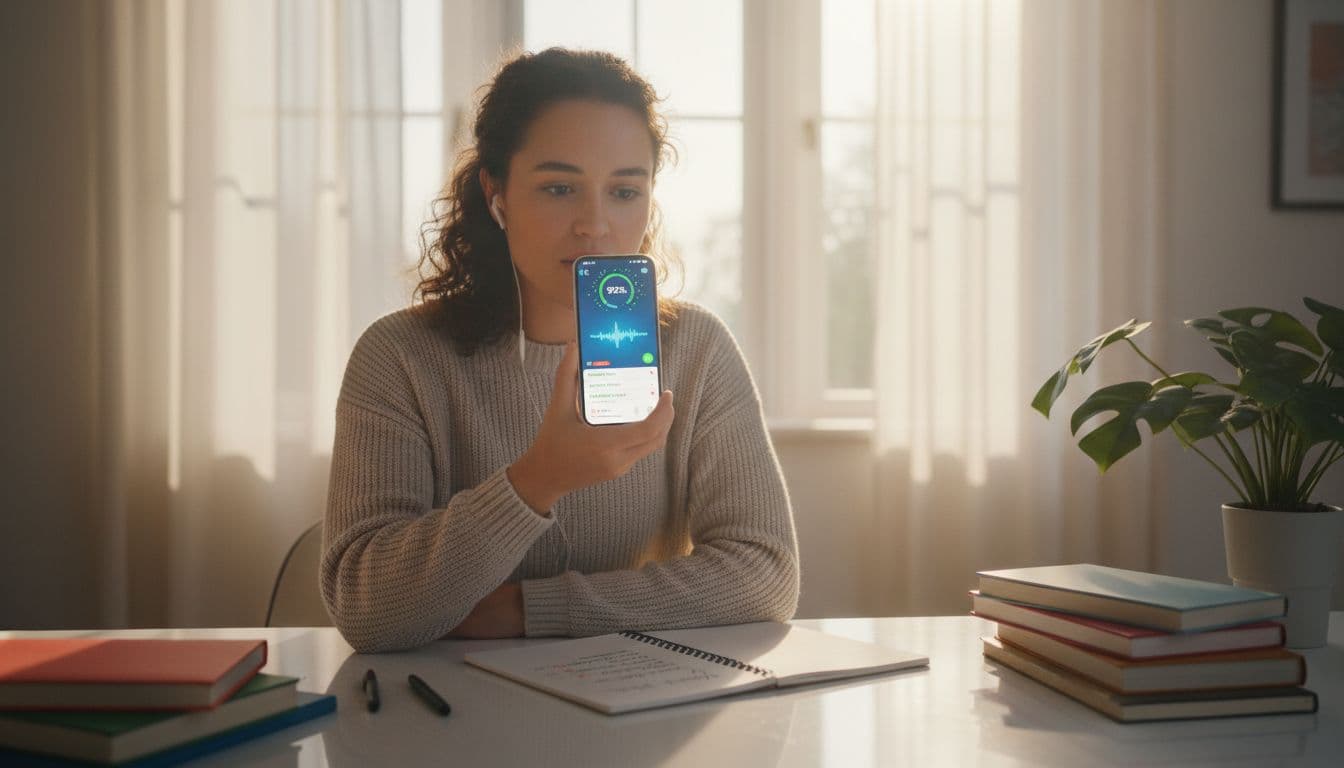
 You say “sheet,” the app marks it wrong, and suddenly you’re wondering if you’re the problem. It feels a bit like talking through a thick window: you can hear yourself clearly, but the other side keeps misunderstanding. This stems from Automatic Speech Recognition technology in language apps, where audio quality from mic setups can greatly impact the user experience.
The good news is you can test speech recognition accuracy in a way that separates three common issues: the app’s mic setup, the app’s recognition rules, and your pronunciation. This guide gives you a repeatable routine you can use alone or with students, plus a simple scoring method to compare results across devices and settings.

Photo by Alexey Demidov
What “speech recognition” in language apps is really judging
Many apps have speaking tasks powered by Natural Language Processing, but they don’t all work the same way. Before you test, it helps to know what you’re measuring.
Two common modes:
- Dictation-style recognition: The app tries to turn your speech into text. If it produces transcription errors, it marks you wrong.
- Pronunciation scoring: The app may not care about a perfect transcript. It may score sounds (phonemes), stress, or timing through underlying neural networks. Some apps still show a transcript, but it can be misleading.
This matters because your “wrong” might mean “not an exact match,” not “misheard”; professional tools often measure success with Word Error Rate, as seen in high-stakes uses like digital scribes for clinical documentation. If you’re comparing apps, it can also help to read a broader app comparison like Rosetta Stone vs Duolingo: Which language app wins? and note which ones emphasize pronunciation feedback.
Quick setup checklist (so your test is fair)
If you change five things at once, you’ll never know what fixed it. Start by locking down basics.
Environment
- Use the same solitary room for every run to avoid interference from multiple speakers.
- Turn off music, TV, fans, and loud HVAC to minimize background noise if possible.
- Stand or sit in the same spot each time.
Device and audio
- Clean the mic area to ensure optimal audio quality (pocket lint is real).
- Disable Bluetooth headsets for the first round (they can switch to a lower-quality call mic).
- Keep your phone 6 to 10 inches from your mouth, slightly off to the side to reduce breath noise and improve signal-to-noise ratio.
Permissions and access
- Confirm the app has microphone permission.
- If the app uses system speech services, confirm speech recognition permission too. Apple documents how apps request speech recognition access here: https://developer.apple.com/documentation/speech/asking-permission-to-use-speech-recognition
- For Android, review the official permissions overview (useful when troubleshooting why a mic prompt never appears): https://developer.android.com/guide/topics/permissions/overview
A repeatable test routine you can finish in 10 minutes
Treat this like a small lab test: same script, multiple runs, track the outcomes.
Step 1: Pick a “script” with target words
Choose 8 to 12 items of custom vocabulary you care about (words the app often marks wrong). Then build 6 to 10 short sentences that include them.
Aim for everyday sentences, not tongue twisters or domain-specific terminology. You want to test recognition, not memory.
Example sentences (English learning)
- “I ship it today, I ship it fast.”
- “He’s on the beach, not on the street.”
- “Please vote for the best van.”
- “I can see it, I can’t see it.”
- “She reads three books each month.”
Step 2: Add minimal pairs (the fastest way to expose mishearing)
Minimal pairs are word pairs that differ by one sound. They’re great for checking whether the app confuses a specific contrast, particularly with various speaker accents.
Try a small set and keep it consistent across runs:
Vowel contrasts
- ship / sheep
- bit / beat
- full / fool
- hat / hut
Consonant contrasts
- fan / van
- thin / sin
- rice / lice
- bag / back
If you teach, a printable minimal-pair resource can save prep time. This sample is widely used in ELT contexts: https://hancockmcdonald.com/sites/hancockmcdonald.com/files/blog-downloads/The%20Minimal%20Pair%20Collection%20FREE%20SAMPLE.pdf
Step 3: Record three runs without changing anything
Do three runs back-to-back in the same app exercise, which provides instant feedback unlike batch transcription.
Rules that make results cleaner:
- Use a normal volume (don’t “perform”).
- Speak at a steady speed.
- Pause one second before and after the sentence.
If the app shows a transcript, screenshot it. If it only gives right/wrong, write down which target words failed.
Step 4: Change only one variable, then repeat
Good variables to test one at a time:
- Move to a quieter room.
- Switch from Wi-Fi to cellular (or the reverse).
- Use wired earbuds with a mic, then phone mic.
- Try the same script on a second device.
This is where speech recognition accuracy gaps show up clearly.
A simple scoring method (so you can compare runs)
You don’t need complex metrics to learn something useful. While experts often rely on Word Error Rate as a more formal alternative, use “Target Word Hit Rate.”
- List your target words (example: 10 words).
- For each run, count how many target words were recognized correctly to calculate the Keyword Recall Rate against human transcription as the gold standard.
- Score = (hit words ÷ total target words) × 100. For context, the WER formula expands this to (substitutions + deletions + insertions) / total reference words.
Here’s a quick tracking table you can copy into notes for production metrics:
RunWhere/SetupTarget words hit (out of 10)ScoreNotes (what went wrong)1Bedroom, phone mic660%“ship” became “sheep,” “van” became “fan”2Same setup770%Missed “thin”3Same setup660%Added extra word in transcript
If you want one extra detail, mark the error type:
- Swap (ship → sheep)
- Drop (word missing)
- Add (extra word inserted)
After 6 to 10 runs, patterns show up fast, giving you personal benchmarks. These align with systems trained on datasets like LibriSpeech.
Troubleshooting decision tree (app issue or pronunciation issue?)
Use this decision tree after you have at least three runs recorded.
- Do scores vary a lot (example: 30% to 90%) with the same script?
Likely a setup or connection issue.
Next: test in a quieter room, switch networks, disable Bluetooth, and re-check mic permission. - Are the same words wrong every time (example: “thin” always becomes “sin”)?
Likely a sound contrast issue (or the app doesn’t handle that contrast well for your accent).
Next: practice that minimal pair slowly, then at normal speed. Test again. - Does the app fail only on one specific exercise type?
Likely a strict “expected answer” matcher that misses contextual errors, not pure recognition.
Next: try a different speaking activity in the same app. If it allows free speech, compare results. - Does your phone’s built-in dictation get it right, but the app gets it wrong?
Likely an app-side machine learning model, Natural Language Processing issue, or scoring rule affected by real-time latency (unlike high-accuracy fields like legal transcription or medical transcription).
Next: report it with screenshots and your exact script. - Does every app struggle, and your dictation struggles too?
Likely mic quality, background noise, or clarity issues causing transcription errors.
Next: change mic, reduce background noise and room echo (soft furnishings help), and speak slightly slower with clearer word boundaries.
Tips for different languages and accents (without guessing your background)
 Automatic Speech Recognition systems, enhanced by Large Language Models, tend to be strongest on common accents and common words, but your testing can stay fair no matter what you speak.
- Use contrast sets that match your language pair. If your learners mix /r/ and /l/, test that. If they mix long and short vowels, test those.
- Keep the same script across accents. Don’t give one learner an easier sentence set.
- Watch for stress and timing. Some apps’ acoustic models penalize unnatural stress even if the sounds are close.
- Add names and loanwords carefully. Proper nouns often reduce speech recognition accuracy because they’re less predictable.
For general pronunciation practice ideas you can adapt to your test list (not tied to any single app), this guide is a helpful starting point: https://leyaai.com/blog/english-pronunciation-practice
Conclusion
When a language app marks your speech wrong, it’s not always “bad pronunciation.” A short, repeatable test script can reveal whether the mic setup is the real problem, whether the app is enforcing strict answers, or whether a specific sound contrast needs practice. Once you score a few runs and compare app logs to human transcription, speech recognition accuracy stops feeling mysterious and starts looking measurable, with Word Error Rate summarizing the findings. Aiming for human parity, the ultimate goal of these speech systems, run the test on one more device, and you’ll know what to fix next.

