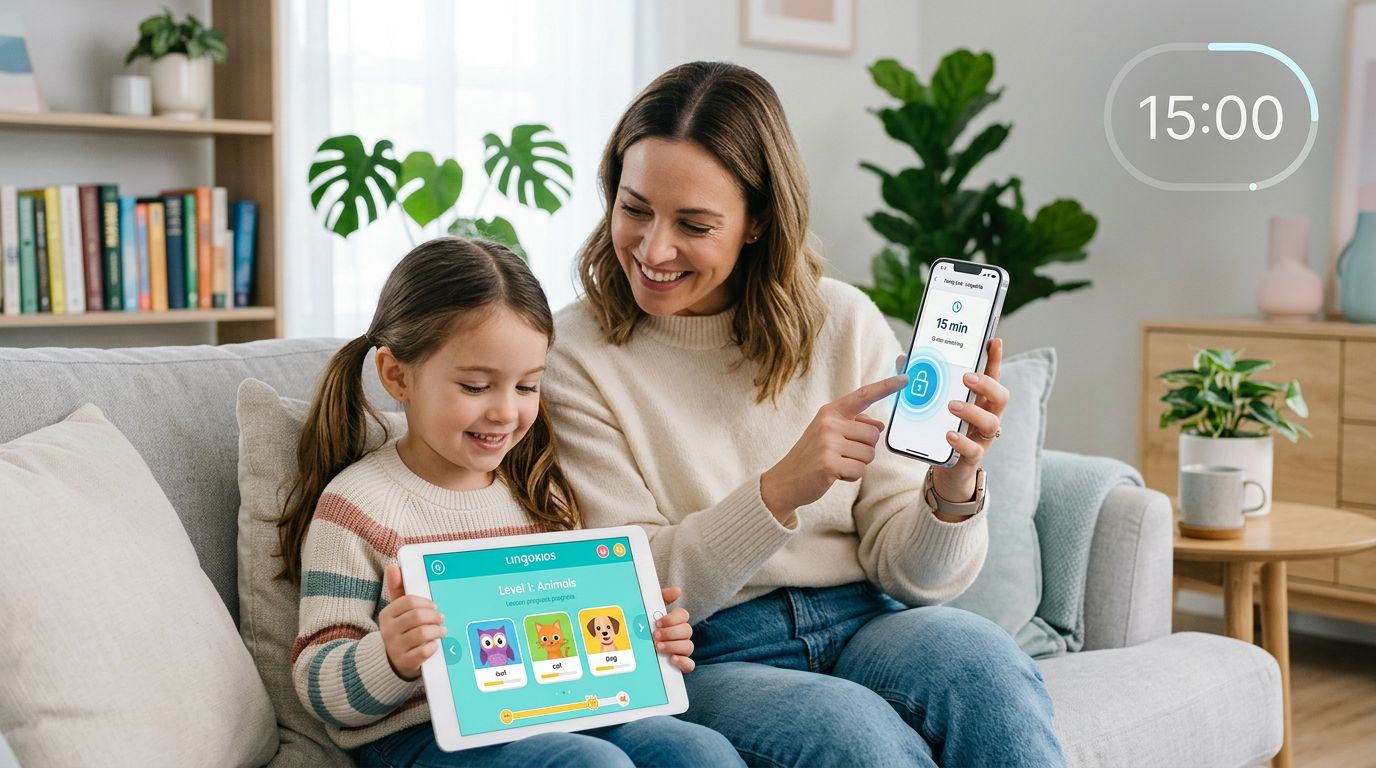
A language app can feel as safe as a workbook. Then your child finds a public leaderboard, a chat button, or a “record your voice” feature.
The good news is you don’t need an hour, or a tech background, to tighten things up. This parental controls language apps check takes 15 minutes and focuses on the settings that matter most for kids ages 5 to 17.
Think of it like a seatbelt check before a car ride. You’re not expecting a crash, you’re just lowering the risk.
Minute 0–3: Lock the device first (because app settings aren’t enough)

Photo by Ron Lach
Start with device-level controls, because kids can often reinstall apps, reset settings, or switch accounts if the phone is wide open.
On iPhone or iPad, go to Settings > Screen Time (or Family). Then check:
- Downtime (quiet hours), so the app can’t run late at night.
- App Limits, so “just one more lesson” doesn’t become 90 minutes.
- Content & Privacy Restrictions, then confirm iTunes & App Store Purchases requires approval for installs, deletes, and in-app purchases.
On Android, open Settings > Digital Wellbeing & parental controls (or use the Google Family Link app). Look for:
- Daily limits and bedtime.
- App approvals (so new apps don’t appear without you knowing).
- Purchase approvals in Play Store family settings.
Before you leave this section, make sure the device has a parent-only passcode (not your child’s birthday). If you need a broader walkthrough, Kaspersky’s family guide to parental controls gives a clear cross-device view.
Minute 3–7: Check permissions and privacy labels (microphone is the big one)
Next, treat permissions like door locks. Many language apps work fine with fewer doors open.
First, scan the store listing:
- On iOS, open the App Store listing and scroll to privacy details.
- On Android, open the Play Store listing and read “Data safety.”
Then open device permissions.
On iOS: Settings > Privacy & Security, then check Microphone, Contacts, Photos, Camera, and Location Services.
On Android: Settings > Privacy > Permission manager (names vary), then check the same categories.
For language apps, these choices usually hold up:
- Microphone: Allow only if your child uses speaking practice. If there’s an “Ask every time” option, it’s a good middle ground.
- Contacts: Deny. “Find friends” isn’t needed for learning.
- Location: Deny, or choose “While using” and approximate if the OS offers it.
- Photos/Camera: Deny unless your child needs an avatar upload or a class assignment.
- Tracking and ad personalization: Turn off where possible. It rarely affects lessons.
If you want a deeper, app-by-app approach, this language app privacy settings guide explains what to disable without breaking core learning.
If an app wants contacts plus always-on microphone, pause and ask why. Most language practice doesn’t need either.
Minute 7–12: Spot language-app red flags (social features hide in plain sight)
This is the step most parents skip, because the app looks educational. Yet language apps often add social features to boost motivation. That’s great for adults, but it can be messy for kids.
Open the app and hunt for menus like Profile, Friends, Community, Leaderboard, Messages, Tutors, Classroom, or Live. Then check for these common risk points:
Public profiles and usernames
If your child can choose a username and profile photo, make it boring. Skip real names, schools, teams, and faces. Also look for “discoverable” toggles, like “show my profile to others.”
Open leaderboards
Leaderboards can expose usernames, habits, and time-of-day patterns. If the app lets you opt out, do it. If it doesn’t, consider using a private or classroom mode.
Chat, comments, or direct messages
Some apps include chat for peer practice. Others offer live tutoring with messaging. Either way, turn off DMs if possible, and prefer systems that keep communication inside a controlled class group.
Voice recordings and speaking clips
Pronunciation tools sometimes store recordings to track progress. That can be fine, but check whether you can delete clips, limit sharing, or disable “community” submissions.
For a parent-friendly view of what makes kids’ language apps work (and what to watch), Screenwise has a helpful overview in language learning apps for kids.
Minute 12–15: Set a minimum safe baseline (and talk to your child)
Finish by locking the account and agreeing on simple rules. This is where many “oops” moments get prevented.
Quick account safety sweep
Inside the app, look for Settings > Account > Security (or similar). Then:
- Use a unique password (or Sign in with Apple/Google).
- Turn on 2-step verification if the app offers it.
- Check logged-in devices or active sessions, and log out of anything unfamiliar.
This walkthrough can help if you want a structured approach: language app security audit.
Minimum safe settings baseline (copy this)
Use this as your default, then loosen it as your child proves they can handle more.
| Age group | Social features | Voice and mic | Spending and installs |
|---|---|---|---|
| 5–7 | No public profiles, no leaderboards | Mic only during lessons | Parent approval required |
| 8–12 | Private profile, no DMs, avoid live chat | “Ask every time” if possible | Parent approval required |
| 13–17 | Private profile, DMs off unless supervised | Mic allowed, review recordings | Approval for purchases, discuss new apps |
The takeaway is simple: keep identity and contact features tight, while letting learning features run.
Three questions to ask your child (30 seconds each)
You’ll learn more from these than from any menu.
- “Show me where you can message someone.” If they can’t find it, you can.
- “What happens if you tap the leaderboard names?” Profiles often hide there.
- “When does the app record your voice?” Kids usually know the exact screens.
If you want a broader way to judge learning apps without panic, Lunesia’s educational app evaluation checklist is a solid companion.
Conclusion
Most parents don’t need stricter rules, they need clear defaults. In 15 minutes, you can tighten device limits, cut risky permissions, and turn off the social extras that don’t help learning. After that, your child gets a safer space to practice, and you get fewer surprises. If you revisit these settings once per term, you’ll stay ahead of new features and updates.
Ready to Take Your Language Learning Further?
Your favorite language-learning app is a great place to start. Rocket Languages can help you go further with interactive audio lessons, pronunciation practice, real-world conversations, and structured learning.
Explore Rocket Languages →Affiliate disclosure: We may earn a commission if you purchase through this link, at no additional cost to you.