A language app can have great lessons and still waste your time if it crashes, freezes, or forgets your progress. Before you subscribe, recommend it, or build on it, run a quick language learning app stability check that mimics real study behavior.
This post gives you a repeatable 10-minute script with timestamps, checkboxes, and pass or fail rules. You’ll spot the common issues fast: shaky logins, broken offline downloads, mic failures, background audio cuts, and progress that doesn’t stick.
If an app can’t survive this, it won’t survive your commute.
What this crash stability check catches (and what it won’t)
A 10-minute test is like shaking a chair before you sit. You’re not proving it will last 10 years, but you will find loose screws.
This check focuses on high-risk moments for language apps in 2026:
- Cold launch and login state (where apps often loop or hang).
- Rapid navigation between lessons, review screens, and settings.
- Microphone and audio playback (permission prompts, route changes, Bluetooth).
- Offline downloads (storage, corrupted packs, stuck progress).
- Background behavior (audio cutoffs, session resets after multitasking).
- Crash recovery (does the app reopen cleanly, and is progress intact?).
What it won’t catch: slow memory leaks that take hours, rare device-specific GPU bugs, or server outages at a different time of day. If you need deeper coverage, borrow ideas from broader mobile QA checklists like the Mobile App Testing Checklist for releasing apps. Still, for a quick go or no-go decision, this script finds the problems that make learners quit.
A stable learning app feels boring in the best way. Nothing “interesting” happens when you switch screens, lock your phone, or lose signal.
Before you start: a fair 2-minute setup on iOS or Android
Consistency matters more than fancy tools. Set the stage so results mean something.
Quick setup checkboxes (do these once per device)
- Update OS and the app to the latest available version.
- Restart the phone (fresh start reduces noise).
- Free storage: keep at least 3 GB available before testing offline downloads.
- Network baseline: start on stable Wi-Fi, then you’ll switch later.
- Audio baseline: set volume to mid-level, connect Bluetooth only if you plan to test it.
- Permissions: don’t pre-grant mic or notifications yet. Let prompts appear during the script.
If you’re testing for a review team, run it on one mid-range Android and one recent iPhone. Android still varies widely by device skin and memory limits, which is why general guides like an Android app testing checklist emphasize fragmentation.
Pass rule for setup: you can reach the home screen (or first lesson screen) within 20 seconds, without force-closing.
Fail rule for setup: any crash, endless spinner over 30 seconds, or repeated login prompt when you already logged in.
The 10-minute crash stability script (0:00 to 10:00)
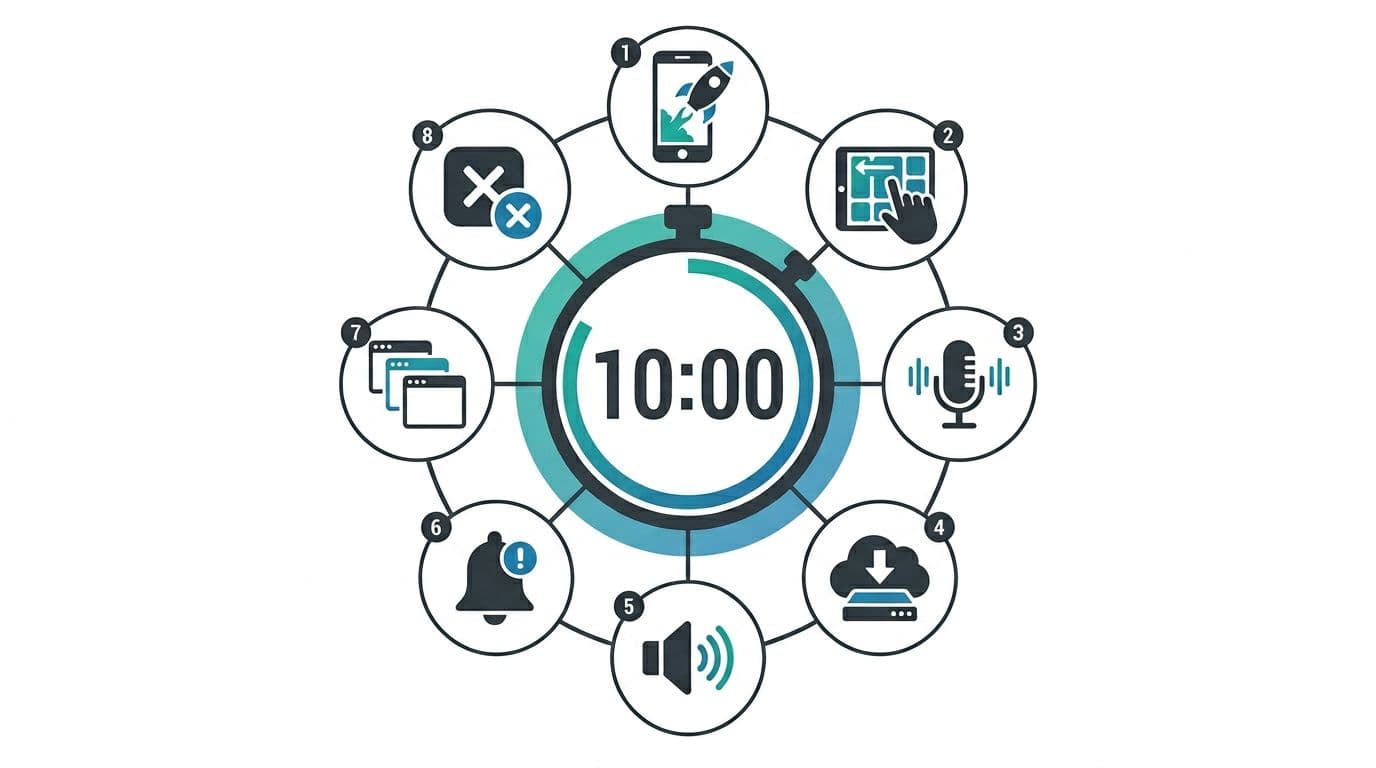
Use a timer. Move fast on purpose. The goal is to create small “stress bumps” that match real life.
0:00 to 1:00, cold launch and first interaction
Open the app from a cold state (fully closed). Tap into a lesson or activity right away.
- Pass: first screen renders cleanly, taps respond within 1 second.
- Fail: blank screen, frozen UI over 3 seconds, or crash on launch.
1:00 to 2:30, rapid navigation (the swipe test)
Jump between 5 to 8 screens quickly. For example: lesson, review, dictionary, settings, back to lesson. Don’t be gentle.
- Pass: no screen overlap, no stuck back button, no repeated loading loops.
- Fail: navigation traps (can’t get back), or “ghost taps” (touches register in the wrong place).
2:30 to 4:00, microphone permission and speaking task
Start a speaking or pronunciation task that requests mic access. When prompted, grant permission.
Also try one short interruption: pull down notifications shade, then return.
- Pass: permission prompt appears once, mic starts, and audio feedback plays.
- Fail: permission prompt repeats, mic never activates, or app crashes when audio starts.
For deeper permission and iOS flow ideas, compare against a structured iOS app testing checklist and adapt only what fits your app category.
4:00 to 5:30, offline download and airplane mode flip
Download one small offline item (a lesson, unit, or audio pack). Once it says done, switch to airplane mode for 20 seconds, then open the same content.
- Pass: offline content opens, audio plays, and no forced sign-in occurs.
- Fail: download stalls forever, content disappears offline, or the app boots you to login.
5:30 to 7:00, background audio and multitasking
Start any audio playback (dialog, listening exercise, or review with sound). Lock the phone for 10 seconds, then unlock. Next, switch to another app for 15 seconds and come back.
- Pass: audio resumes predictably, and the lesson state is where you left it.
- Fail: audio stops and won’t restart, or the lesson resets to the beginning.
7:00 to 8:30, notification and permission edge cases
If the app asks for notifications, respond once (allow or don’t allow, your choice). Then trigger a mild distraction: toggle Wi-Fi off and on, or switch from Wi-Fi to cellular.
- Pass: app keeps working, or it shows a clear “offline” state and recovers.
- Fail: repeated popups, unresponsive buttons, or endless retry spinner.
8:30 to 10:00, forced close and crash recovery
Force close the app. Reopen it. Check whether your last action is saved (completed item, streak, progress bar, downloaded content).
- Pass: you return to a sensible screen, and progress matches what you did.
- Fail: progress rolls back, downloads vanish, or you land in a login loop.
If you hit two failures in one run (especially crashes), stop and retest on another device. If it repeats, don’t commit.
Scoring rubric and a copy-paste test log (compare apps fairly)
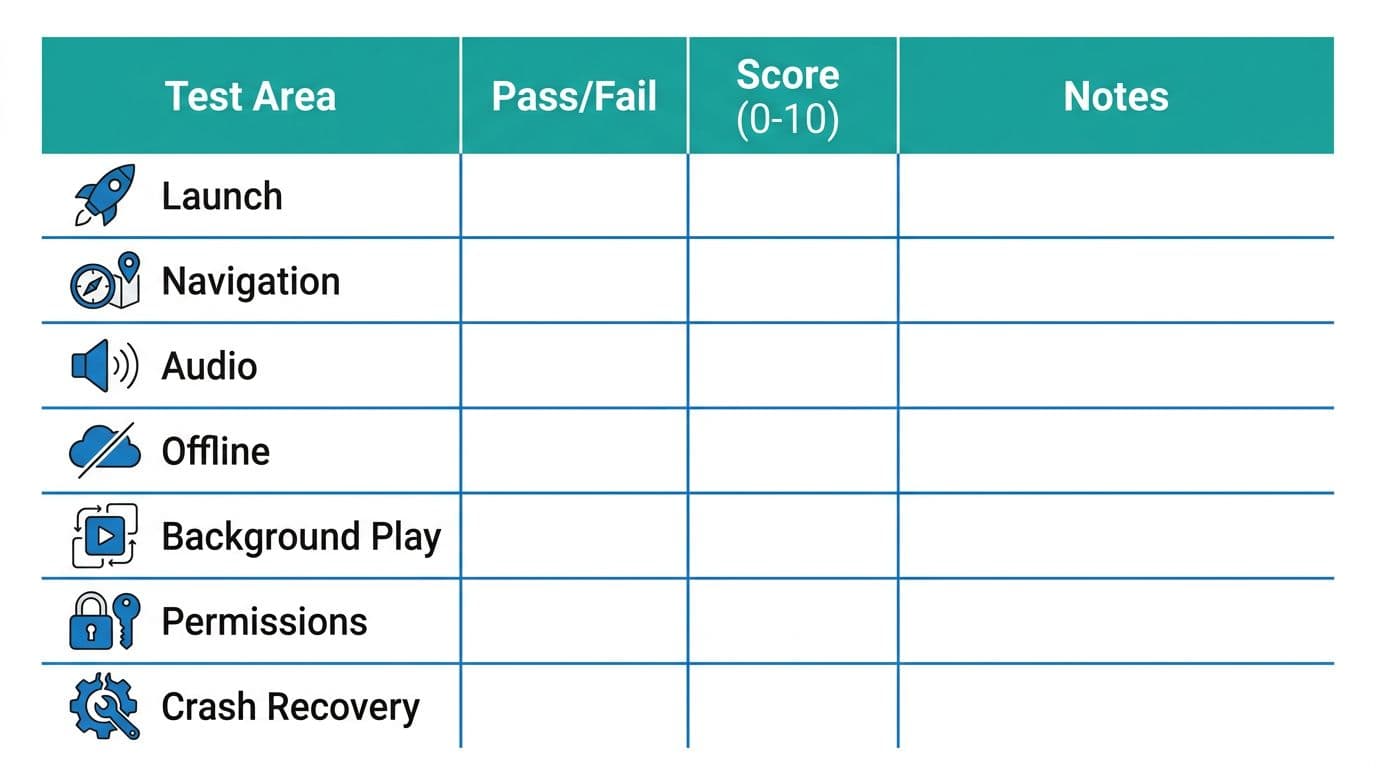
A simple score helps you compare apps you test weeks apart. First, mark pass or fail. Then assign a 0 to 10 score so small issues still show up.
Here’s a compact rubric you can reuse:
| Test area | Pass (clear rule) | Fail (clear rule) | Score (0 to 10) guidance |
|---|---|---|---|
| Launch | Opens and becomes usable within 20 seconds | Crash, blank screen, or hang over 30 seconds | 10 = instant, 5 = slow but works, 0 = crash |
| Navigation | No traps or broken back flow | Stuck screens, UI freeze over 3 seconds | 10 = smooth, 6 = minor jank, 0 = blocked |
| Audio and mic | Plays audio and records after one prompt | Mic fails, audio breaks, repeated prompts | 10 = works first try, 4 = flaky, 0 = unusable |
| Offline downloads | Content opens offline after download | Missing files, forced login offline, stuck download | 10 = reliable, 5 = slow, 0 = broken |
| Background play | Returns to same state after lock or app switch | Resets lesson or loses playback state | 10 = consistent, 6 = minor reset, 0 = wipes state |
| Permissions flow | Prompts appear once and respect choice | Prompts loop or block the app | 10 = clean, 5 = annoying, 0 = blocks usage |
| Crash recovery | Reopens cleanly, progress preserved | Rollbacks, login loop, corrupted state | 10 = solid, 5 = partial loss, 0 = unusable |
If you want a broader pre-launch angle, you can cross-check categories in App testing before launch, then keep this 10-minute script as your fast gate.
Copy-paste stability test log template
Fill one row per test run. Keep notes short, but concrete.
| Date | Device | OS version | App version | Network (Wi-Fi/cell/offline) | Free storage | Total score /70 | Pass or fail | Repro steps (short) | Notes (what broke, where) |
|---|---|---|---|---|---|---|---|---|---|
Conclusion: trust the app that stays calm under pressure
Ten minutes won’t prove perfection, but it will expose the apps that fall apart during normal studying. Run this script before you subscribe, before you recommend, and before you ship a new build.
Once you log a few runs, patterns jump out fast: mic prompts that loop, offline packs that vanish, or background audio that drops every time. That’s the heart of language learning app stability, boring reliability that keeps learners focused on words, not crashes.

