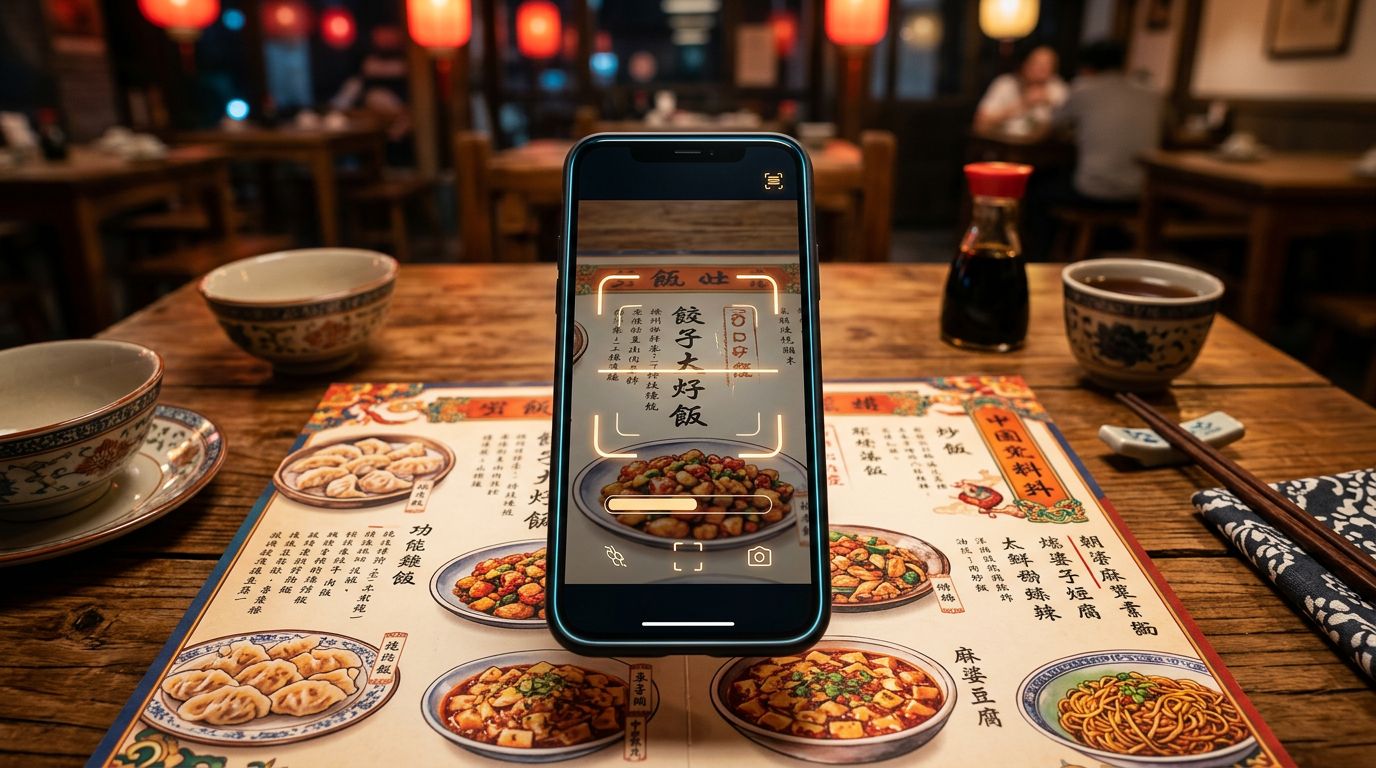
A blurry menu photo can turn a simple restaurant order into a guessing game. The right Chinese OCR apps can copy characters from the image, translate them, and help you confirm what you’re about to eat or buy.
However, OCR and translation are different tasks. Some tools recognize Chinese characters accurately but offer little explanation, while others translate quickly but make the original text harder to copy or save. If you’re searching for Google Chinese OCR, you’re usually looking for a Google Lens-style camera workflow. Your best choice depends on whether you’re traveling, studying Mandarin, scanning documents, or reading labels offline.
How Chinese OCR turns a photo into editable text
Optical character recognition, or OCR, analyzes an image and converts visible characters into digital text. When you photograph a Chinese menu, the app first improves the image by correcting perspective, reducing noise, and separating the text from the background. OCR software then identifies the layout and matches character shapes against its recognition model.
The final stage produces editable text that you can copy, search, or send to a translation tool. Some apps also connect the result to a dictionary, pronunciation guide, or instant translation feature.
Chinese OCR is more demanding than OCR for languages that use spaces between words. Chinese writing usually places characters next to one another without spaces, so software must recognize individual characters and determine where words or phrases begin. A restaurant menu may also combine Chinese, English, numbers, prices, punctuation, and decorative type in one line.
Why Chinese character recognition often fails
A single stroke can change one character into another. Small print, low light, glare, compression, and unusual fonts make those differences harder for a camera to capture.
Layout creates another problem. Signs may use vertical writing, labels may wrap text around a bottle, and menus often place characters over colored photographs. Calligraphy and brush-style type can look clear to a person familiar with the script but confusing to an OCR engine.
Handwriting recognition is harder still. Printed OCR models rely on consistent character shapes, while handwritten forms vary between writers. A tool that reads a clean printed label may perform poorly on a handwritten address or note.
A fluent translation can still hide an OCR error. Check the original Chinese whenever a name, ingredient, address, or dosage matters.
Which Chinese OCR apps fit your situation?
No single app handles every Chinese OCR task equally well. The table below matches common needs with tools that have different strengths.
| Tool | Best fit | Strength | Main limitation |
|---|---|---|---|
| Pleco | Learners and short everyday text | OCR, dictionary lookup, pronunciation, and handwriting tools | Advanced OCR features may require a paid add-on |
| Hanping Chinese Camera OCR | Android users reading short Chinese text | Camera recognition focused on Chinese | Less suited to long documents and complex layouts |
| Google Lens | Fast, free travel use | Copies and translates text with little setup | Results and features depend on connection, device, and region |
| Apple Live Text | iPhone and iPad users | Selects text inside saved photos and some camera views | Requires compatible Apple hardware and software |
| Adobe Scan | Document capture | Creates cleaner scans and searchable files | Check current Chinese language support and export limits |
| ABBYY FineReader or FineScan | Complex documents | Strong document recognition and layout handling | Paid features and mobile availability vary |
| Text Fairy or similar Android OCR apps | Basic offline experiments | Can work without a constant connection | Chinese support and quality vary by app version |
For quick travel use
For Google Chinese OCR searches, Google Lens is a practical first choice for understanding a sign or menu immediately. Lens is Google’s actual product, and it can recognize text through the camera, copy the result, and translate it in the same workflow. On an iPhone, Live Text offers a similar way to select Chinese characters in a photograph.
These tools are convenient because you don’t need to build a document project before reading one line. They work best with large, printed characters and reasonable lighting. Their interfaces can change by country, operating system, or Google account settings, so test them before your trip.
For Chinese learners
Pleco is more useful when recognition is only the first step. After scanning a character or short phrase, you can look it up in the dictionary, hear pronunciation, inspect example sentences, and save vocabulary for review. Its OCR and dictionary tools make it a strong companion for learners who want to understand why a translation means what it does.
LanguaVibe’s guide to the best Chinese learning apps includes Pleco alongside structured Mandarin study tools. A dedicated OCR app can tell you which characters are present, but a dictionary app helps you keep using that discovery after the camera is gone.
Hanping Chinese Camera OCR is another option for Android users who want a focused mobile OCR app. It is a sensible fit for short signs, labels, and phrases. It is less suitable for a full multi-column menu or a long scanned contract.

For documents and repeated scanning
Adobe Scan and similar OCR software make more sense when you need a clean file rather than a quick translation. They can detect page boundaries, straighten documents, and recognize several text blocks. They can also export a searchable PDF or editable file.
Cisdem PDF Converter OCR is another desktop option for turning scanned pages into editable text. Generic Android OCR apps can also help with occasional images. For occasional images, free online OCR may be convenient, but privacy-sensitive documents deserve extra caution.
For example, one OCR Text Scanner listing claims support for 92 languages, including Chinese. That language support figure tells you about coverage, not accuracy. Test the exact Chinese script and image types you plan to scan.
OCR text extraction and camera translation are different jobs
Camera translation shows you an interpreted meaning, often as an overlay or translated block. OCR output preserves the original Chinese characters and can produce editable text. Both can begin with the same photograph, but they produce different results.
Suppose you photograph a label that contains a product name, ingredients, and a warning. A translation app may give you a readable summary. With Google Chinese OCR, a Lens-style workflow may be fast, but it can hide recognition mistakes.
For travel, translation is usually faster. Point the camera at a large menu heading, and the app may provide enough information to order. For learning, documentation, or allergy checks, the original characters are more useful because you can inspect each one.
A reliable workflow often uses OCR software and translation together:
- Capture or scan the Chinese text.
- Copy the OCR result into a dictionary or translation software.
- Compare the translation with the original image.
- Re-scan unclear characters separately.
- Save important names, addresses, or vocabulary.
Camera translation can also make errors less visible. A translation model may use surrounding context to produce a plausible phrase even when one character was read incorrectly. That is acceptable for a casual sign, but risky for a medication label, legal document, food allergy, or business specification.
Simplified and Traditional Chinese need the right setting
Simplified Chinese is common in mainland China and Singapore. Traditional Chinese is used in Taiwan, Hong Kong, and Macau, although local vocabulary and writing conventions also differ between these regions.
Most modern OCR tools recognize both forms, but they may expose them as separate language choices. Look for settings such as Simplified Chinese, Traditional Chinese, Chinese Simplified, Chinese Traditional, zh-Hans, or zh-Hant.
The script setting affects the characters the engine expects, and OCR software changes recognition expectations, not the source photo. Choose a Simplified Chinese model when it matches the image. If you scan the other script with the selected model, the app may still recognize common characters, but it can confuse uncommon forms or return an unwanted variant. Converting between scripts changes character forms without translating regional vocabulary.
For example, converting a character into its simplified counterpart doesn’t explain whether a word is preferred in Taiwan or mainland China. Names, food terms, and place names need regional context.
Mixed Chinese-English text creates a separate challenge. A label may include Chinese ingredients, Latin brand names, Roman numerals, decimals, and measurement units. Check the app’s language support, then select Chinese and English together. If the output looks poor, crop the Chinese and Latin sections separately.
| Image type | Setting to try first | What to check |
|---|---|---|
| Mainland menu | Simplified Chinese | Dish names, numbers, and regional food terms |
| Taiwan food label | Traditional Chinese | Ingredient names and local product vocabulary |
| Hong Kong street sign | The regional script plus English | Vertical text and proper nouns |
| Import packaging | Chinese plus English | Brand names, units, and model numbers |
| Historical or calligraphic text | Correct script plus manual review | Unusual forms and omitted punctuation |
The script choice improves recognition, but it cannot solve a poor photograph. A sharp image with the wrong setting may still outperform a dark, reflective image with the selected script.
How to get cleaner OCR from a menu, sign, or label
The camera often matters more than the OCR software when you need reliable Chinese OCR. Before blaming the OCR engine, improve the image it receives.
- Hold the phone parallel to the surface. A flat menu page is easier to read than a photograph taken at a steep angle. Use the app’s perspective correction when the page bends toward the spine.
- Add light without creating glare. Move away from direct reflections on glossy packaging, and use a nearby light source instead of pointing the flash straight at a reflective label.
- Fill the frame with the target text. Digital zoom can soften characters, so move the phone closer when possible. Keep enough margin for the app to detect the complete line.
- Crop one text area at a time. A full restaurant menu may contain several columns, photos, prices, and decorative headings. A crop containing one dish description often produces cleaner output.
- Select Simplified Chinese or the selected regional script. Choose English as an additional language when the image includes Latin text, but remove unnecessary languages if the app lets you.
- Capture vertical writing as a vertical crop. Some apps detect orientation automatically, but a focused image reduces layout errors.
- Inspect every uncertain character. Compare similar-looking forms, especially in names, numbers, addresses, and ingredients. A dictionary lookup can reveal whether the output makes sense.
- Re-scan small or stylized print. A second photo with better focus may help more than switching apps. Calligraphy, decorative fonts, and low-contrast text may require manual copying.

For a product label, take one wide image for context and one close image for the smallest text. The wide view tells you which section you are reading. The close view gives the OCR engine larger character shapes.
When food safety is involved, use OCR as a reading aid rather than a final authority. Ask a person who can verify the label if you have a serious allergy or need precise medical information.
Scanned PDFs and screenshots: OneNote, online tools, and desktop OCR
A screenshot needs image OCR. A PDF may already contain selectable text, or it may be made of image-based files. Try selecting a few characters first. If you can’t select them, use OCR software before editing or searching scanned documents.
Extract Chinese text from a screenshot with OneNote
The classic desktop version of Microsoft OneNote can copy text from an inserted image. This is useful for screenshots, photographed pages, and screen captures when you don’t want to install a dedicated OCR app.
- Open a OneNote page and insert the screenshot or image.
- Right-click the image.
- Choose Copy Text from Picture.
- Paste the result into Word, a note, or a dictionary.
- Compare the pasted Chinese with the image and correct errors.
For a scanned PDF, insert the file as a printout rather than treating it as a normal attachment. Right-click the page image and choose Copy Text from This Page of the Printout, if that option appears in your OneNote version.
OneNote is convenient for a single screenshot, but it isn’t a complete document management workflow. It may lose columns, tables, line breaks, and page structure. The OCR result also depends on image quality and the installed Office environment. If the command is missing, use OCR software or upload a copy to Google Drive and open it with Google Docs.
Convert a scanned Chinese PDF into an editable Word file
For a short, private file, Google Drive and Google Docs provide a free starting point. People may search for Google Chinese OCR, but Google Docs is the relevant scanned-PDF workflow. Upload the scanned PDF, open it with Google Docs, and copy the recognized text into Word. The result is often useful for paragraphs and can produce a searchable PDF, but complex layouts usually need repair.
i2OCR and Convertio are useful free online OCR options among the online OCR tools available for occasional pages. They can be convenient when you need image to text conversion without installing software. Read their current privacy terms before uploading contracts, passports, customer records, or unpublished business material.
For recurring work, desktop software is more reliable than browser-based OCR software. ABBYY FineReader handles document recognition and exports editable Word files or searchable files, while Cisdem PDF Converter OCR offers another desktop option. A Chinese OCR overview from SimpleOCR notes that FineReader Corporate includes Chinese, Japanese, and Thai recognition in its base package, without a separate add-on.
Users who need a PDF converter and OCR in one desktop workflow may prefer Cisdem PDF Converter OCR. PDF OCR X is another lightweight option for extracting text from PDF pages. Feature availability varies by operating system and product edition, so confirm that your version supports the Chinese script you need.
Before exporting to Word, set the recognition language to Simplified Chinese and review the page preview. Check export formats in ABBYY FineReader and Cisdem PDF Converter OCR before using batch OCR across many pages. Proofread names, figures, tables, and punctuation, since batch processing can multiply repeated errors.
How to compare OCR accuracy in real situations
App ratings and language counts don’t provide a useful accuracy benchmark. When comparing OCR software, use the same image, crop, and script setting in every tool.
Create a small test set that reflects your actual needs. Include one clean printed menu, one glossy label with glare, one low-light sign, one mixed Chinese-English package, one vertical sign, and one handwritten note if handwriting matters to you.
Count character-level errors rather than judging only the translated sentence. Record OCR accuracy by noting substitutions, missing characters, extra characters, incorrect numbers, and line-order mistakes. Chinese doesn’t use spaces in the same way as English, so word-level accuracy can be misleading.
A simple scorecard can include:
- Character accuracy, meaning the number of correct characters divided by the total characters.
- Layout accuracy, meaning whether columns, lines, prices, and labels remain in the right order.
- Script accuracy, meaning whether Simplified or Traditional forms are returned as expected.
- Usability, meaning how easily you can copy, edit, save, or look up the result.
- Privacy and offline access, meaning whether the image leaves your device and whether the app works without a connection.

Test printed text separately from handwriting. An app may score well on a sharp restaurant menu but fail when handwriting recognition is needed. Also test small characters at the size you actually encounter. Recognition that works on a laptop display may fail when the same label appears as a tiny phone screenshot.
The most useful result is not a universal winner. It is a clear match between a tool and a task. Compare a Google Lens workflow identified as Google Chinese OCR with Cisdem PDF Converter OCR and ABBYY FineReader. The Lens workflow may be fastest for a street sign, while the desktop tools may suit converted PDFs or multi-page documents better.
Privacy, offline access, and regional availability
Free OCR often depends on cloud processing. That can improve recognition speed and model quality, but it may send your photograph to a remote server. Avoid uploading passports, invoices, confidential contracts, or customer information unless the service’s terms meet your needs.
Offline OCR software is more practical when you’re traveling without reliable data service. Pleco and some Android OCR apps offer offline features, while desktop programs keep documents on your computer. Download language packs before leaving home, and test airplane-mode behavior rather than assuming the camera will continue working.
App availability varies by country, and features referred to as Google Chinese OCR may vary by device, country, or account. An iPhone feature may require a supported model and iOS version, while Android listings can differ by region, developer, or language. Some Chinese apps may use a local app store, payment method, or account system that isn’t available in your home country.
Check four details before your trip: language support for the scripts you need, offline behavior, export options, and permissions. A tool that recognizes Chinese but can’t save the result may be fine for a quick sign. A document workflow needs searchable PDF or Word export, batch processing, and dependable layout handling. For a desktop PDF workflow using Cisdem PDF Converter OCR, check whether processing stays local.
Frequently Asked Questions
What is the best Chinese OCR app for travel?
Google Lens is a practical choice for quickly copying or translating clear Chinese signs, menus, and labels. Pleco may be better when you also want dictionary definitions, pronunciation, and saved vocabulary.
Is Google Chinese OCR a separate Google product?
The phrase usually refers to using Google Lens to recognize or translate Chinese text. Lens can copy characters from an image, translate them, and provide a fast camera-based workflow, but features may vary by device, country, and account.
Can Chinese OCR recognize both Simplified and Traditional Chinese?
Most modern OCR tools support both scripts, but you may need to select Simplified Chinese, Traditional Chinese, zh-Hans, or zh-Hant. Use the setting that matches the image and review regional terms, names, and uncommon characters manually.
Can I use Chinese OCR offline?
Some features in Pleco, desktop OCR software, and selected Android apps can work without a constant connection. Download language packs and test the app in airplane mode before relying on it while traveling.
How can I improve Chinese OCR accuracy?
Use a sharp, well-lit image, hold the camera parallel to the text, and crop one text area at a time. Re-scan unclear characters and verify names, ingredients, numbers, addresses, and medical information against the original image.
Conclusion
Choose based on the text in front of you. Google Chinese OCR in Lens can translate a clear sign quickly, while Pleco adds dictionary and study support. Hanping suits short Android scans, and ABBYY FineReader or Cisdem PDF Converter OCR fit document-heavy work.
Good lighting, correct script settings, and tight crops often improve results more than changing apps. Treat OCR as a first reading of the image, then manually verify important characters before relying on the translation.