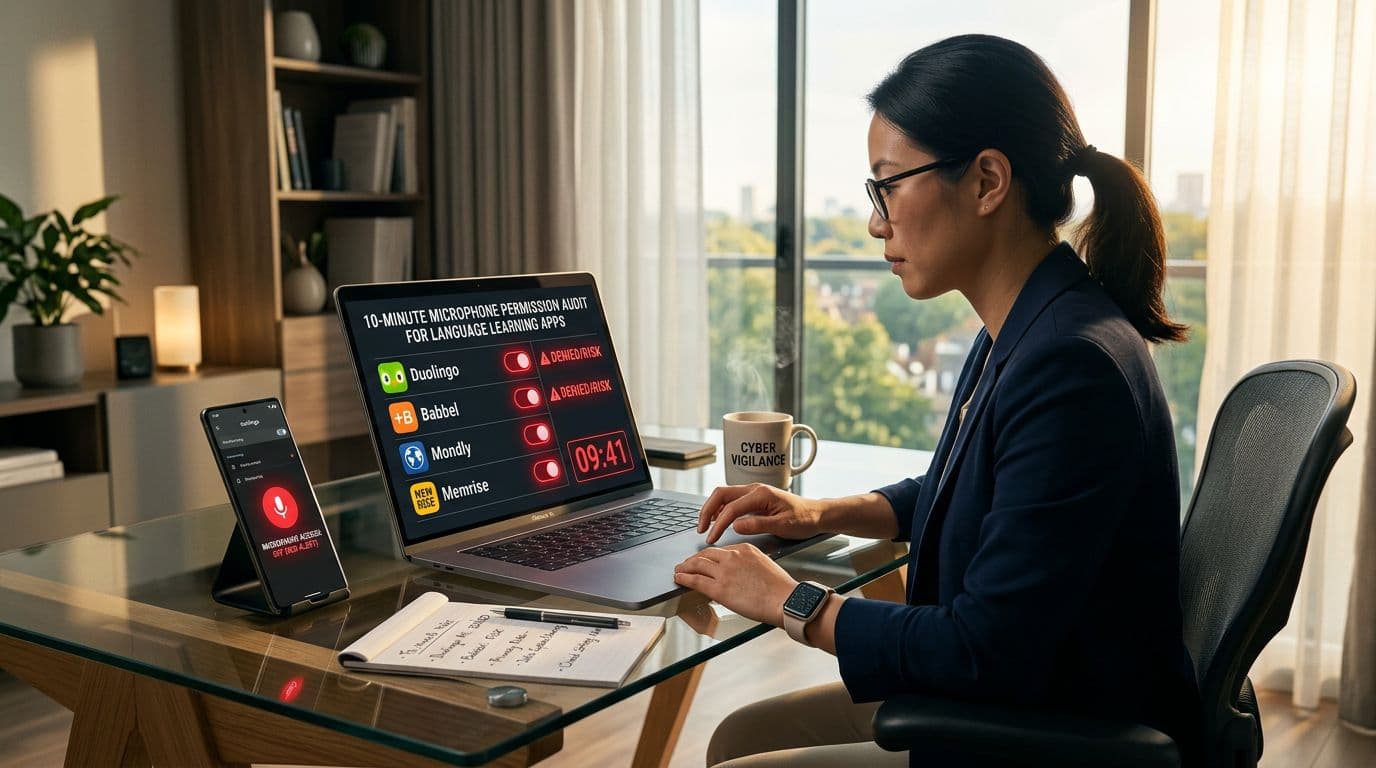
Speaking practice can be the fastest way to build confidence. It can also be the fastest way to hand an app more access than it needs.
A microphone permissions audit is a quick check that answers one simple question: which language apps can hear you, and when? In about 10 minutes, you can tighten settings on iOS or Android, confirm what’s happening on screen, and still keep the speaking tools you actually use.
This isn’t about panic. It’s basic privacy hygiene, like locking your door at night.
What you’re checking (and what “mic access” really allows)
Language learning apps ask for microphone access for real reasons: pronunciation scoring, speech-to-text, conversation practice, and sometimes voice chat with tutors. When you grant the mic, you’re not promising the app will record all the time, but you are giving it the technical ability to capture audio when the app is running and chooses to.
Two ideas make this easier:
- Permission level beats promises. An app’s marketing text doesn’t control your phone. Your OS setting does.
- “While using the app” is the safest useful default. If you only speak during exercises, the app usually doesn’t need mic access outside active use.
If you want Apple’s official view of how iPhone permissions work, see Apple’s guide to controlling hardware access. For a broader language-app privacy sweep beyond the mic, use this internal walkthrough on checking language app privacy settings.
A helpful rule: if you don’t use speaking practice weekly, keep mic access off and turn it on only when needed.
If a feature is “nice to have,” don’t give it “always available” access.
The 10-minute microphone permissions audit (step-by-step for iOS and Android)
Set a timer. Move quickly, and don’t overthink it.
- List your language apps (30 seconds).
Think: main app, kids’ apps, classroom apps, and any “accent coach” add-ons. Old installs matter because permissions can linger after you stop using an app. - Check app-level mic permission (2 minutes).
iOS path: Settings > Privacy & Security > Microphone. Toggle off any app you don’t trust or don’t use for speaking.
Android path: Settings > Privacy > Permission manager > Microphone. Google’s menu overview is here: Permission manager and privacy controls. - Set the tightest option that still works (1 minute).
iOS: It’s basically on or off. If you speak often, leave it on. If you rarely speak, turn it off and re-enable only when needed.
Android: Choose Allow only while using the app when available. Otherwise pick Ask every time for occasional speaking, or Don’t allow if the app can be used hands-free. - Confirm OS privacy indicators (1 minute).
iOS: Watch for the small orange microphone indicator in the status bar while recording. Also open Control Center to see recent mic use.
Android: Look for the green mic indicator. Then check Settings > Privacy > Privacy dashboard for a timeline of mic access (names vary). - Reduce background activity that can confuse the picture (2 minutes).
iOS path: Settings > General > Background App Refresh > turn off for language apps that don’t need constant syncing.
Android path: Settings > Apps > (Your app) > Battery > set to Restricted (wording varies). Many phones also offer a system privacy toggle, Android’s overview is here: Android privacy and safety basics. - Revoke, then re-grant cleanly (1 minute).
This fixes “stuck” permissions and makes you notice what the app truly needs.
iOS: Toggle mic off, force-close the app, reopen, try a speaking task, then toggle on only if you choose to keep it.
Android: Switch to Don’t allow, reopen the app, then change to Allow only while using (or Ask every time). - Test whether the app still works without the mic (1 to 2 minutes).
Turn mic access off and try a normal session. Listening, reading, flashcards, and typing should still work. If the app blocks everything, that’s a product choice, not a technical requirement. - Lock in your “final” decision (30 seconds).
Take a screenshot of your Microphone permission screen. After the next app update, you can compare fast.
For extra context on when apps ask for permissions during setup, this internal check helps you spot vague permissions during app onboarding.
Parents and educators: safer defaults on kids’ devices
Kids often tap “Allow” just to get to the next screen. That’s normal. Your job is to set guardrails that don’t ruin learning.
Start with these practical moves:
- Prefer “Ask every time” on Android for speaking apps, especially for younger kids. It creates a moment where an adult can help decide.
- Use restrictions when mic access is getting re-enabled. On iOS, check Settings > Screen Time > Content & Privacy Restrictions. If Microphone changes are blocked, you can prevent permission edits without supervision (menu names vary by iOS version).
- Separate accounts and profiles when possible. A dedicated child profile reduces cross-app data mixing, especially on shared tablets used for homework.
If you want a parent-first checklist that covers devices and apps together, Common Sense Media has a clear guide on privacy settings for kids’ apps and devices.
Also talk to kids in plain language: “This app can use the microphone only when you’re doing speaking practice.” Framing it like a seatbelt helps.
If a language app requires the mic unnecessarily
Some apps push microphone access even for tasks that could be typed. When that happens, keep it boring and direct:
- Look for an in-app switch first (often “Speaking exercises,” “Voice input,” or “Pronunciation grading”). Turn it off, then deny mic permission at the OS level.
- Ask support one narrow question: “Which features stop working without microphone permission?” Save the reply.
- Choose an alternative app if the answer feels unreasonable. Plenty of strong programs support typing-only practice.
For a simple refresher on iPhone app permissions in general, Avira’s walkthrough is easy to follow: how to change iPhone app permissions.
Printable checklist: 10-minute microphone permissions audit
Use this as a quick monthly reset (or after big updates):
- Open OS mic permissions list (iOS: Settings > Privacy & Security > Microphone, Android: Settings > Privacy > Permission manager > Microphone)
- Turn off mic for any language app you don’t use for speaking
- On Android, set mic to Allow only while using, or Ask every time
- Watch for mic privacy indicators during a speaking exercise
- Check access history (iOS Control Center, Android Privacy dashboard)
- Disable background refresh or restrict battery use for non-essential apps
- Revoke and re-grant mic permission once to confirm prompts and behavior
- Run one full lesson with mic off, confirm what still works
- Screenshot your final permissions screen
Conclusion
A microphone permissions audit keeps language learning simple: speak when you want, stay quiet when you don’t. Ten minutes is enough to limit access to while using, spot weird behavior, and set safer defaults for kids. Re-check after app updates, because permissions and features change over time. Your progress should come from practice, not from leaving the mic open.

