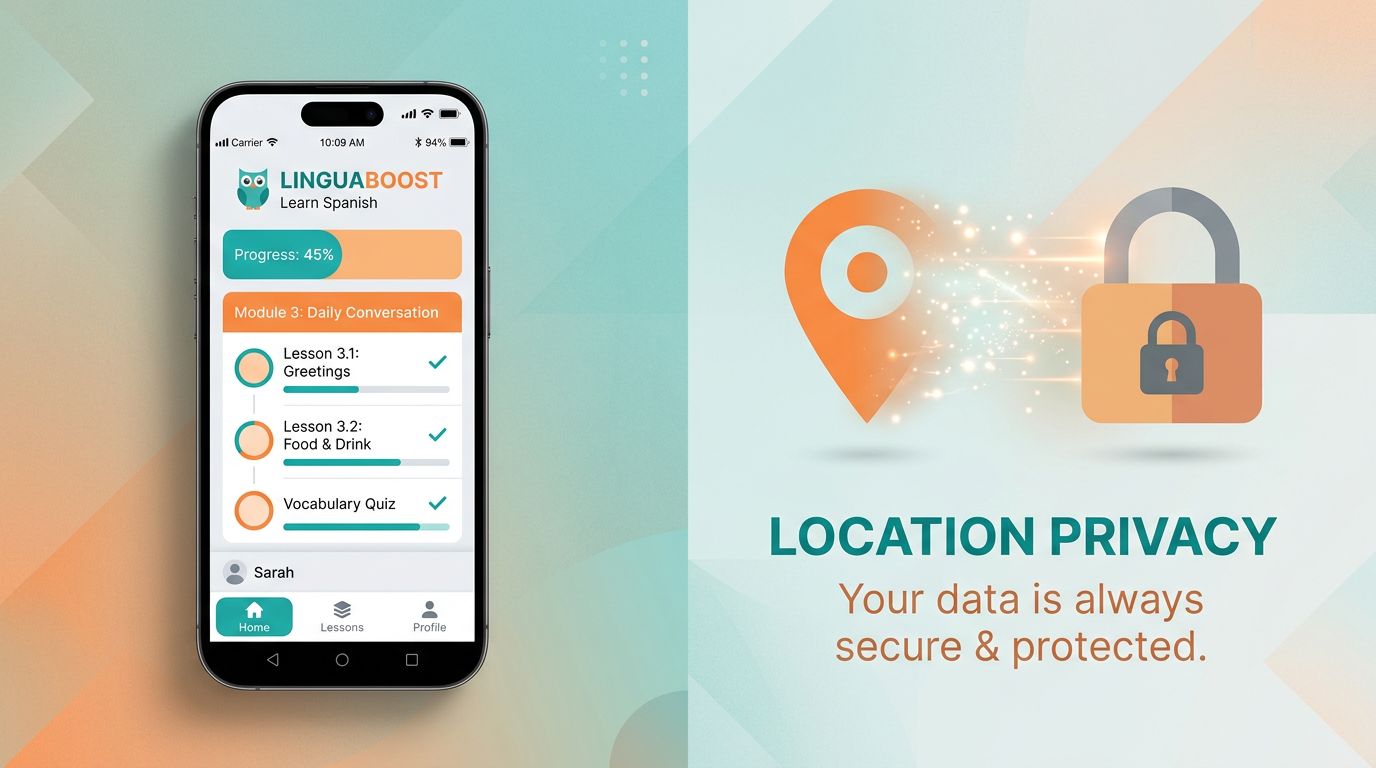
A language app should help you learn verbs, not learn your daily routine. Yet many location permissions apps requests show up the first time you open a new course, especially on free, ad-supported plans.
This mini-audit takes about 10 minutes on iOS and Android. The goal of this guide is to audit location permissions across both iOS and Android platforms. You’ll confirm what your phone is sharing, tighten settings to sensible defaults, and keep core learning features working.
Instructions can vary by device and OS version. You’ll confirm how the app handles your device location to ensure data privacy. Also, this is practical guidance, not legal advice.
Minute 0 to 3: Decide whether location sharing is justified at all
Location sharing isn’t automatically “bad,” but it’s often unnecessary for language study. Think of it like giving someone your address when all they needed was your city.
Language learning apps may ask for location sharing to support things like:
- Region and content defaults (for example, local language variants, currency, or availability).
- Time zone and reminders (usually possible without location sharing).
- Fraud prevention (less common, and usually works with less invasive signals).
- Ads and analytics (common, and the main reason many learners choose to say no; ad-supported apps often use this data to build a “location history” for marketing).
If you can’t name the feature that needs location sharing, don’t grant it. You can always enable it later.
Recommended default (for most learners)
For most people, the safest starting point is:
- Allow only while using the app, not “Always” (this provides foreground location).
- Approximate location, not precise location.
If the app doesn’t clearly explain why it needs your exact position, treat “Precise location” as optional. Language lessons rarely depend on it.
Here’s a quick way to choose, before you touch privacy settings:
| Option | What it allows | Privacy impact | When it makes sense |
|---|---|---|---|
| Never / Don’t allow | No location sharing | Lowest | Most language learning use cases |
| Ask next time / Ask every time | Prompts you per use | Low | If you want strict control |
| While using the app | Foreground location only when open (approximate location) | Medium | If a feature truly needs it |
| Always / Allow all the time | Background access (precise location) | Highest | Rare for language apps |
If you want more broad, device-level privacy toggles beyond location sharing, this language app privacy settings checklist pairs well with today’s audit.
Minute 3 to 7: Check your iOS 19 or Android 16+ location permission settings
This section is the “find it, set it, verify it” part for app permissions. Don’t worry about perfect menus. Use your phone’s Settings search if labels differ.
iOS 19 (iPhone and iPad): set the minimum, then test the app
- Open Settings
- Go to Privacy & Security
- Tap Location Services
- Find your language app
- Choose one:
- Never (best for privacy, try this first)
- While Using the App (best compromise if needed)
- Avoid Always unless you have a clear reason
Then check the precision toggle:
- Turn Precise Location off when possible (Approximate is usually enough).
Fast verification: open the language app, do one lesson, then close it. If the app works normally, you’re done. If a feature breaks, you can still keep “While Using” and keep Precise off.
Understanding Location Permissions Apps
Android 16+: use Permission Manager and the Privacy Dashboard
Android 16 uses runtime permissions to keep location controls straightforward, where apps request location permissions in context. Apps generally request ACCESS_COARSE_LOCATION for general area awareness or ACCESS_FINE_LOCATION for exact coordinates:
- Open Settings
- Go to Security & Privacy (or Privacy)
- Open Permission Manager
- Tap Location and select your language app
- Choose:
- Don’t allow (try first)
- Allow only while using the app (recommended default if needed)
- Ask every time (good for strict control)
- Avoid Allow all the time for language apps
Android also helps you verify access after the fact. Android 16 shows a status indicator (often a blue dot) when location is being used, and the Privacy Dashboard shows recent access history.
For extra background on how Android expects apps to request location permissions “in context,” see Android’s guidance on runtime location permissions.
Learning to manage app access like this helps protect your device location efficiently.
Minute 7 to 10: Reduce tracking risk without breaking lessons (plus troubleshooting)
Once the OS permission is set, take two more minutes to prevent “quiet” location use that surprises people later.
Safer settings that usually keep language apps working
Use these as your baseline:
- Location permission: While Using (or Ask Every Time), not Always.
- Precision: Approximate, not Precise. Location accuracy for approximate often derives from a mix of GPS and Bluetooth, as well as Wi-Fi scanning.
- Background behavior: restrict background location if you don’t need instant sync. Language apps rarely need a background service compared to mapping apps or navigation apps.
On iOS, background limits live in places like Background App Refresh and per-app settings. On Android, look for Battery or Background usage controls for the app, then choose a more restrictive option if offered. The trade-off is simple: tighter background location limits can delay syncing and reminders, but lessons still run.
If you’re also tightening microphone access, pair this with the microphone permission audit for language apps. Many people confuse “speaking practice broke” with “the app needs location,” when it was actually mic access.
Troubleshooting: when the app breaks after denying location
Some apps handle denial poorly, even if location is optional. Try this sequence:
Re-open the app once after changing permissions
A restart often clears a stuck prompt.Switch from Never to While Using, keep Approximate
This is the best middle ground when an app refuses to proceed, especially if it handles sensitive location data poorly or uses a Geofencing API without a valid reason (in which case, turn off location entirely).Use “Ask next time” / “Ask every time” for one session
Complete the feature that complains (for example, a “nearby” screen), then switch back to While Using or Never.Reset the app’s permission prompts (last resort)
- On Android, you can usually clear the app’s storage/cache, or use a system “reset app preferences” option (names vary).
- On iOS, you may need to reinstall the app if its permission prompt logic gets stuck.
If you’re seeing other account-level risks while you’re auditing, the language app security login audit is the next best 5-minute check.
For deeper context on why “always-on” background location is treated as sensitive (and how platforms think about it), Google’s developer guidance is useful even for non-developers: background location usage best practices.
Printable final checklist (save, screenshot, or print)
- I checked my language app’s Location permission in system Settings
- My default is While Using (or Never if the app doesn’t need it)
- Precise location is off (approximate location is on)
- The app does not have Always / Allow all the time access
- I verified recent access (Android Privacy Dashboard or iOS indicators)
- If something broke, I tried While Using + approximate location before giving more access
- I limited background activity if I don’t need instant reminders or syncing
- I checked notification permission as part of the broader audit
- For a kid or teen account, I kept location at Never unless a parent-approved feature needs it
- I know how to temporarily re-enable location, then turn it back down
Conclusion
Mastering location services settings lets most learners keep progress, streaks, and lessons intact with While Using + Approximate, or even with location fully off. The ability to turn off location for non-essential features creates a safer learning environment. The point of a quick location audit isn’t perfection; it’s control. Do this once per app, then re-check device location usage periodically after major updates or when a new feature asks again.
Ready to Take Your Language Learning Further?
Your favorite language-learning app is a great place to start. Rocket Languages can help you go further with interactive audio lessons, pronunciation practice, real-world conversations, and structured learning.
Explore Rocket Languages →Affiliate disclosure: We may earn a commission if you purchase through this link, at no additional cost to you.