Hints can feel like a friendly hand on your shoulder, right up until they start steering the whole wheel.
If you’ve ever tapped a hint and thought, “Well, I didn’t learn that, I just saw it,” you’re not alone. Language app hints sit on a fine line between support and spoiler. The good ones help you notice patterns and remember them later. The bad ones turn practice into copying.
This 10-minute test lets you judge hint quality fast, whether you’re a learner, a parent choosing an app, or a product team reviewing one.
Run the 10-minute hint quality test (and score it)
Understanding Language App Hints: Balancing Support and Learning
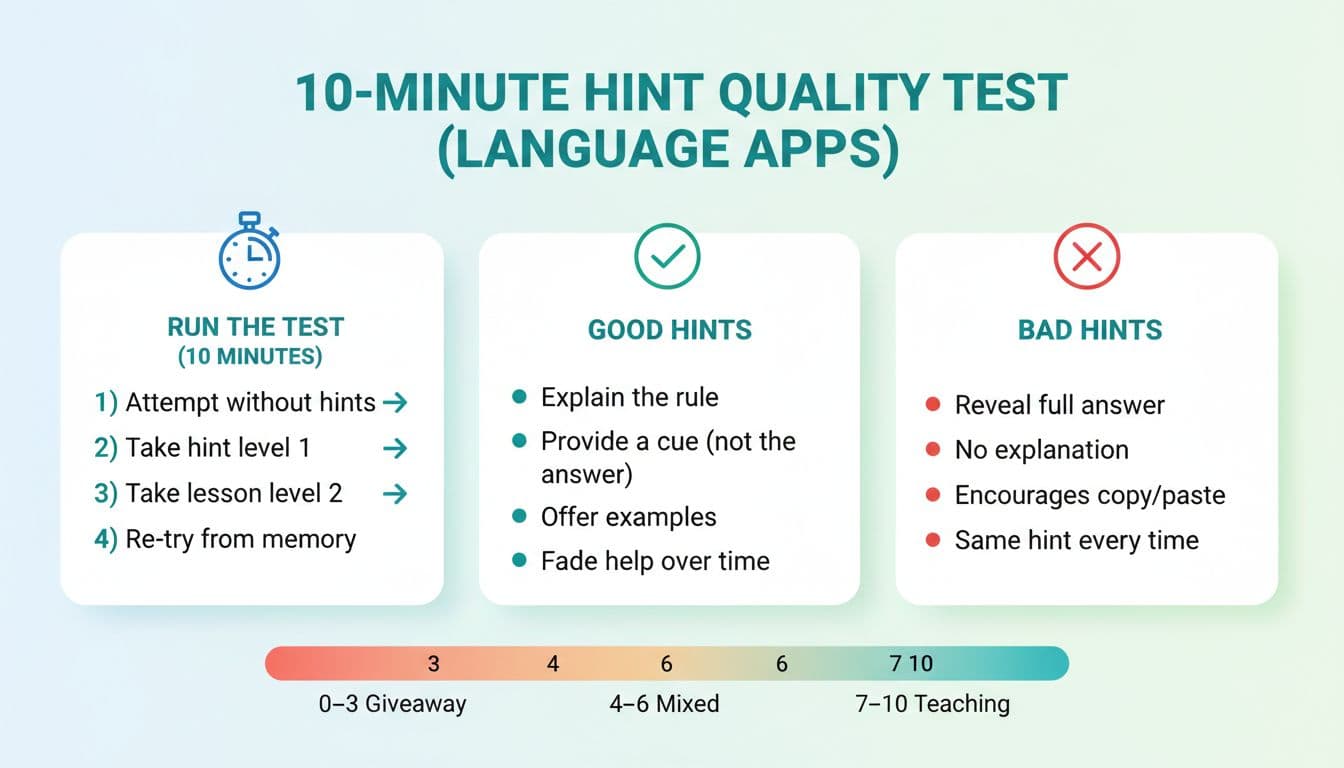
Infographic showing the 10-minute hint quality test and a simple 0 to 10 scoring scale, created with AI.
Pick one lesson that includes sentence building (not just matching). Set a timer for 10 minutes. Your goal isn’t to “finish” the lesson, it’s to watch what the hint system trains you to do.
Here’s the test:
- Attempt with zero hints (2 minutes). Try 5 to 8 items. Miss some on purpose if you’re guessing. You need real errors to see what hints do.
- Use “Hint Level 1” (3 minutes). Take the first hint offered on new items. Stop there, even if you’re still unsure.
- Use “Hint Level 2” (3 minutes). Now take the next hint level (if available). Watch whether it still makes you think, or just reveals the answer.
- Re-try from memory (2 minutes). Redo 3 to 5 of the same items (or similar ones) without hints. If the app doesn’t let you redo, write the target sentence on paper, close the hint, and reproduce it.
Score it from 0 to 10 (quick and blunt):
- 0 to 3 (Giveaway): Hints mostly reveal solutions, little explanation, you can’t reproduce the form later.
- 4 to 6 (Mixed): Some helpful cues, but often jumps to the answer.
- 7 to 10 (Teaching): Hints explain, cue, and then fade; you can re-do correctly without support.
If you also want to check whether an app builds speaking and writing ability (not just recognition), pair this with a 10-minute language app output test. Hint quality and output usually rise and fall together.
What “teaching” hints look like (and what gives answers away)
As of February 2026, there’s limited direct research that compares hint styles inside language learning apps head-to-head. Still, learning science from tutoring systems and quiz apps gives useful direction.
In education tools, scaffolding-style help tends to beat “just show me,” because it keeps the learner doing mental work. A classic example is the distinction between scaffolds and simple hints in intelligent tutoring research, summarized in Scaffolding vs. hints in the Assistment System. And when systems offer model answers, timing matters; the more a model answer replaces problem solving, the less it behaves like practice (see The effect of hints and model answers).
Realistic examples: teach vs. give away
A hint that teaches (rule + cue + example)
Task: “Make this sentence negative: ‘She speaks English.’”
Hint: “In English, add do/does + not before the base verb. Cue: the subject is ‘she’ (3rd person singular), so use doesn’t. Example: ‘He doesn’t like coffee.’ Now try yours.”
You still have to produce: “She doesn’t speak English.”
A hint that gives away (full solution)
Hint: “Answer: ‘She doesn’t speak English.’”
Fast, yes. But it skips the mental step you needed.
Hint types, learning effects, and red flags
| Hint type | Likely learning effect | Red flags to watch |
|---|---|---|
| Rule reminder (“Past tense uses X”) | Helps you form patterns you can reuse | Rule appears with no example, or uses heavy jargon |
| Targeted cue (“Check subject, then verb ending”) | Prompts the next thinking step | Cue is vague (“Think carefully”) |
| Example pair (correct vs incorrect) | Supports noticing and discrimination | Example doesn’t match the current task |
| Elimination hint (removes wrong options) | Can reduce overload for beginners | Turns every item into multiple choice forever |
| First-letter / partial reveal | Can support recall if used sparingly | Becomes a crutch, always available, no fade-out |
| Full translation reveal | Helps comprehension in context | Used as the default hint, encourages copying |
| Full solution / model answer | Useful after effort, for feedback | Offered too early, no “try again” requirement |
If you’re also evaluating whether the app explains grammar in a usable way (beyond hints), run a 10-minute language app grammar audit. Weak grammar explanations often force hints to do all the teaching, and they usually fail.
One-page checklist + quick decision rule (when to hint, when to retry)
Use this checklist during a free trial. It’s short on purpose, you should be able to scan it in one sitting.
One-page hint quality checklist
- The app lets you attempt first before pushing hints.
- Hints come in levels (cue first, more help later), not one big reveal.
- At least some hints explain a rule in plain language.
- Hints include one short example that changes (not the same frozen sentence).
- After a hint, the app makes you re-try (not just tap “continue”).
- The app sometimes asks you to produce (type/speak), not only pick from options.
- When you get it wrong, feedback tells you what to fix, not only “incorrect.”
- Hints change over time (fade), or become harder to access as you improve.
- Using a hint marks the item as not mastered, and it returns later without hints.
- The app avoids training “hint-first” behavior (no rewards for instant hint use).
- Parents/teachers: hints don’t undermine assessment (no “show answer” on tests).
- For reviewers/teams: hint events are logged (attempts, hint level used, time-to-answer).
Accessibility checks (often missed, easy to spot)
Good hint systems don’t assume one sense or one input method.
- Hearing-impaired learners: captions for audio, clear phoneme cues, visual mouth cues when pronunciation matters, and no “audio only” hints.
- Speech limits or anxiety: a typed alternative to speaking tasks, with equal feedback value.
- Vision and dyslexia support: screen reader labels, adjustable text size, good contrast, and hints that don’t rely on color alone (green vs red).
- Motor access: hints reachable without tiny targets, supports keyboards and switch control where possible.
Quick decision rule: use hints without becoming dependent
- Use a hint when: you’ve tried once, you can explain what’s confusing (“verb ending” or “word order”), and a cue would unlock the pattern.
- Retry without a hint when: you can almost say it, you just need retrieval time. Wait 5 to 10 seconds, then answer.
- Stop and review when: you used hints twice on the same pattern. Write one rule and one example, then move on.
Finally, hints should work with spaced review and error correction, not against them. Research on mobile quiz apps suggests feedback type affects learning outcomes, with informative feedback often outperforming simple right-wrong signals (see The effects of different feedback types on learning with mobile quiz apps). In practice, a strong app treats hint use like a signal: “schedule this again later,” then forces a clean, no-hint recall attempt.
If you also want to confirm the app teaches everyday, usable phrasing (not stiff textbook lines), run a 20-minute real-world phrase audit.
Conclusion
The best hint systems don’t make you feel smart in the moment, they make you independent later. Run the 10-minute hint quality test, score it honestly, then repeat on one more lesson type (grammar, writing, listening). If hints mostly reveal solutions, treat them like training wheels, use them briefly, then remove them on purpose. The goal isn’t fewer mistakes today, it’s better recall tomorrow.
Ready to Take Your Language Learning Further?
Your favorite language-learning app is a great place to start. Rocket Languages can help you go further with interactive audio lessons, pronunciation practice, real-world conversations, and structured learning.
Explore Rocket Languages →Affiliate disclosure: We may earn a commission if you purchase through this link, at no additional cost to you.