Paying for a language app once is fine. Paying twice because your premium didn’t come back after a reinstall is not.
That’s why the restore purchases test belongs in every free-trial routine, right next to “Does speaking work?” and “Will it save my progress?” In 10 minutes, you can find out whether an app can reliably recognize what you already bought across devices, accounts, and app reinstalls.
This guide gives you a timed script, a screenshot plan, and a copy/paste checklist you can reuse whenever you try a new language-learning app.
What “Restore Purchases” should do (and what it can’t)
Think of Restore Purchases like a receipt check at a library. You’re not buying a new book, you’re proving you already checked it out.
In most apps, Restore Purchases should re-enable access to a subscription or one-time unlock you previously bought through the App Store or Google Play. It’s most important when you:
Switch phones or tablets, especially iPhone to iPad, or Android phone to Android tablet.
Reinstall after troubleshooting, storage cleanup, or a new OS update.
Set up a family device, or a child’s device, then realize the purchase was on a different account.
However, restoration has limits. If you bought on one Apple ID or Google account, the store can only restore to that same store account. Logging into the app with the “right” email won’t fix a mismatch in the store account.
Also, some items simply aren’t restorable. Consumables (think one-time packs that get “used up”) usually won’t restore. Subscriptions and non-consumable upgrades usually should.
If you want a plain-language explanation of what the button is supposed to do, this overview is helpful: what “Restore purchase” means in apps. For a developer-leaning but still readable breakdown of how Apple and Google handle it, see a guide to restoring purchases on App Store and Google Play.
One more consumer-protection point: if you can’t find Restore Purchases anywhere, that’s a trust signal, and not a good one. At minimum, the app should provide a clear way to recover paid access after reinstalling.
If an app makes it hard to prove what you already bought, don’t assume it will be better after you subscribe.
The 10-minute restore purchases test (timed script)
Before you start, set one rule: don’t re-subscribe during the test, even if the app nudges you. Your goal is to see whether the app can recover access cleanly.
Minute 0 to 2: Confirm the store account and subscription status
On iOS (2026 paths):
- Settings app, tap your name, tap Subscriptions
- Or App Store, tap your profile icon, then Subscriptions
On Android (common 2026 path):
- Google Play Store, tap your profile icon, tap Payments & subscriptions, then Subscriptions
You’re checking two things: the subscription is active (or in trial), and you’re signed into the correct Apple ID or Google account on that device.
Minute 2 to 4: Find Restore Purchases inside the app
Open the language app and look in these spots, in this order:
- Settings (often under Account)
- The in-app “Shop” or “Upgrade” screen
- Help or Support
- Profile menu
Some apps hide it behind a “Already purchased?” link. Others put it in the paywall screen.
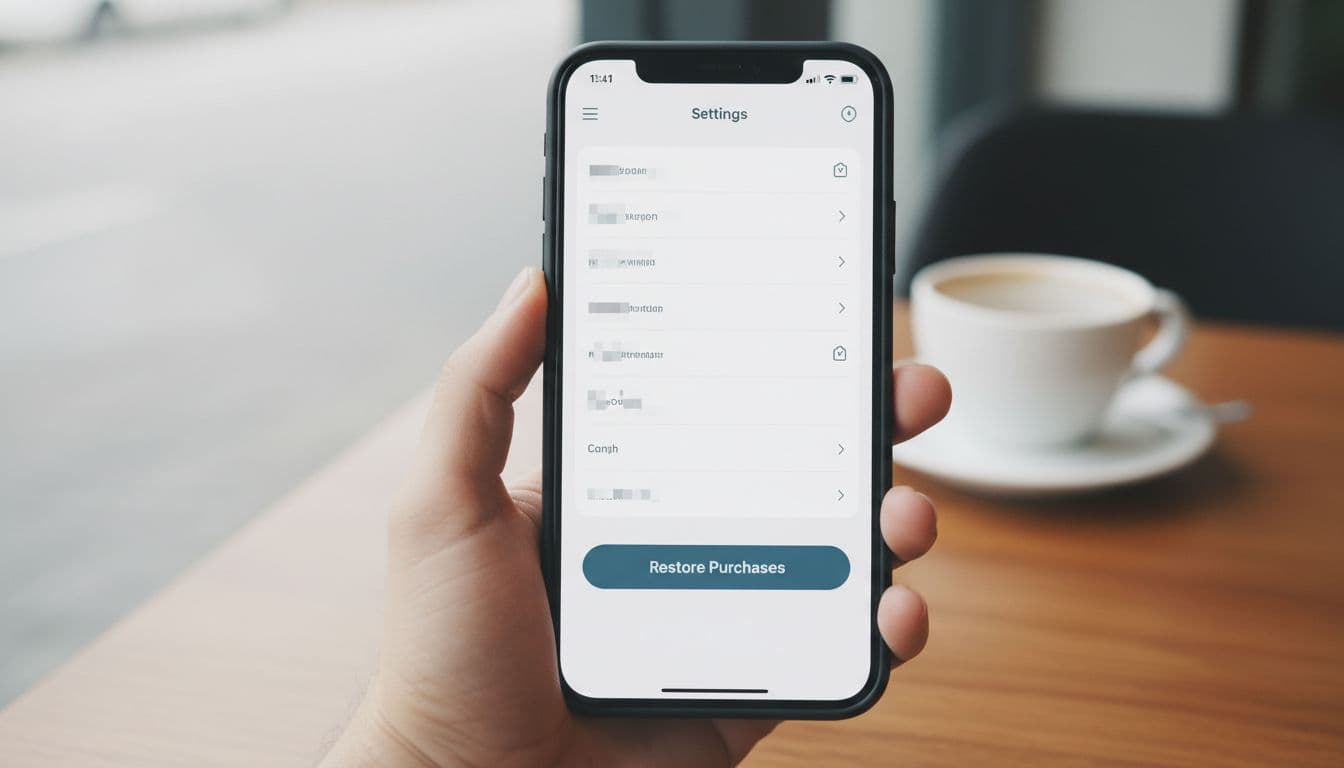
Minute 4 to 7: Tap Restore Purchases and watch for the “proof”
After tapping Restore Purchases, expect one of these outcomes:
- Premium features unlock immediately.
- A short loading state appears, then premium unlocks.
- A message says nothing to restore (this can be correct, or a red flag).
Now verify the unlock with evidence, not vibes. Open a clearly paywalled feature (offline downloads, speaking review, advanced lessons, or ad-free mode). If the app has a “Plan” page, it should show your paid status.
Minute 7 to 10: Stress-test the restore result
Do one quick disruption, then check the unlock still holds:
- Force close the app, reopen it.
- Toggle Wi-Fi off for 15 seconds, then back on.
- Log out and log back in (only if you know your password).
If access disappears after a basic restart, restoration is fragile. That’s a warning sign, especially for learners who travel, switch devices, or study on spotty connections.
For a broader reliability screen that pairs well with this, run the app stability crash check on the same day.
Here’s a compact reference table you can keep open while testing:
| Platform | Where to find Restore Purchases | What to expect after tapping | Screenshots to capture |
|---|---|---|---|
| iOS | Settings, Profile, Shop, or paywall screen | Face ID/Apple ID prompt sometimes, then premium unlock | Restore button location, post-restore “premium” status, the paywalled feature now open |
| Android | Settings, Account, Shop, or Help area | Short loading, then unlock, sometimes no visible message | Restore button location, subscription status screen, paywalled feature now open |
| Both | Help/Support area if not in Settings | If nothing changes, you may have an account mismatch | Store subscription page, in-app account page, any error message |
A concrete example of what many apps instruct users to do is shown here: restoring a premium subscription on a new device. Even if you’re not using that app, the pattern is common: correct store account plus correct in-app login.
If the test fails, don’t pay twice: fixes, receipts, and escalation
A failed restore purchases test doesn’t always mean you’re stuck. It usually means something doesn’t match.
Start with the three most common causes:
Store account mismatch: The device is signed into a different Apple ID or Google account than the one used to pay. Fix that first, then try restore again.
In-app account mismatch: Some apps link entitlements to both the store purchase and your in-app login. Log into the app account you used when you subscribed, then restore.
Slow sync: The store may be fine, but the app didn’t refresh. Force close, reopen, then restore again on stable Wi-Fi.
If you need to collect proof quickly (useful for support tickets or refund requests), grab two types of receipts:
- Store receipt: the Apple or Google confirmation email, plus the subscription screen showing it’s active.
- In-app proof: a screenshot of the paywall still asking you to pay, after you tapped restore.
Some Android apps also explain clearly that purchases attach to the Play Store account, not the app login. This support article spells that out well: how Android in-app purchases restore.
If you still can’t restore, contact the app’s support with your screenshots and these details: device model, OS version, app version, and the exact time you tapped restore. Then set a personal boundary: if support can’t fix it fast, don’t keep “trying things” that risk a second charge.
Good apps make restoration boring. You tap once, it comes back, and you move on.
Copy/paste checklist (10 minutes)
Use this as a quick note in your phone:
- App name + version:
- Device + OS version:
- Store account confirmed (Apple ID/Google): Yes/No
- Subscription status in OS settings: Active/Trial/Expired
- Restore Purchases found (where):
- Restore tapped (time):
- Result message (exact words):
- Premium feature verified (which one):
- After force close, still premium: Yes/No
- Screenshots taken: Store status / Restore location / Post-restore premium / Paywall error
If you’re still comparing apps before you commit, pair this with a goal-based selection method like pick an app matching your learning objectives, then run the restore test on your shortlist.
Conclusion
A language app subscription isn’t just content, it’s a promise that your access follows you. The restore purchases test checks that promise in minutes, before money and momentum get tangled.
Run it on day one of any trial, save the screenshots, and keep the checklist handy. If restoring feels shaky now, it won’t feel better after you pay.
Ready to Take Your Language Learning Further?
Your favorite language-learning app is a great place to start. Rocket Languages can help you go further with interactive audio lessons, pronunciation practice, real-world conversations, and structured learning.
Explore Rocket Languages →Affiliate disclosure: We may earn a commission if you purchase through this link, at no additional cost to you.