Your phone may display Amharic correctly, yet Amharic typing and spoken playback rely on different tools. An Amharic keyboard handles input, but audio support needs a separate check.
For speakers, learners, and diaspora users, the right setup on mobile devices depends on how you type and what you want to hear. Features can vary by phone, so choose a keyboard you can use comfortably and test listening options on your device.
Key Takeaways
- An Amharic keyboard handles text input, while spoken playback depends on separate apps, voices, and device support.
- Gboard and Keyman are useful starting points, but layouts and features can differ by platform. Test your chosen keyboard in the apps you use before relying on it.
- Phonetic input conventions vary across layouts, so use the layout’s chart and help to learn character sequences, doubled-key behavior, and labialized forms.
- Review keyboard permissions and test offline typing, downloaded recordings, and speech generation separately. A keyboard that works offline does not guarantee offline audio or speech.
Choosing an Amharic keyboard for your phone
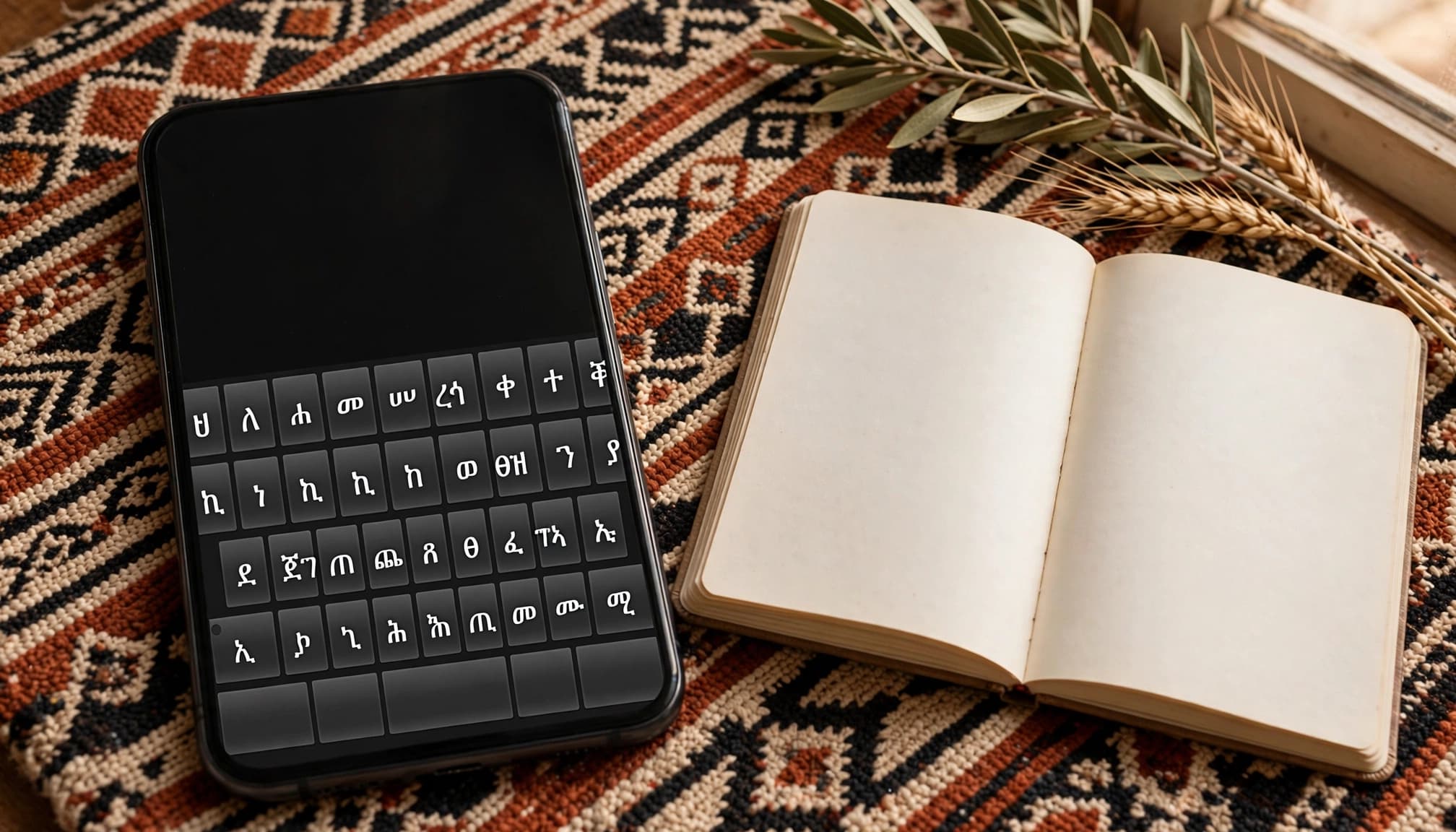
Two useful starting points are Gboard and Keyman. Both offer Amharic input, but compare each keyboard layout and its supporting features separately.
Gboard for everyday messaging
Gboard supports Amharic on Android, and its iPhone listing also includes Amharic. However, don’t assume the two versions have identical layouts, predictions, or speech features.
If you already use Gboard, add Amharic before installing another keyboard. Test it in your notes app and usual messaging app to assess the typing experience. Check whether finding characters feels natural and switching back to English is quick. Test word prediction where available, and verify whether it offers features such as a customizable keyboard.
Another Android option is the Amharic Keyboard on Google Play, whose listing describes conversion of English-character input into Amharic. Check its developer, privacy information, and current reviews before choosing it.
Keyman for documented Ethiopic layouts
Keyman offers Amharic and Ethiopic layouts across Android, iOS, web, Windows, macOS, and Linux. Its Amharic keyboard options include browser typing, so you can try input without immediately changing your phone’s keyboard.
Keyman’s GFF Amharic layout uses mnemonic input based on how letters sound. That makes it worth considering if you prefer Latin-key sequences.
Nevertheless, choose the specific layout carefully. A familiar name doesn’t guarantee identical key behavior across every layout or device.
Set up Amharic on Android or iPhone
Installing an app and enabling its keyboard are separate tasks. After setup, test a short message before relying on it for study or daily conversations.
Add Amharic on Android
On Android phones, open Gboard settings, choose Languages, then Add keyboard. Select Amharic, choose an available layout, and tap Done. Google’s Android language setup instructions explain this process.
If Gboard isn’t your active keyboard, select it through your phone’s keyboard settings. Manufacturers use different menu names, so search Settings for “keyboard” when necessary.
Next, open a note and test Amharic typing. Switch between English and Amharic using the available language control. Depending on your configuration, this may involve a globe key or holding the space bar. Practice switching within one sentence, since names and links often require English input.
Enable an installed keyboard on iPhone
On iPhone, installed third-party keyboards appear under Settings > General > Keyboard > Keyboards > Add New Keyboard. Select the keyboard you’ve installed.
For Gboard, also add Amharic inside the app’s language settings. Check the current iPhone app listing for device requirements rather than relying on an old tutorial.
Use the globe control to change keyboards while typing. Then test Amharic in Notes, a chat, and your preferred social media apps.
If a keyboard requests Full Access, review its explanation first. Optional permissions and prediction behavior vary by product.
Understand phonetic typing before memorizing shortcuts
Amharic uses the Ethiopic script, also called the Geez script. Most basic characters combine a consonant with a vowel form, so typing involves more than substituting one English letter for one symbol.
Learn consonant families and vowel forms together
The Amharic alphabet includes basic consonant families with seven vowel forms. For example, the በ family has seven Amharic characters: በ, ቡ, ቢ, ባ, ቤ, ብ, and ቦ.
A phonetic layout typically builds characters through Latin-key sequences. However, input conventions vary. One typing tool’s capitalization, punctuation, or vowel shortcuts may behave differently in another.
Keep the selected keyboard layout’s chart nearby as a reference for learning the Amharic alphabet. Practice a familiar word, inspect each character with a virtual keyboard, then type it again without looking.
This also helps you distinguish sequence-based input from whole-word conversion. Phonetic transliteration may offer several candidates for a Romanized word rather than follow a simple character-by-character rule.
Check doubled letters and labialized forms
Don’t assume typing a consonant twice produces the character you want. Some layouts use repeated keys to select alternative characters; others handle the sequence differently.
Also, Amharic consonant length, or gemination, generally isn’t shown by doubling ordinary written characters. Listening remains important because spelling doesn’t reveal every pronunciation distinction.
Labialized characters, such as ቋ, require their own layout-specific input. Consult the keyboard’s help rather than combining symbols by guesswork. Learn these sequences when they occur in words you use regularly.
Type Amharic online without installing software
For occasional messages, shared devices, or testing a phonetic layout, an online keyboard can help. KeymanWeb, Lexilogos, and Branah are established options, so compare each typing tool with your mobile keyboard.
Branah offers several input approaches, including phonetic, ordered, and transliteration layouts. Choose the mode deliberately before comparing its behavior with your mobile keyboard.
A virtual keyboard helps when you recognize a character but don’t know its key sequence. You can also select characters by clicking them. Phonetic input is usually more convenient once you’ve learned the mapping.
For a desktop keyboard, check how that particular layout handles physical keys, including whether the Shift key changes input.
After typing, copy and paste the result into the destination app, then inspect it. Check punctuation, line breaks, and any English words that might have converted unintentionally. For important names, compare the spelling with a trusted original.
Unicode text should remain editable after pasting. If your result becomes an image, it won’t work like ordinary text for searching or editing.
Browser access also doesn’t guarantee offline use. Test that separately, and avoid entering confidential material into an unfamiliar typing website.
Review keyboard privacy before granting access
A keyboard processes your written input, so its privacy policy matters more than color themes or font styles. Review the developer’s identity, data collection disclosures, and whether optional services send text to a server.
On iPhone, a request for Full Access deserves attention because full access may enable additional data handling. Read the developer’s explanation of which feature requires it. Don’t enable it merely because you assume it improves spelling.
Similarly, word prediction may rely on local processing, downloaded resources, or online services. A suggestion bar doesn’t reveal which method the app uses.
Check whether typed text is retained, whether personalized suggestions can be cleared, and whether analytics or advertising are involved. If those answers are unclear, choose a keyboard with better documentation.
Microphone access is another separate permission. Ordinary text entry doesn’t require voice recording, so investigate any request connected to a speech feature.
Finally, test your keyboard without optional permissions first. This shows which functions you need before you accept broader access.
Choose listening tools separately from your keyboard

An Amharic keyboard doesn’t automatically provide spoken playback. Translation audio, recorded lessons, and device-wide text-to-speech are separate systems.
Use recordings as your pronunciation reference
Human recordings let you hear connected speech in the Amharic language, including pauses and natural phrasing. Start with short material whose meaning you understand.
BBC News Amharic clips offer native-level news speech, but beginners should work with brief passages rather than entire reports. Recordings from a teacher or proficient conversation partner can provide more manageable examples.
Look for quick replay, useful transcripts, and clear sound. Slower playback can help, although you should return to normal speed once you recognize the words.
LanguaVibe’s Pimsleur audio-learning review examines a listen-and-respond study format. Use that as a method comparison, not confirmation that every course or feature supports Amharic.
Test synthetic speech on your actual device
Google Translate supports Amharic text translation and documents spoken playback in certain modes. However, that doesn’t establish every Amharic speech feature or language pair.
Check whether your selected result has an active speaker control. Don’t infer dictation, conversation mode, or offline playback from text-translation support alone.
Likewise, phone accessibility readers and flashcard text-to-speech depend on available voices, language settings, and app implementation. Don’t assume an installed Ethiopic keyboard adds an Amharic voice.
Compare synthetic speech with a trusted recording. Listen for clear vowels, consonant length, names, and sentence rhythm. Playback provides a model; it doesn’t evaluate your pronunciation or correct your response.
Test offline access and Ethiopic display
Offline support is feature-specific. A keyboard may type without a connection while its predictions or companion audio require internet access.
Offline typing, downloaded recordings, and offline speech generation are three separate capabilities. Test each one before travelling.
Use a short practical test:
- Download any available keyboard resources and one audio sample while connected.
- Turn on airplane mode, then confirm Wi-Fi is off.
- Type Amharic in Notes, paste it into another app, and edit the result.
- Play the downloaded audio, then lock the screen to check whether playback continues.
- Try speech generation separately to see whether it works without a connection.
- Reopen the app and check whether your saved work or study position remains available.
Screen-off listening can suit walks or chores, but support depends on the player and device. A downloadable lesson doesn’t guarantee every exercise works offline.
For display problems, compare the same text in two apps. If one shows boxes while another renders characters correctly, check the affected app’s font or rendering support. Different supported font styles may change the appearance, but they won’t fix incorrectly encoded text.
On a computer, Noto Sans Ethiopic is a useful font option. Fonts display characters; keyboards enter them.
Keyman also supports desktop platforms, but installing and testing a desktop keyboard differs from phone setup. Follow its platform-specific guidance instead of assuming mobile steps apply.
Connect typing, listening, and spoken recall
Keep your daily routine small enough to repeat. Choose a short sentence from a lesson or trusted recording, then practice both its written form and sound.
First, listen without reading and identify what you understand. Next, check the text and type it with your Amharic keyboard. Hide the original before trying again, so the task requires recall.
Then replay the recording, pause, and say the sentence aloud. Record your version when useful and compare it with the model. Focus on one difference rather than repeating faster.
Finally, give an appropriate reply instead of repeating only the original sentence. This adds meaningful output, although prepared practice still differs from an unpredictable conversation.
For persistent pronunciation or wording problems, bring your recording to a teacher or proficient speaker. Audio playback alone can’t supply that correction.
Frequently Asked Questions
Does an Amharic keyboard read text aloud?
No. A keyboard handles text input, while spoken playback comes from a separate translation, audio, accessibility, or text-to-speech feature. Check that the specific app or device offers Amharic playback.
Which Amharic keyboard should I use on my phone?
Gboard and Keyman are useful options to compare, and both offer Amharic input. Try the available layouts on your device and choose one that feels comfortable and has clear documentation.
Can I type Amharic offline?
A keyboard may work offline even if its predictions or companion features need an internet connection. Test typing, downloaded recordings, and speech generation separately with Wi-Fi and mobile data turned off.
How can I learn the Amharic keyboard layout?
Keep the selected layout’s chart nearby and practice familiar words, checking the characters with a virtual keyboard when needed. Input conventions vary, so don’t assume key sequences or shortcuts work the same way across layouts.
Build a setup you can trust
Choose a keyboard whose layout you understand, then verify its permissions and offline behavior. Select listening tools separately, because Amharic speech support varies across apps and devices.
The strongest setup connects usable text and dependable audio around phrases you need. Your phone becomes more useful when you can type a message, understand its sound, and respond without reopening the lesson.
Ready to Take Your Language Learning Further?
Your favorite language-learning app is a great place to start. Rocket Languages can help you go further with interactive audio lessons, pronunciation practice, real-world conversations, and structured learning.
Explore Rocket Languages →Affiliate disclosure: We may earn a commission if you purchase through this link, at no additional cost to you.