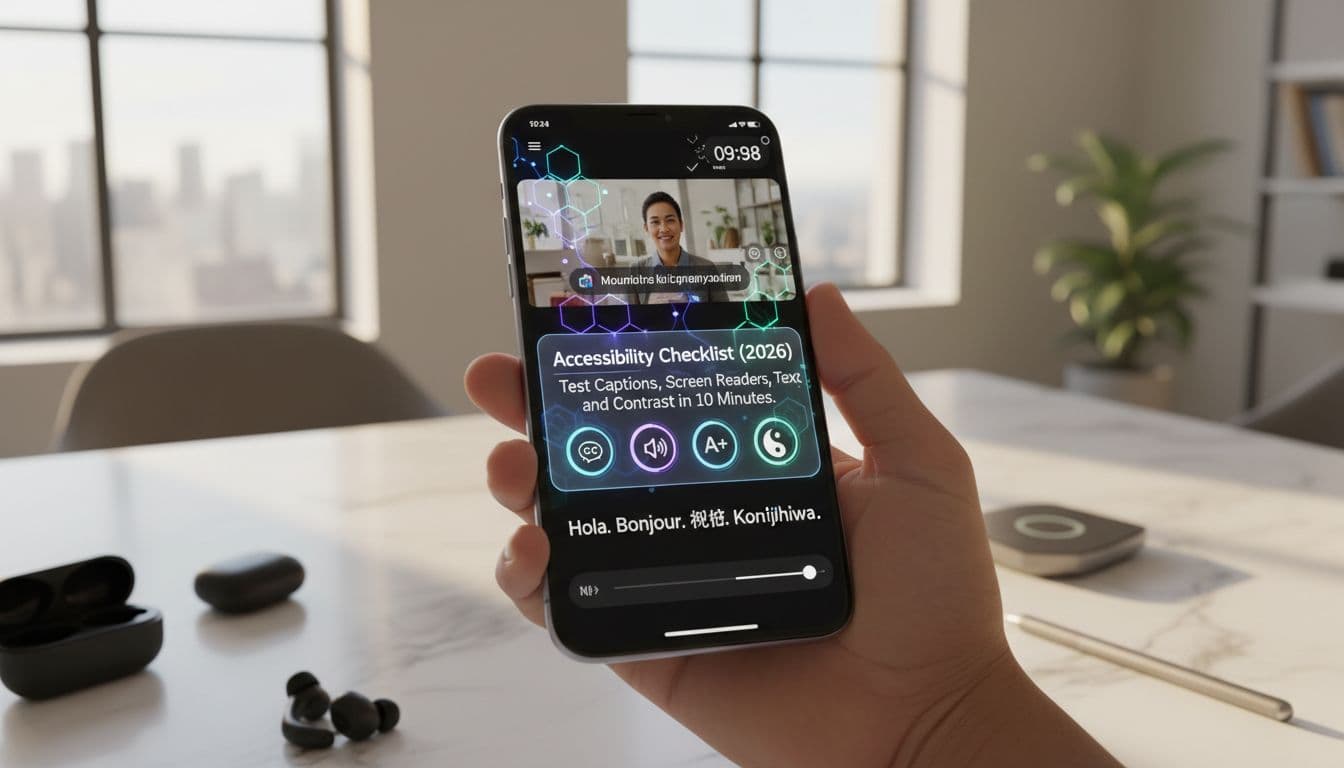
A language app can feel polished until someone turns on captions, bumps the text size, or tries to start a speaking exercise with a screen reader. Then tiny gaps show up fast: a “Record” button with no label, subtitles that lag behind speech, or a quiz screen that won’t scroll when text gets bigger.
This app accessibility checklist is a 10-minute smoke test you can run before release. It’s built for real language-learning flows: onboarding, audio lessons, dialogues, video clips, pronunciation feedback, and quizzes. It’s not legal advice, it’s practical guidance aligned with WCAG-style expectations that teams use as a baseline in 2026.
A 10-minute test script your team can repeat every release
Essential App Accessibility Checklist for Developers
Set a timer. The goal isn’t perfection, it’s catching the most harmful issues quickly, using the tools already on your phone.
Minute 0 to 1: Prep (one-time per device)
Pick one iOS device and one Android device if you can. If you only have one, run the script on that platform and repeat later.
Turn on:
- iOS: VoiceOver, Larger Text (Dynamic Type), and increase Contrast if available.
- Android: TalkBack, Font size and Display size, and enable high contrast text if your build supports it.
If you want a quick reference for broader design checks, keep a single page handy like BrowserStack’s design accessibility checklist, but run this test in your own app, end to end.
Minute 1 to 3: Onboarding and sign-in (focus and readability)
- Launch the app fresh (logged out if possible).
- With the screen reader on, swipe through the first screen in order.
- Confirm the main actions are reachable and make sense when read aloud (for example, “Continue,” “Choose your level,” “Skip”).
Fast pass criteria:
- Focus order follows the visual order, top to bottom.
- Every control has a clear name (no “Button, Button”).
- Error text is announced when you submit an empty email/password.
Minute 3 to 6: Audio lesson and speaking practice (labels, states, feedback)
- Start an audio lesson or dialogue.
- Find Play/Pause, speed, rewind 10 seconds, and transcript (if offered).
- Start a pronunciation or speaking task (mic permission prompt included).
Fast pass criteria:
- The mic button is announced as “Record,” “Start speaking,” or similar, not “Unlabeled.”
- The app announces state changes (Recording, Paused, Submitted).
- If permission is denied, the message explains what to do next (not just “Error”).
Minute 6 to 8: Video clip captions (availability, timing, controls)
- Open a short video-based lesson (15 to 30 seconds is enough).
- Turn captions on, then off, then on again.
- Scrub the timeline and pause mid-sentence.
Fast pass criteria:
- Captions exist, are readable, and stay in sync.
- Caption controls work with touch and screen reader.
- Captions don’t cover key UI (choices, “Next,” or a speaker’s mouth if you rely on lip reading).
Minute 8 to 10: Quiz screen (text scaling, targets, contrast)
- Open a multiple-choice quiz and a typing question (if you have one).
- Increase system text size (or keep it increased from prep).
- Look for truncation, overlap, and buttons that get too small.
Fast pass criteria:
- No clipped question text.
- Answer options remain tappable.
- Correct/incorrect feedback isn’t color-only.
Captions in language apps: what to check in two minutes (and what breaks most)
Captions in language learning aren’t just for accessibility, they’re part of instruction. If the timing is off, learners miss phonemes. If speaker labels are missing, dialogue practice becomes guesswork.
Here’s a quick, QA-friendly caption pass for video clips and any “watch and repeat” content:
- Availability: Is there a captions toggle for every video lesson, including ads, trailers, and “tips” clips inside onboarding?
- Accuracy: Do captions match spoken words, including contractions and numbers? Watch for common failures like censoring slang, dropping filler words that matter for listening practice, or “correcting” grammar when the audio intentionally uses casual speech.
- Timing: Captions should appear when the speech starts, not half a second later. Pause mid-word and see if the line lags behind the audio.
- Speaker labels: For dialogues, captions should distinguish speakers (Name: or a clear marker). Without this, a learner who can’t hear loses turn-taking cues.
- Controls and persistence: Turn captions on, go back, open the next clip. Do captions stay on, or does the app forget the setting?
- Readability: Captions need enough contrast and size. If the app uses light gray on video, it will vanish on bright scenes.
If you need a compact way to map these checks to common success criteria without reading the full standard, WebAIM’s WCAG checklist is a practical reference point for teams.
Screen-reader support for real learning flows (not demo screens)
A language app can pass a basic “can I tap buttons” test and still fail where it matters: exercises with timers, mic input, and instant feedback. Screen-reader support is about predictable structure and clear announcements.
Run these checks with VoiceOver (iOS) and TalkBack (Android):
Focus order and grouping
Start on a dialogue or quiz screen. Swipe through elements.
- If focus jumps into the footer, then back to the header, the layout likely lacks proper accessibility order.
- If each word in a sentence is focusable, reading becomes exhausting. Sentences and prompts should be grouped as meaningful chunks.
Labels, roles, and states
Listen for:
- Buttons that announce their job (“Play audio,” “Check answer”).
- Toggles that announce state (“Captions, On”).
- Progress indicators that announce changes (“Lesson progress, 40 percent”).
Mic and recording controls need extra care:
- The Record button should announce a hint like “Double tap to start recording.”
- When recording starts, the app should announce “Recording” and, if timed, the countdown.
Errors, validation, and modals
Trigger an error on purpose: submit an empty answer, enter a short password, deny microphone permission.
- Error text should be read automatically, or focus should move to it.
- Modal dialogs should trap focus until dismissed, and the Close button must be reachable and labeled.
For a quick cross-check of what teams commonly align to in 2026 (especially AA-level expectations used in procurement), Accessible.org’s WCAG 2.1 AA and 2.2 AA checklist can help you sanity-check coverage without turning your release into a weeks-long audit.
Font size and color contrast: two settings that expose weak UI fast
Text scaling and contrast failures are often “death by a thousand cuts” in language apps: vocabulary cards that crop, IPA lines that overlap, or answer choices that become tiny targets.
Font size and reflow (Dynamic Type, font scaling)
With system text set to Large (or the biggest setting you support), check:
- Onboarding cards: Titles should wrap, not clip. “Get started in 3 minutes” should not become “Get starte…”.
- Vocabulary lists: Long words and translations should wrap or expand rows. Avoid fixed-height cells that hide content.
- Quizzes: The question, choices, and “Check” button must all remain visible without needing two-dimensional scrolling.
- Tappable targets: When text grows, buttons often shrink. Aim for comfortable touch sizes (many teams use ~44 by 44 points as a working target).
Color contrast quick check (and minimum targets)
You don’t need a lab to catch contrast issues:
- On iOS, use Accessibility settings (Increase Contrast, Reduce Transparency) and check if content becomes readable or still fades.
- On Android, use built-in accessibility options and inspect common failure spots like disabled buttons, placeholder text, and text over gradients.
Practical targets used widely with WCAG guidance:
- Normal text: 4.5:1 contrast ratio.
- Large text (about 18pt regular or 14pt bold): 3:1.
- UI components and icons that convey meaning: 3:1 against adjacent colors.
Exceptions exist (for example, logos, decorative text, and inactive controls), but don’t hide behind them. If “Mistake” feedback is light red on white, a learner may never see it.
Common smoke-test failures and quick fixes
| Issue you spot in 10 minutes | Likely cause | Quick fix to try first |
|---|---|---|
| Captions toggle can’t be reached with screen reader | Control not exposed as an accessible element | Set correct role (button/switch) and accessible label |
| Captions lag behind speech | Incorrect caption timecodes or buffering delay | Re-export captions with corrected timestamps, preload caption track |
| “Record” announced as “Unlabeled button” | Missing accessibility label on mic control | Add contentDescription (Android) / accessibilityLabel (iOS) and hint |
| Focus jumps behind an open dialog | Modal not treated as modal, focus not trapped | Use proper modal presentation and set initial focus to title/close |
| Quiz text overlaps at large font sizes | Fixed heights, absolute positioning | Allow vertical expansion, use constraints, support text wrapping |
| Correct/incorrect only shown by color | No secondary cue | Add icon + text (“Correct”) and announce result via accessibility |
Conclusion
A fast app accessibility checklist works best when it’s routine, not a one-off rescue mission. Run the 10-minute script on every release candidate, log what you find, and fix the repeat offenders first (labels, focus, captions timing, scaling, and contrast).
If one person on your team can’t finish a lesson with VoiceOver or TalkBack, many learners will struggle without telling you. Catch it before you ship, while fixes are still small.
Ready to Take Your Language Learning Further?
Your favorite language-learning app is a great place to start. Rocket Languages can help you go further with interactive audio lessons, pronunciation practice, real-world conversations, and structured learning.
Explore Rocket Languages →Affiliate disclosure: We may earn a commission if you purchase through this link, at no additional cost to you.