If you study on the move, your data plan can feel like a small gas tank. One long commute, one video-heavy lesson, and suddenly you are watching the meter drop.
This guide gives you a simple way to measure language app data usage in 15 minutes, then convert it into a realistic “MB per lesson” number you can plan around. You will also learn when offline downloads really save data, and which iOS and Android settings cut waste fast.
Run a 15-minute language app data usage test (and get a clean number)
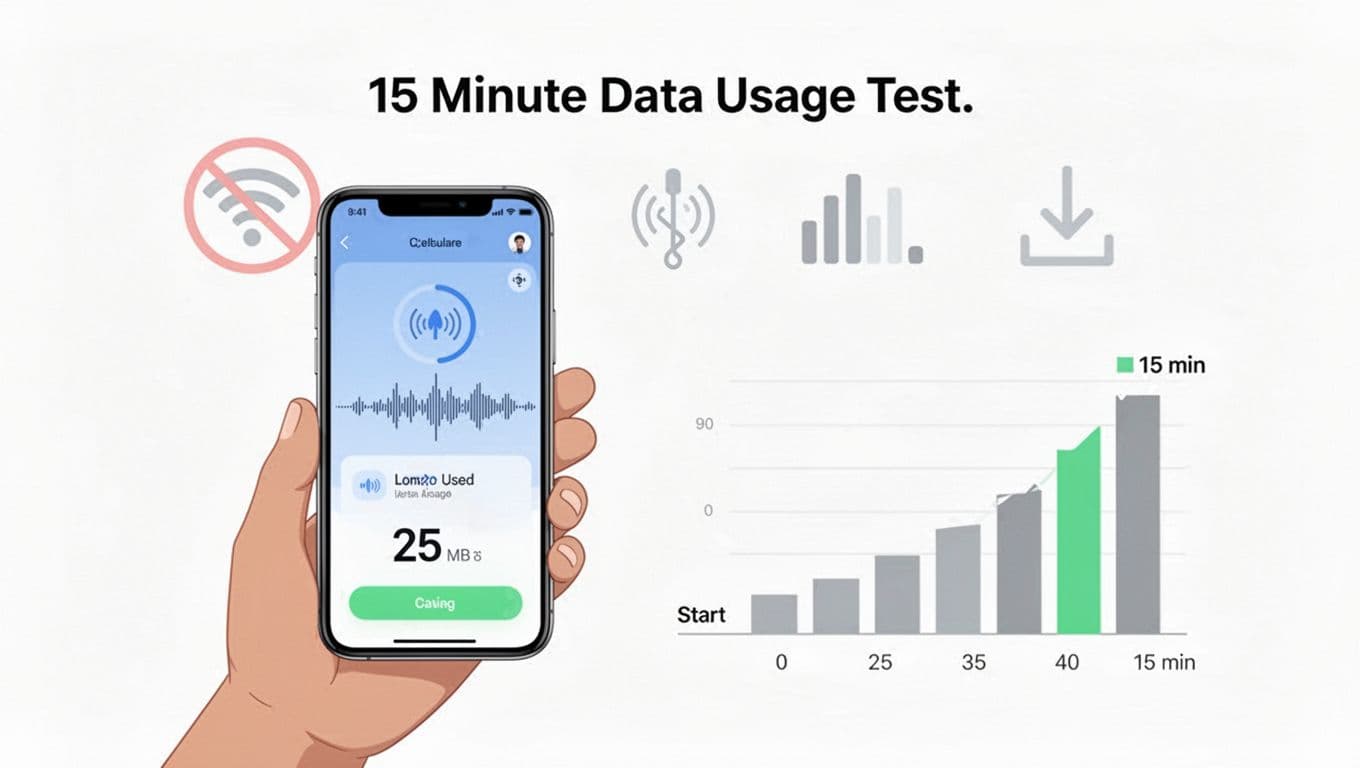
Quick-start checklist (2 minutes to set up)
- Reset or baseline your data counter (phone-level if possible).
- Disable Wi-Fi (and consider Airplane mode ON, then turn Cellular ON).
- Turn off VPN if you use one, because it can change routing and reporting.
- Pick one lesson type and stick to it (audio drill, video, mixed, or review).
- Note your start value in MB (and time).
- Run the timer for 15 minutes, then note the end value.
Step-by-step: the cleanest way to measure MB used
- Close the app completely, then reopen it, so you start fresh.
- Confirm you are on cellular. If your phone has “Wi-Fi Assist” or “Switch to mobile data automatically”, turn it off for the test.
- Do the same kind of activity for the whole 15 minutes, because switching from text drills to video changes everything.
- Record the end number, then subtract start from end to get MB per 15 minutes.
- Repeat once more later in the day and average the two results.
For help finding per-app counters on iPhone, see The Verge’s guide to checking iPhone app data usage. For broader tips on staying ahead of your plan, including alerts, see Which? advice on tracking mobile data.
Your result is not a universal truth. Codecs, audio quality, caching, ads, and even A/B tests can change data use week to week, so treat your number like a “current snapshot” and re-test after big app updates (2026 included).
A worked example: convert MB per 15 minutes into MB per lesson and monthly usage
Numbers matter most when they turn into a plan. Here is a hypothetical but realistic example you can copy.
Example (hypothetical):
- Start (cellular data used by the app): 812.0 MB
- End after 15 minutes: 838.0 MB
- Used in 15 minutes: 26.0 MB
Now convert it into something useful:
- MB per 10-minute lesson: 26.0 ÷ 15 × 10 = 17.3 MB
- MB per 5-minute lesson: 26.0 ÷ 15 × 5 = 8.7 MB
Monthly usage depends on your habit. Assume your lessons average 10 minutes.
- 1 lesson per day: 17.3 MB × 30 = 519 MB per month (about 0.5 GB)
- 2 lessons per day: 17.3 MB × 60 = 1,038 MB per month (about 1.0 GB)
- 5 lessons per week: 17.3 MB × 20 = 346 MB per month
If your number feels “too high”, check what happened during the session. Autoplay video, animated stories, and frequent audio replays can push data up fast. On the other hand, a text-heavy review session can look tiny, even if you learned a lot.
Once you know your MB per lesson, you can compare apps more fairly. A flashy app that burns data but never makes you produce sentences may not be worth it. If you want a fast way to judge learning value, pair your data test with this language app output test for speaking and writing.
Streaming vs downloads: when offline saves data (and when it doesn’t)
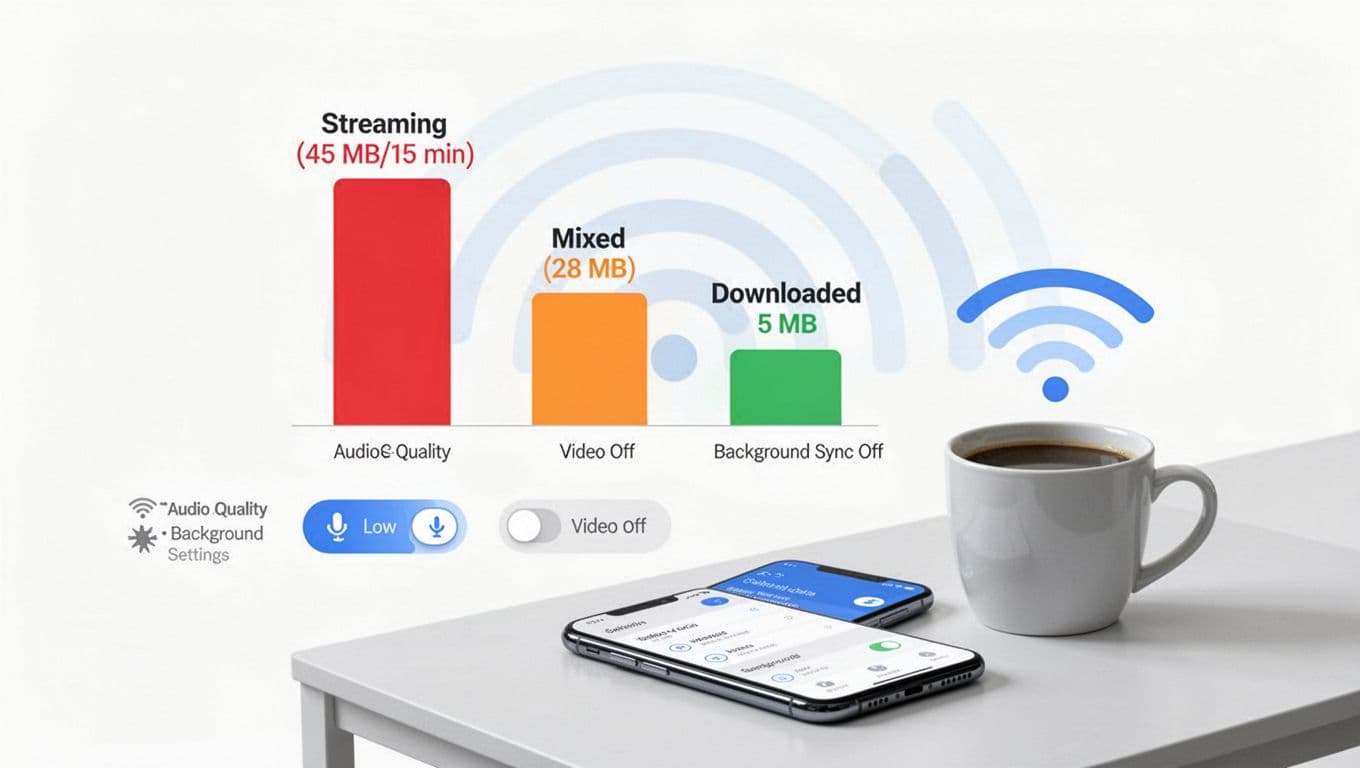
Streaming is like leaving a faucet running. Downloads are like filling a bottle once, then sipping slowly. Still, downloads do not automatically mean “zero data forever”.
Choose streaming when:
You want fresh content, live classes, or community feedback, and you are on reliable Wi-Fi. Streaming also makes sense when the app constantly updates lessons, because old downloads may expire.
Choose downloads when:
You repeat lessons, listen to the same dialogues, or do audio-heavy drills on cellular. Downloads can cut data sharply because the app stops fetching the same media again and again.
When downloads do not save as much as you expect
Offline content can quietly “leak” data in a few ways:
- App updates can invalidate downloads, forcing re-downloads later.
- Multiple-device learning duplicates downloads (phone plus tablet plus web).
- Cloud sync and backup still use data, even if the lesson media is offline.
- Ads load online in some free tiers, even during short sessions.
If you study across devices, treat offline downloads as “per device.” Then make sure progress syncing is stable so you do not trigger extra refreshes or replays. This language app sync test across devices helps you spot the common causes of missing progress and repeated downloads.
For a practical explanation of why “data saver” features work (compression, lower quality media, and fewer background requests), see Simology’s overview of data saver and compression.
The settings that save the most data (iOS, Android, and inside the app)
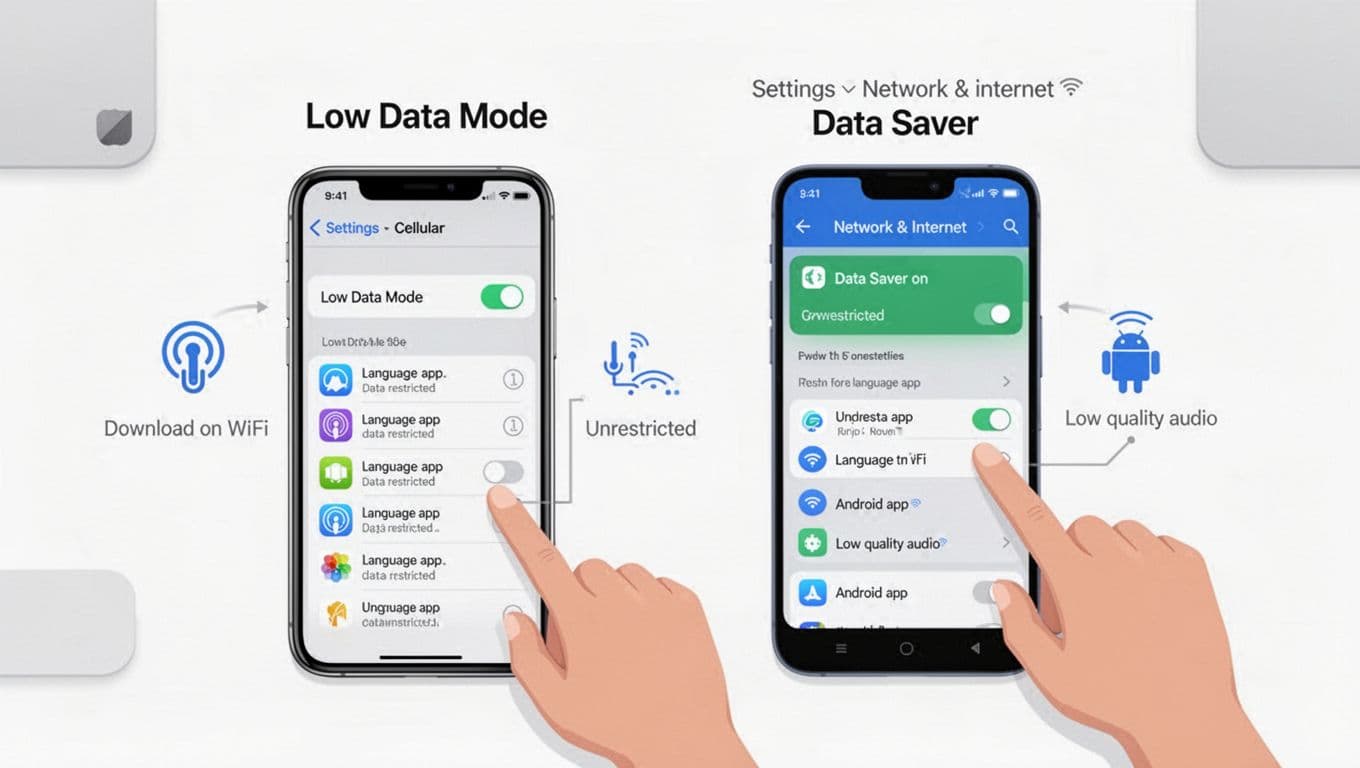
iOS (iPhone) paths to reduce cellular use (2026)
- Low Data Mode on cellular: Settings > Cellular > Cellular Data Options > Data Mode > Low Data Mode
- Low Data Mode on Wi-Fi: Settings > Wi-Fi > (i) next to your network > Low Data Mode
- Block cellular for one app: Settings > Cellular > scroll to the app > toggle OFF
- Reduce background activity: Settings > General > Background App Refresh > Off (or Wi-Fi)
Also check Wi-Fi Assist: Settings > Cellular > scroll to bottom > Wi-Fi Assist (turn it OFF during testing).
Android paths (Pixel, Samsung, and similar menus)
Android menus vary by brand, but these are common:
- Data Saver: Settings > Network & internet > Data Saver (turn ON)
- Per-app background restriction: Settings > Apps > (your language app) > Mobile data & Wi-Fi (or Data usage) > disable Background data
- Set data warning/limit (carrier-friendly): Settings > Network & internet > SIMs > Data warning & limit
Carrier tools can also help. Many carriers let you set alerts or hard stops in their account app, which reduces bill shock even when app behavior changes.
Common in-app toggles worth hunting for
These usually live under Profile, Settings, Download, Offline, Audio, Video, or Playback. Use this table as a quick reference.
| In-app toggle to look for | What it changes | Typical impact on data |
|---|---|---|
| Download lessons on Wi-Fi only | Prevents accidental downloads on cellular | High savings if you use offline often |
| Autoplay video OFF | Stops surprise video loads in feeds or stories | High savings in video-heavy courses |
| Lower audio quality | Uses smaller audio files (or more compression) | Medium savings, fewer spikes |
| Disable auto-repeat / auto-play audio | Reduces repeated streaming requests | Medium savings in listening drills |
| Limit background sync | Delays progress uploads until you open the app | Low to medium savings, helps standby use |
| Ads personalization OFF (if offered) | Can reduce third-party requests | Low savings, but fewer background calls |
If you are choosing between two apps, it helps to test more than data. A low-data app that never explains grammar can waste your time instead. This 10-minute grammar audit for language apps pairs well with the data test when you are deciding what to keep.
Conclusion
A 15-minute test turns vague worry into a number you can use. Once you know your MB per lesson, you can pick the right mix of streaming and downloads, then lock in data-saving settings at the OS and app level.
Run the test twice, average it, and re-test after major updates. Your future self will thank you the next time you study on a train with one bar of signal and no spare gigabytes.
Ready to Take Your Language Learning Further?
Your favorite language-learning app is a great place to start. Rocket Languages can help you go further with interactive audio lessons, pronunciation practice, real-world conversations, and structured learning.
Explore Rocket Languages →Affiliate disclosure: We may earn a commission if you purchase through this link, at no additional cost to you.